Contains, May contain, Couldn't read clearly: AllergenLens results explained
What each of the four AllergenLens result states means, how the card at the top is chosen, and what the app tells you when part of a label couldn't be read.
Short answer
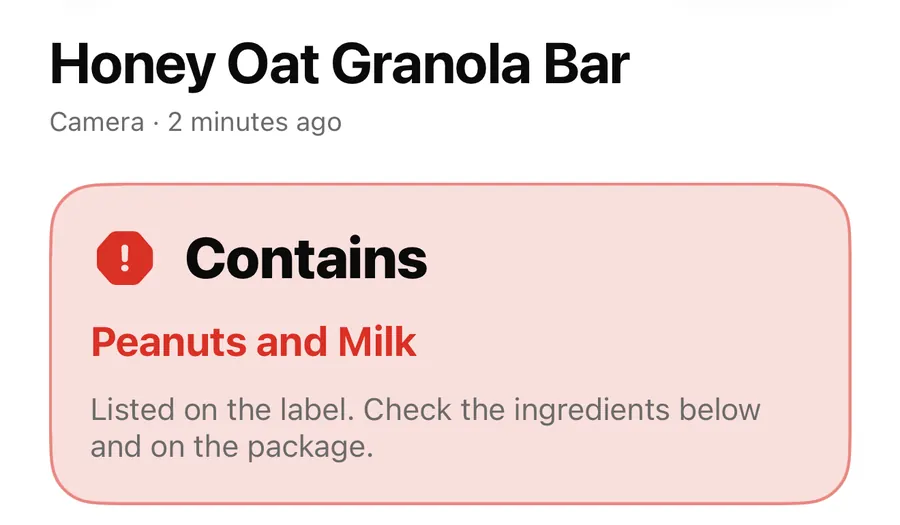
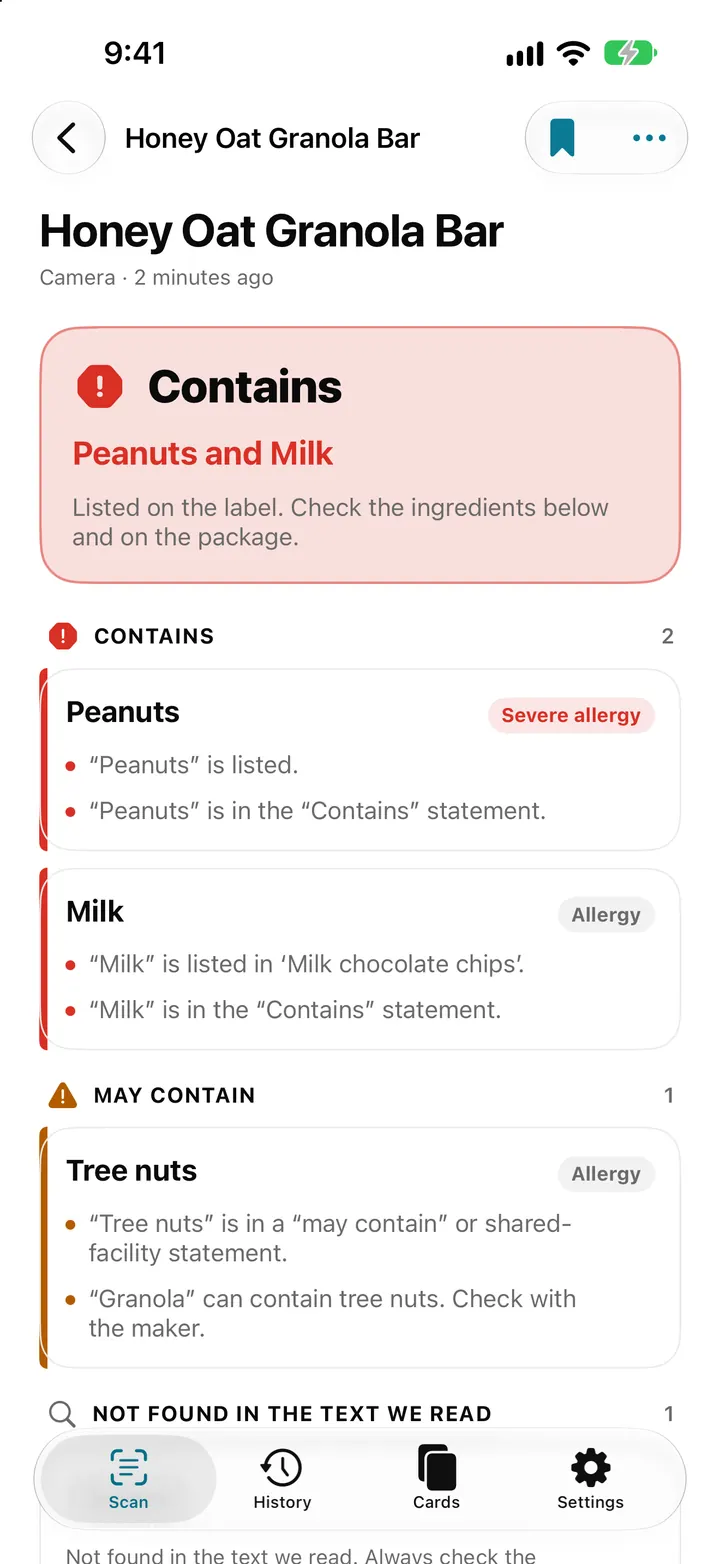
Every AllergenLens result is one of four states: Contains, May contain, Couldn't read clearly or Not found in the text we read. The card at the top shows the most serious state found, and the findings below explain each one. When part of the label couldn't be read, a separate card says what was missed, and the app won't show Not found if a gap could hide a match.
A scan result should tell you two things: what was found, and how much of the label was actually checked. AllergenLens keeps those apart. The top card and the findings cover the first. A card called What we couldn't read covers the second. This post explains both, so you know how far to trust a result before you put the pack in the basket.
The four states
| State | When you see it | What to do |
|---|---|---|
| Contains | A word in the ingredient list or the Contains line matches your profile. | Check the ingredients below and on the package. |
| May contain | A may contain or shared-facility warning names it, or an ingredient can come from it. | Check with the maker. |
| Couldn't read clearly | Part of the label couldn't be read, or a word could mean more than one thing. | Scan again or read the label yourself. |
| Not found in the text we read | Nothing from your profile was found in the words that were read. | Still read the label yourself. It is not a guarantee. |
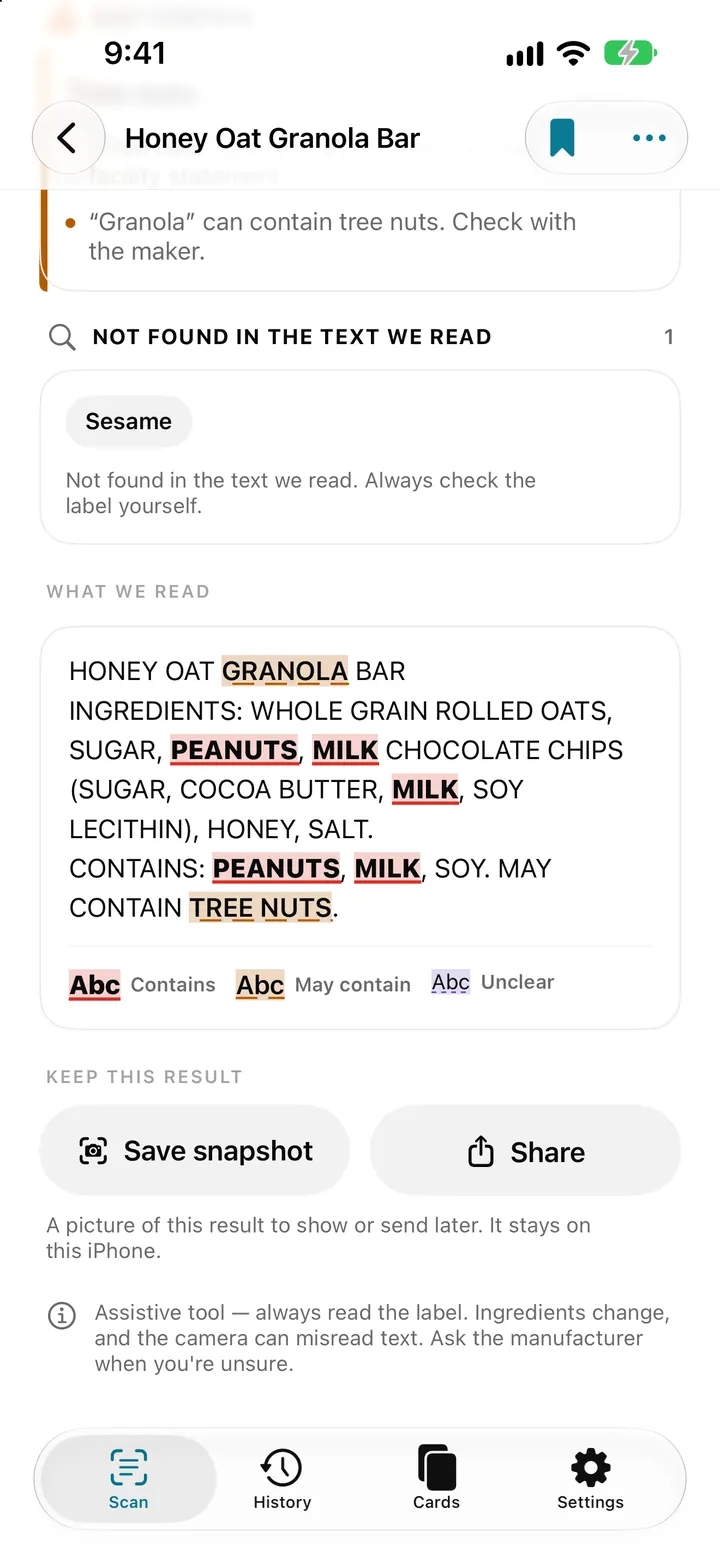
In the findings, Couldn't read clearly is shortened to Unclear, and the last state is shown as small chips with the reminder Not found in the text we read. Always check the label yourself.
The wording matters. Not found is never phrased as an all-clear: the card says That doesn't mean it isn't there. Each state also has its own vibration when the result appears, except Not found, which has none, so it never feels like a green light.
How the top card is chosen
AllergenLens checks every item in your profile on its own, then the top card shows the most serious result among them, in this order: Contains, then May contain, then Couldn't read clearly, then Not found. If peanuts are listed and sesame isn't found, the card says Contains and names peanuts.
For each item, the rules are simple:
- Any direct match in the list or the Contains line gives Contains.
- Otherwise, a precautionary statement or an ingredient that can come from it gives May contain.
- Otherwise, a gap in what was read, a word that looks like a match but isn't certain, or a match outside the ingredient list gives Couldn't read clearly.
- Only when none of those apply does it say Not found in the text we read.
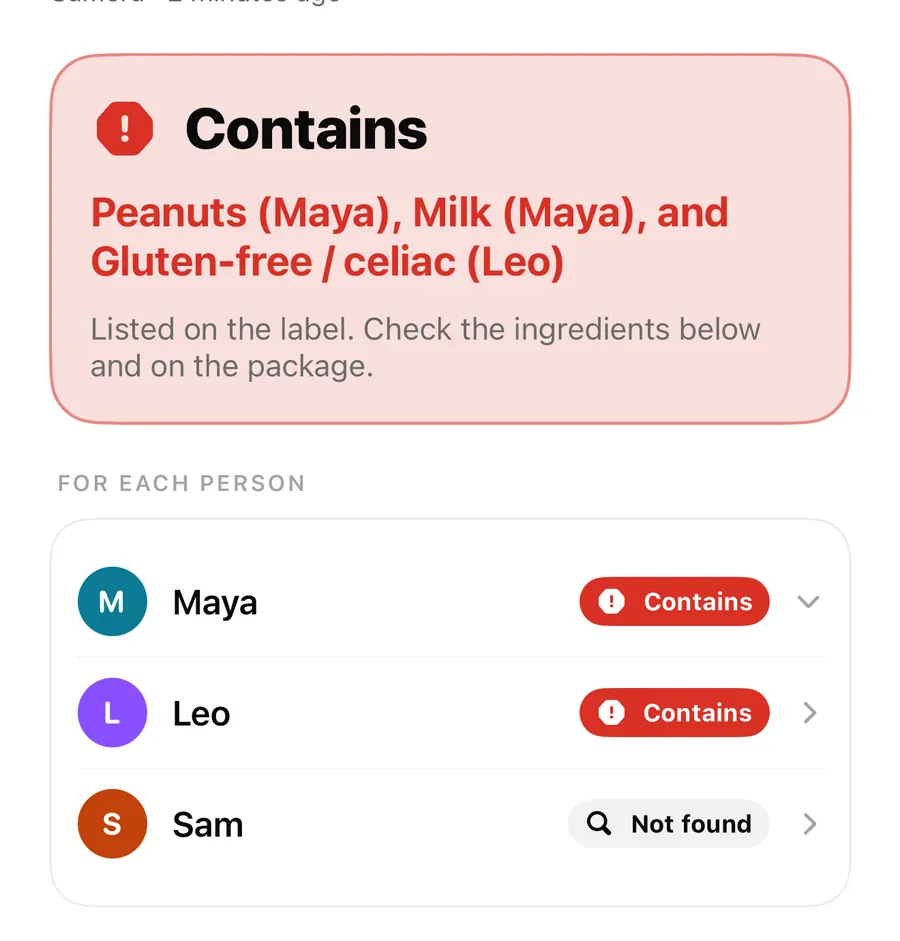
With AllergenLens Plus and more than one profile, Whole family checks the label for everyone at once. The top card then shows the most serious result across the family and names who it applies to, and a For each person list gives each person's state. More in whole family mode.
What we couldn't read
When AllergenLens can tell that part of the label is missing or unclear, it adds a card called What we couldn't read with a Scan again button. These are the notes you may see:
- We couldn't find the “Ingredients” heading, so the start of the list may be missing.
- The end of the ingredient list may be cut off.
- Part of the list touches the edge of the picture, so some words may be cut off.
- Some words were hard to read.
- Brackets in the list don't match up, so part of it may be missing.
- The photos couldn't be lined up into one list, so words where they meet may be missing.
- Part of the label is in a language AllergenLens can't read yet, so it was skipped. The list in a language it reads was checked.
Most of these gaps block a Not found result. If the end of the list may be cut off, the app can't say a word isn't there, so an item that would have been Not found becomes Couldn't read clearly instead. Two notes are lighter: mismatched brackets and a skipped language. They are shown, but on their own they still allow Not found for the part of the list that was checked. Labels in several languages are covered in foreign-language labels.
If almost nothing could be read, you see We couldn't read enough of the label. Try again with more light, a little closer, and the camera steady. If the text has no ingredient list at all, the app asks you to scan the part of the label that starts with Ingredients.
When a result says Couldn't read clearly
- Open What we couldn't read and read the note.
- If the list is cut off or touches the edge, tap Scan again and fill the frame with the whole list.
- If the list continues on another side of the pack, tap Add photo instead, so both photos are checked together.
- If a finding says a word looks like something on your profile, compare it with the pack.
- If it still isn't clear, read the label yourself or ask the maker.
Unclear findings, one by one
Some Unclear findings come with their own reason, which helps you check the right spot:
- We read “X”, which looks like “Y”. Check the label. The camera read a word close to one on your profile.
- “X” appears outside the ingredient list. Check the label. It was found on the pack, but not in the list itself.
- Emphasized word not recognized. A word in capitals in an otherwise lower-case list wasn't recognised, and labels often use capitals for allergens.
When an item has no reason of its own but a gap in the label blocks it, the finding says Not confirmed, because part of the label couldn't be read.
FAQ
Why does the top card say Contains when only one allergen matched?
The top card shows the most serious result across everything you checked. The findings below list each item, including those that were not found.
Why did I get Couldn't read clearly instead of Not found?
Part of the label couldn't be read, so the app couldn't rule anything out. The What we couldn't read card says which part.
Does Not found mean the product is fine for me?
No. It is not a guarantee. It means nothing from your profile turned up in the text that was read. Always read the label yourself.
What if I think a result is wrong?
Check the label and the highlights first. If a word was missed or matched wrongly, you can report it from the result; see share a result and report a miss or our support page.
Download AllergenLens and see exactly what was read on your next label.
Keep reading
Scan an ingredient label with your iPhone: how AllergenLens checks it
Point your iPhone at an ingredient list and AllergenLens shows Contains, May contain or what it couldn't read for your allergies and diet, all on the device.
Read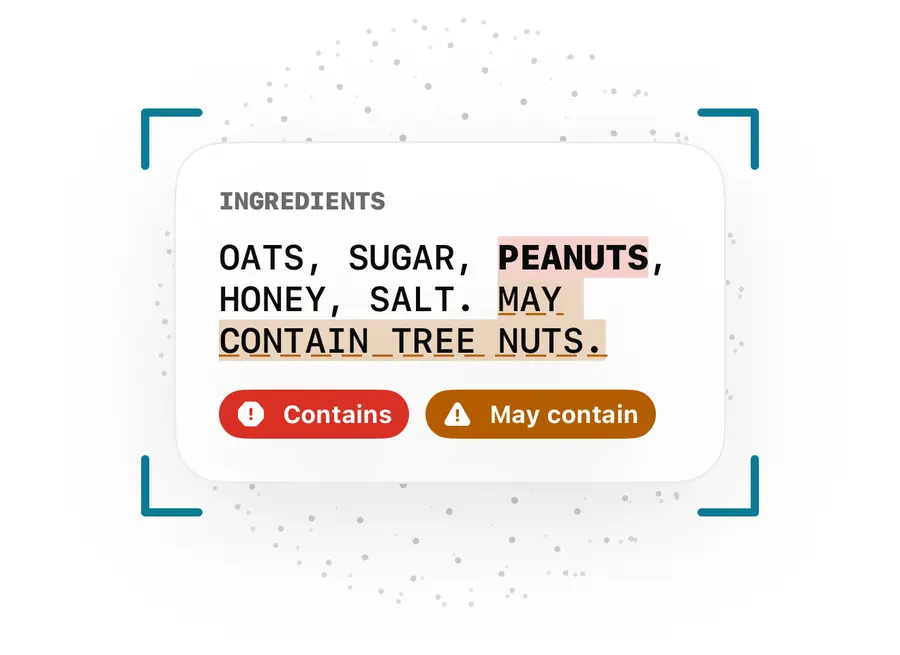
May contain, Contains lines and free-from claims: how AllergenLens reads them
How AllergenLens handles may contain and shared-facility warnings, the Contains line, ingredients that can come from an allergen, and free-from claims.
Read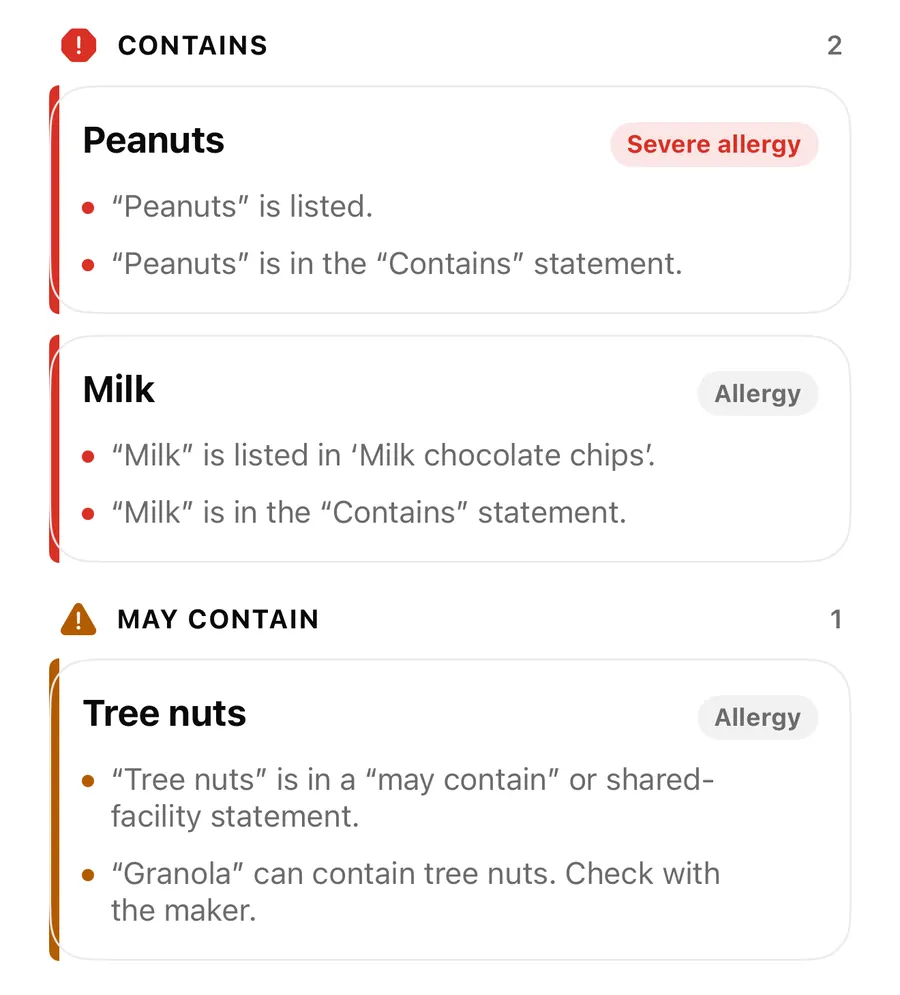
Long and curved labels: check one ingredient list from several photos
When an ingredient list wraps around a bottle or runs onto another side of the pack, add photos in AllergenLens and it checks all of them together as one list.
ReadWhat Does a Coverage Indicator Do in a Label-Reading App?
Understand the AllergenLens coverage indicator, why coverage can be low, and when to retake a photo, read manually, or ask the manufacturer.
Read guide