Share an AllergenLens result, save a snapshot or report a missed allergen
Save a picture of an AllergenLens result, share it with family or a carer, and tell us about a missed or wrong allergen with an email you check before sending.
Short answer
At the bottom of every AllergenLens result, Save snapshot keeps a picture of the result on your iPhone and Share sends that picture through the usual iOS share sheet. If the app missed an allergen or flagged one by mistake, Report a miss prepares an email with the text it read, so you can check it and add your own words. Nothing is sent until you tap Send.
A result is often something you want to show someone else: a partner doing the shopping, a grandparent looking after a child, or a teacher planning a class snack. AllergenLens turns a result into one clear picture you can keep or send, without an account or a link to a server. And when the app gets something wrong, there is a simple way to tell us.
What a snapshot shows
A snapshot is a picture of the result drawn as a printed card, always on a light background so it reads the same wherever it ends up. It includes:
- the product name, and when the label was scanned and checked
- the label photo, when the scan has one
- the overall result card, such as Contains with the allergens it named
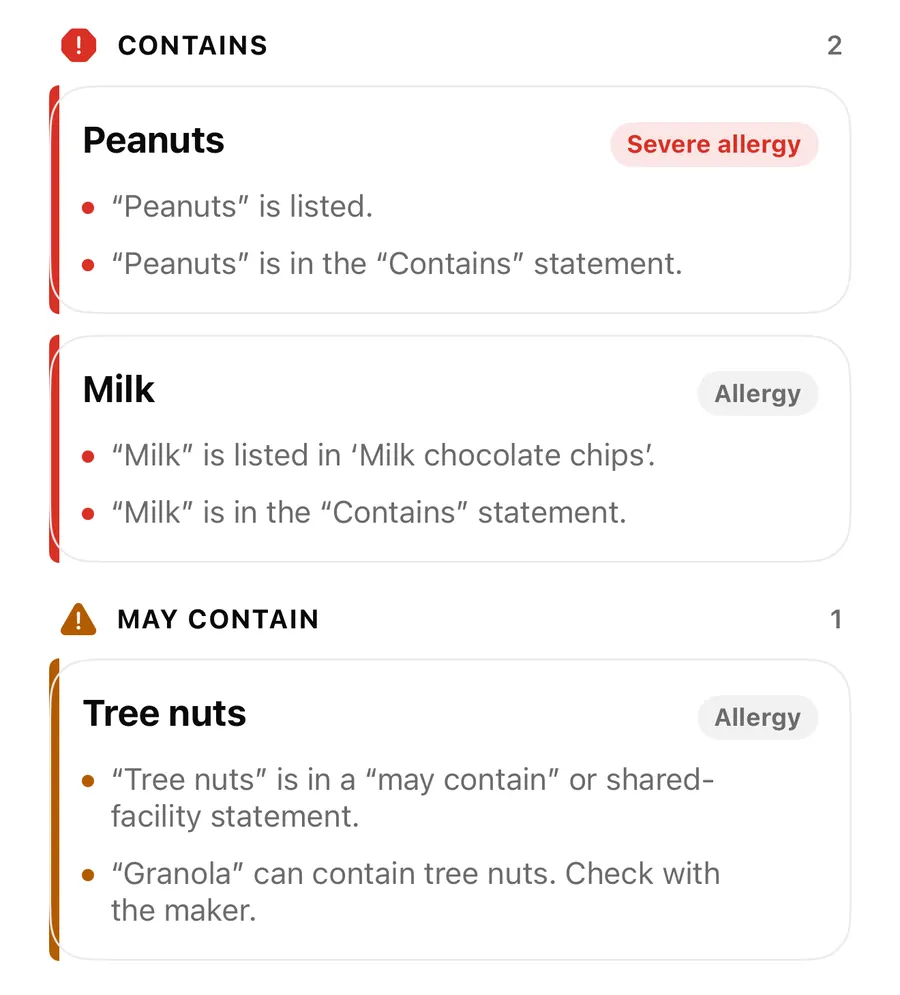
- a row for each person checked, with their result and what matched
- What we read, with every match marked. For a long label it shows only the parts that matched
- the reminder to always read the label, and the allergen word list version it was checked with
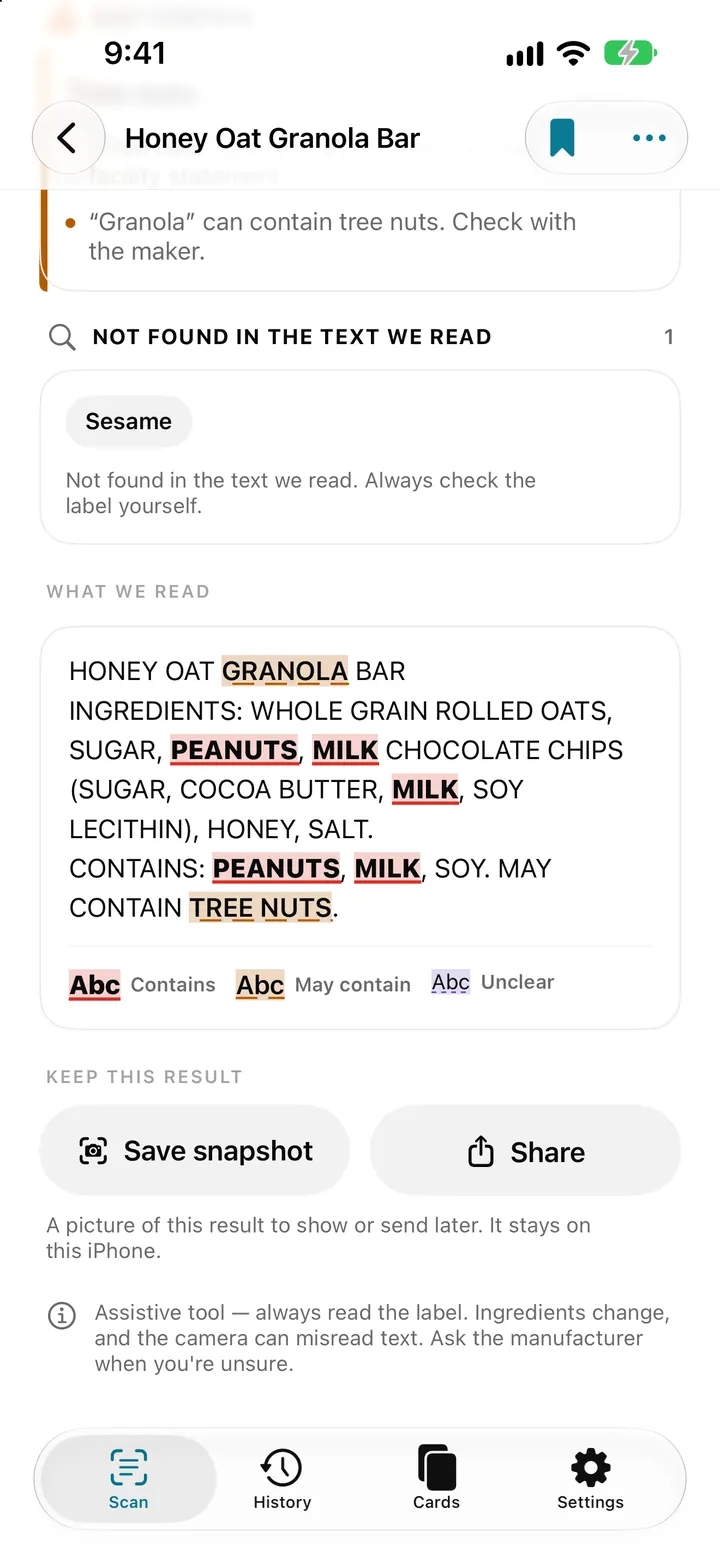
Because the snapshot carries the label text and the reasons, the person who receives it can see why the app said what it said, not just a red or orange badge. That matters: a result only means something next to its reasons. The highlights post explains the marks in What we read.
Save snapshot or Share
The two buttons sit under the heading Keep this result:
| Button | What happens |
|---|---|
| Save snapshot | The picture is kept on this iPhone. A link appears: Saved on this iPhone. See snapshots. |
| Share | The iOS share sheet opens with the picture, ready for Messages, Mail, AirDrop or Files. |
Saved snapshots live in Settings under Result snapshots. Open one to zoom in, share it again or delete it. Deleting a snapshot doesn't delete the scan, and deleting a scan doesn't delete its snapshots, so a picture you kept for a school form stays where you put it.
Share a result with someone
- Open the result, from a new scan or from History.
- Scroll to Keep this result below What we read.
- Tap Share and pick who to send it to, or tap Save snapshot to keep it on your iPhone first.
- Tell the person the date on the snapshot. Recipes change, so the picture is about the pack you scanned that day.
Report a missed or wrong allergen
No word list knows every name an ingredient hides under, and the camera can misread a word. When you spot a mistake, tap Report a miss. You'll find it in three places: a card near the end of the result (Something missed or flagged by mistake? Send us the text that was read.), the More menu at the top of the result, and under an allergen when the Contains line names something the app didn't match in the ingredient list.
The Report a miss screen shows exactly what will go into the email before anything is sent:
- Flagged words: each word the result points at, with what it was matched to and how
- Text read from the label: the text as the app read it
- Versions: the app version and the allergen word list version
Tap Write email and your email opens with these details under the heading Details from AllergenLens, with a blank space at the top for your own words: what was missed, what the pack actually says, or a photo of the bit that matters. The report includes no profile names.
Attaching the label photo
If the scan has label photos and Mail is set up on your iPhone, a switch offers Attach the label photo. It is Off unless you turn it on, and only photos of this label are attached. If you use another mail app, the app opens it with the same details and reminds you: To include the label photo, attach it in your mail app. Without any mail app, you can copy the support address and write from another device.
The allergen word list only changes with an app update, so a report never changes your result straight away. The word list updates post explains how saved scans are checked again when a new list arrives.
FAQ
Does sharing a result upload anything?
No. The snapshot is made on your iPhone and goes only where you send it through the share sheet. AllergenLens has no server and no account.
Can I find a snapshot I saved last month?
Yes. Go to Settings and open Result snapshots. They stay on this iPhone until you delete them.
What is in a Report a miss email?
The result, the flagged words, the text read from the label, the app version and the word list version. Profile names are not included, and a label photo is only attached if you turn that on.
Is anything sent automatically when I open Report a miss?
No. Your email opens with the details filled in so you can read and edit them. Nothing is sent until you tap Send.
Download AllergenLens to keep and share the results that matter.
Keep reading
See every match on the label: highlights, Show on photo and Read aloud
AllergenLens marks each match in the text it read and on your label photo, so you can check it against the pack, then save a snapshot or hear it read aloud.
Read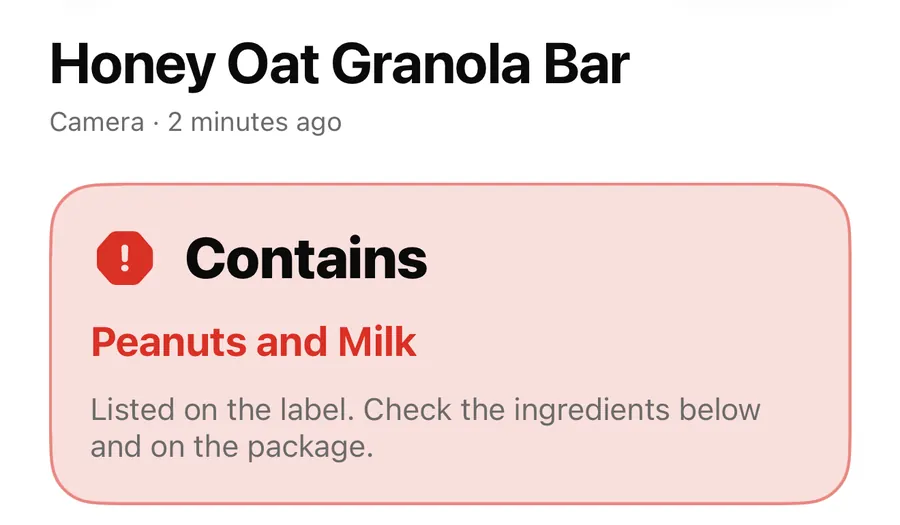
Contains, May contain, Couldn't read clearly: AllergenLens results explained
What each of the four AllergenLens result states means, how the card at the top is chosen, and what the app tells you when part of a label couldn't be read.
Read
AllergenLens privacy: labels read on your iPhone, no account, no server
AllergenLens reads labels on your iPhone, keeps profiles and photos on the device, needs no account, and lets you turn off usage stats or erase it all at once.
ReadIngredient Names That Are Easy to Miss on Food Labels
Reduce missed ingredient names in AllergenLens with profile terms, context, synonyms and a complete warning review.
Read guide