AllergenLens privacy: labels read on your iPhone, no account, no server
AllergenLens reads labels on your iPhone, keeps profiles and photos on the device, needs no account, and lets you turn off usage stats or erase it all at once.
Short answer
AllergenLens reads ingredient labels on your iPhone and keeps your profiles, label photos, results and snapshots on the device. There is no account and no AllergenLens server. Anonymous usage stats count which screens and features are used, never what you scan or what you avoid, and you can turn them off in Settings. Erase all data deletes everything at once.
What you're allergic to is health information, and so are your child's allergies. An allergy app shouldn't need to know who you are to read a label. AllergenLens was built so it doesn't: you open it, say what you avoid and start scanning. This post explains where each kind of data lives, what the optional usage stats include, and how to clear things away.
No account, no server
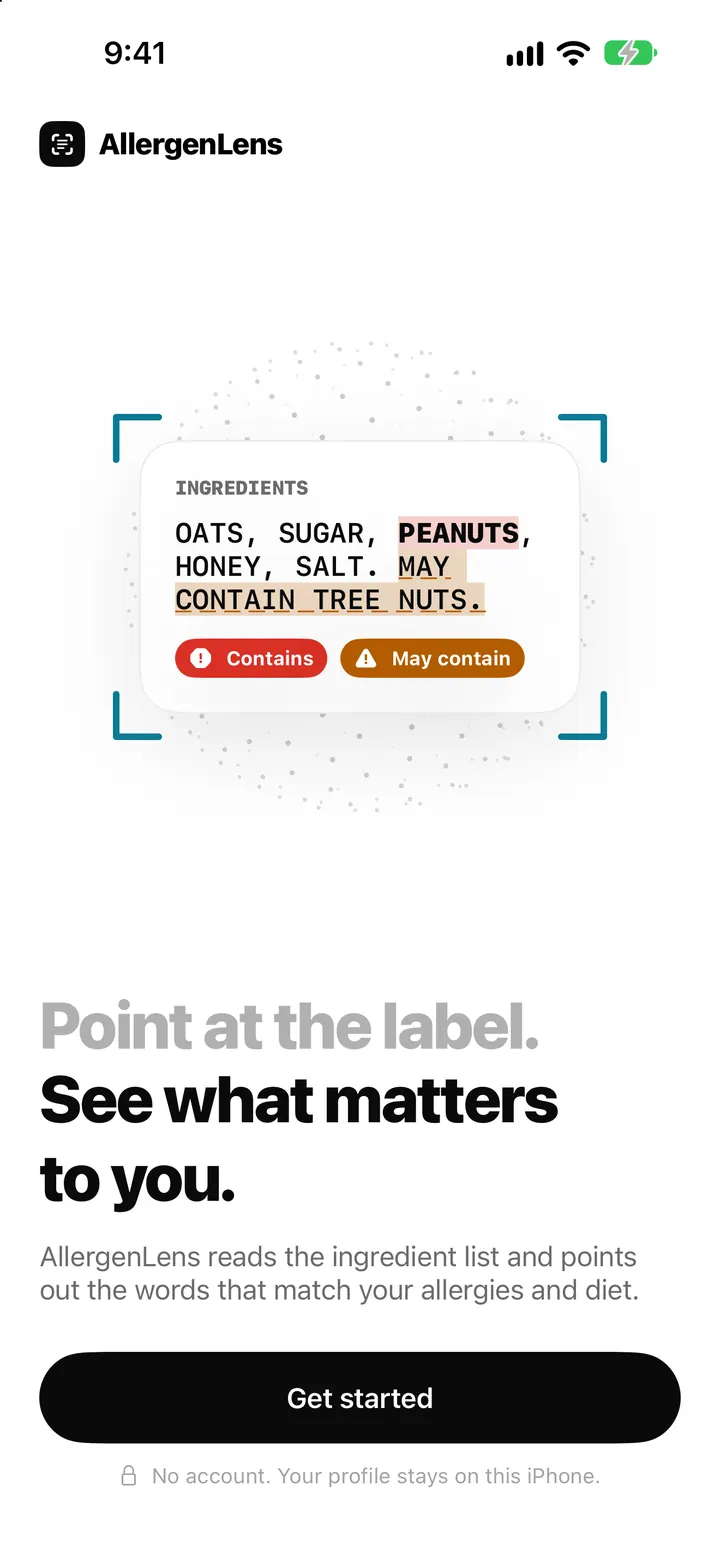
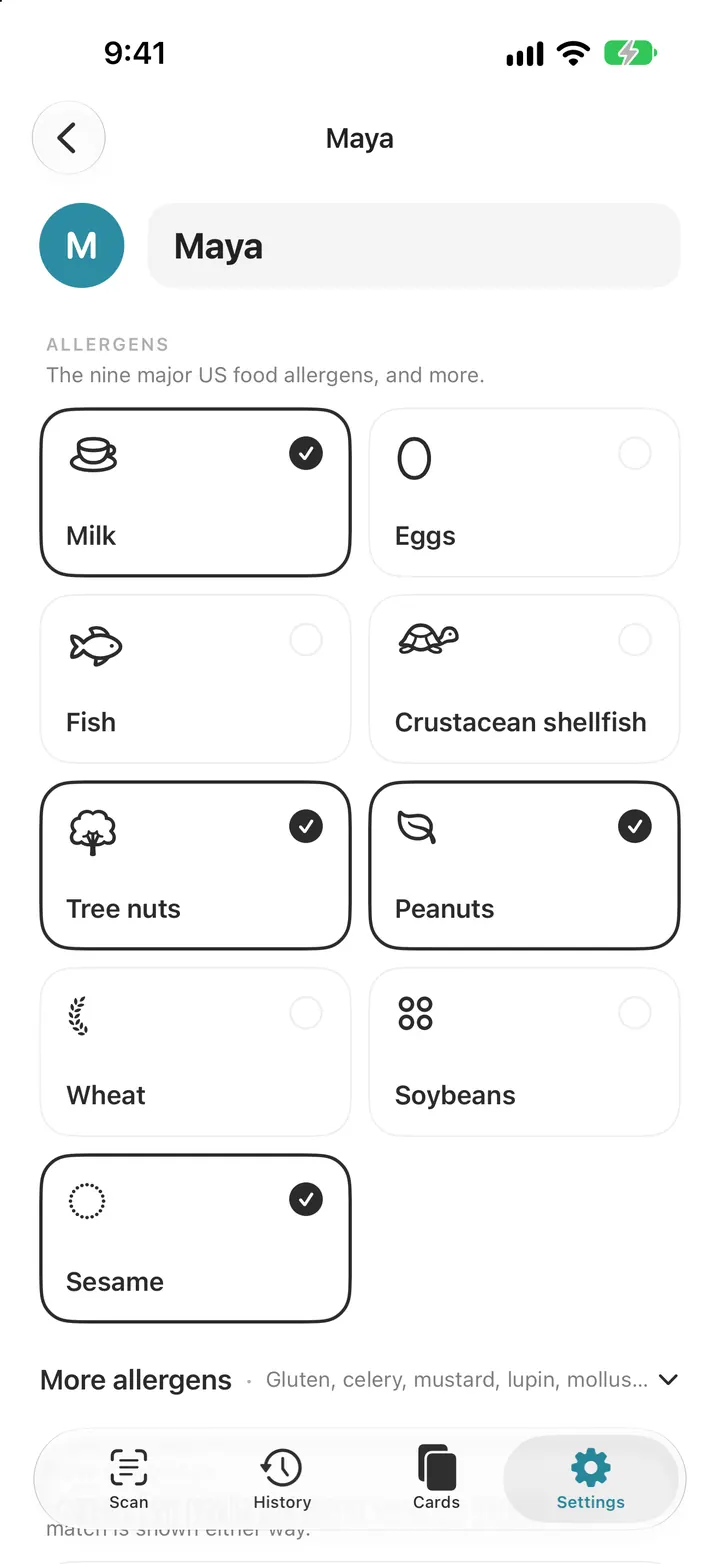
The first screen says it plainly: No account. Your profile stays on this iPhone. There's no sign-up, no password and no email address to give. Profiles are stored on the device, and the profile screen repeats the point: Profiles are health information. They stay on this iPhone and are never uploaded.
Where each thing is read and kept
| What | Where it happens |
|---|---|
| Label text | Read on your iPhone with Apple's on-device text recognition. Photos are not uploaded. |
| Allergen check | Matched on the device against the allergen word list that ships with the app. |
| Plain-words explanation | Where available, Written by Apple Intelligence on this iPhone. |
| Card note translation | Apple's translation on the device. The first translation downloads the language to this iPhone. |
| Profiles, scans, label photos, snapshots, saved cards | Kept only on this iPhone, and in your own device backup. |
| Visual Intelligence pictures | Held briefly until the app reads them, then deleted. |
Because the check runs on the device, scanning works without a signal. The allergen word list only changes with an app update, so it isn't fetched from anywhere while you scan.
The app asks for the camera to read ingredient lists, and to find scans you kept by a product's barcode. When you pick a photo, only that photo is read. It asks to add to your photo library only when you save a travel card there.
What usage data includes, and how to turn it off
Settings has one switch under Privacy: Share anonymous usage. In the app's own words, usage data counts which screens and features are used, a few general settings such as Plus and a rough number of profiles, and error codes when something goes wrong. It never includes what you scan, what you avoid or which allergens you track. The number of profiles is sent as a rough range, not a list of who they are.
AllergenLens has no ads and no tracking across other apps or websites. If you'd rather send nothing at all, turn the switch off. The app works the same either way. The guide why turn off anonymous usage statistics goes into the trade-off.
Review your privacy settings
- Open Settings.
- Under Privacy, turn Share anonymous usage off if you don't want to send usage counts.
- Open Storage & history to see how much space label photos, snapshots and saved cards use.
- Turn off Keep activity history if you don't want new actions listed, or tap Clear history.
- Open Result snapshots and delete any pictures you no longer need.
Activity history and storage
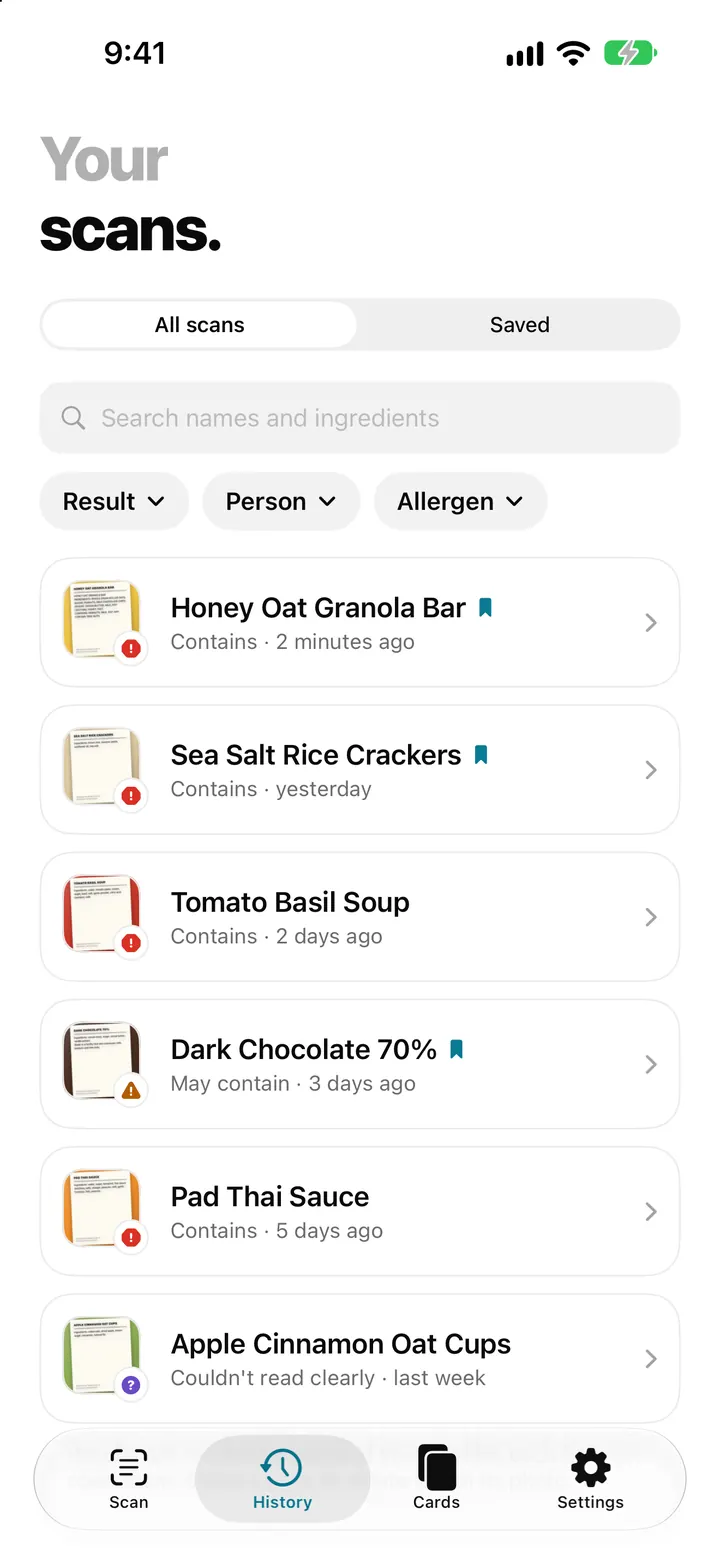
Recent activity lists your last 500 scans, snapshots, travel cards and profile changes so you can find them again. Turning off Keep activity history stops new entries; scans and photos are kept either way. Clear history removes only that list: Everything you saved stays on this device.
Scans themselves are managed in History. Swipe a scan to delete it together with its label photo. Without Plus, AllergenLens keeps only your latest scan, so older free scans and their photos don't pile up. More in scan history and saved products.
Erase everything
At the bottom of Settings, Erase all data deletes every profile, scan, saved product, label photo, snapshot and saved card on this iPhone, and clears the activity history. It asks first, because it can't be undone. Your usage-stats choice is kept. Deleting the app removes its data from the iPhone too.
When something does leave your iPhone
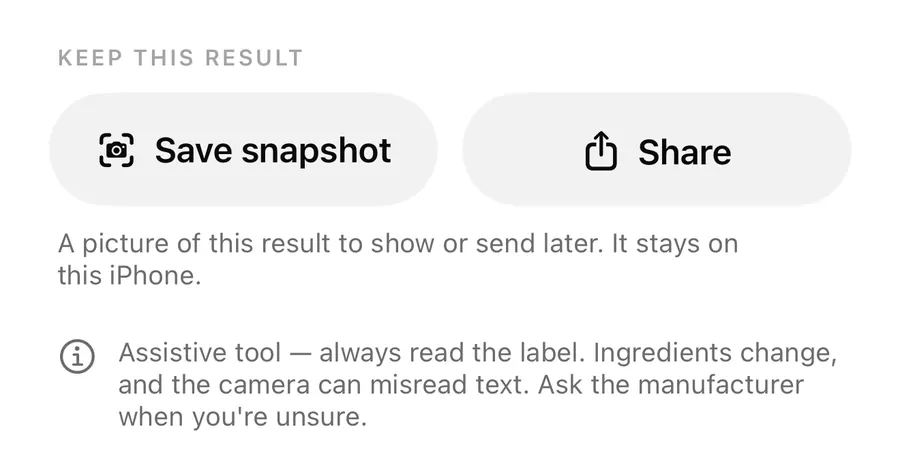
Only when you send it. Share on a result or a travel card hands a picture or PDF to the app you choose. Report a miss opens an email you read and send yourself, and attaches a label photo only if you turn that on. Both are covered in sharing results and reporting a miss. A snapshot includes the names of the people checked, so choose who you share it with.
FAQ
Does AllergenLens upload my label photos?
No. Labels are read on your iPhone and photos stay there. A photo only leaves if you share it, or attach it to a Report a miss email yourself.
Do I need an account to use AllergenLens Plus?
No. Plus is bought through your Apple ID, and Restore purchases in Settings brings it back on another iPhone. There is no AllergenLens account.
Can I see what usage data says about my allergies?
It never says anything about them. Usage data counts screens, features, a few general settings and error codes, and never includes what you scan or which allergens you track.
What happens to my data if I move to a new iPhone?
It is kept in your own device backup, so restoring that backup to the new phone brings it along. AllergenLens itself has no cloud copy.
Download AllergenLens and keep your allergy details on your own phone.
Keep reading
Share an AllergenLens result, save a snapshot or report a missed allergen
Save a picture of an AllergenLens result, share it with family or a carer, and tell us about a missed or wrong allergen with an email you check before sending.
ReadScan history and saved products: find a label you checked before
AllergenLens keeps your scans on your iPhone, lets you save products you buy often, finds them by barcode and re-checks them whenever your profiles change.
Read
AllergenLens Free vs Plus: what every plan includes
Every AllergenLens warning is free with unlimited scans. Plus adds family profiles, scan history, saved products and travel allergy cards. Here's the full list.
ReadWhat does allergy information stored on your phone mean?
Understand how AllergenLens stores profiles and scan history on a device, and how to protect backups while respecting privacy limits.
Read guide