Scan history and saved products: find a label you checked before
AllergenLens keeps your scans on your iPhone, lets you save products you buy often, finds them by barcode and re-checks them whenever your profiles change.
Short answer
The free app keeps your latest scan. With AllergenLens Plus, the History tab keeps every scan with its label photo, and you can save products you buy often. Search, filter and swipe to delete; point the camera at a barcode and a product you kept opens again. Every result is re-checked against your profiles each time you open it.
Most of us buy the same twenty things every week. Scanning the ingredient list each time is the right habit, because recipes change, but it helps to see what the label said last time and which products you already checked for whom. AllergenLens keeps that list on your iPhone, with no account and no server.
What the free app keeps
Without Plus, AllergenLens keeps your most recent scan. When you scan something new, the older scan and its photo are deleted. Every scan still gets the full result and all warnings, so nothing about checking a label is held back. If you had Plus and saved products, they stay visible after Plus ends.
History with AllergenLens Plus
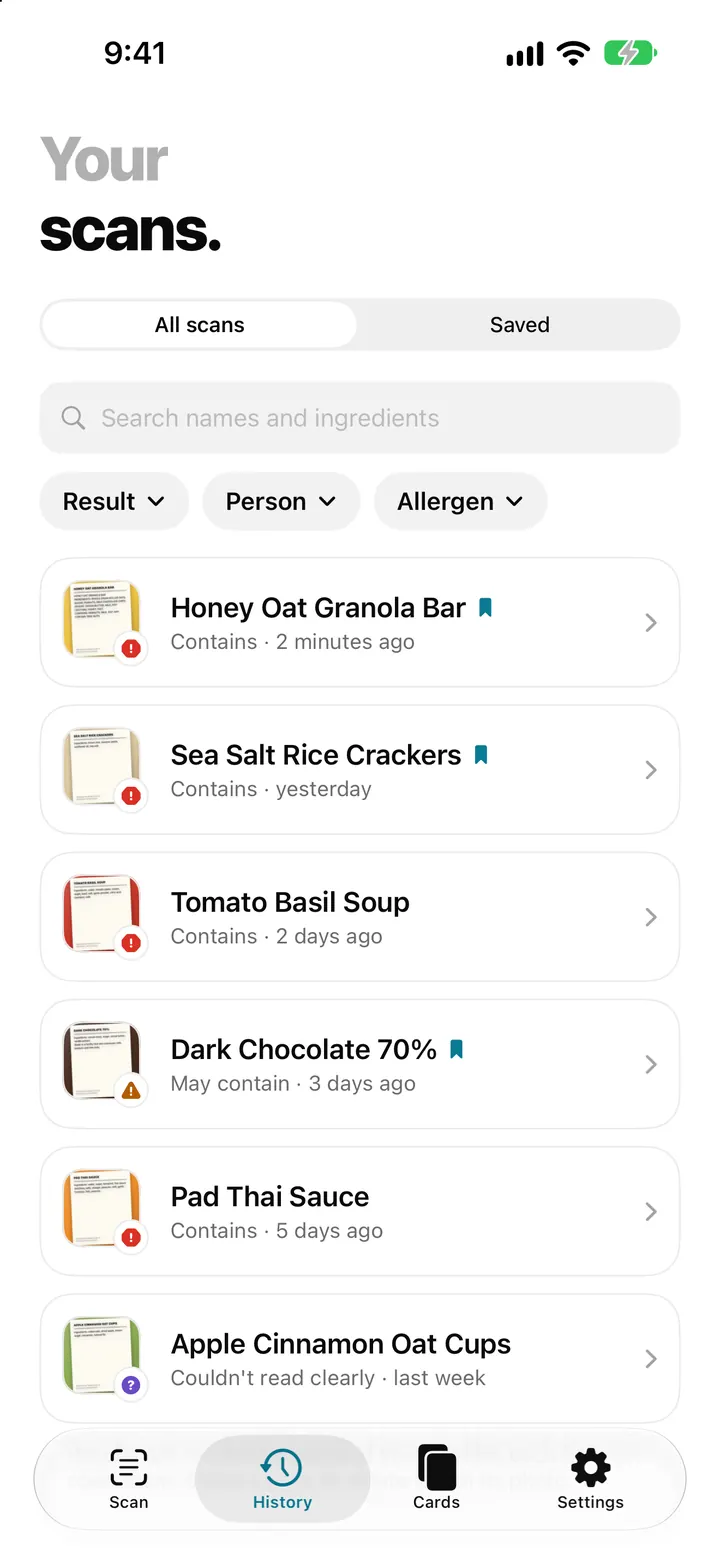
With Plus, the History tab lists every scan, newest first. Each row shows the label photo, the product name, a bookmark if you saved it, and the result with when you scanned it, for example Contains · 2 minutes ago.
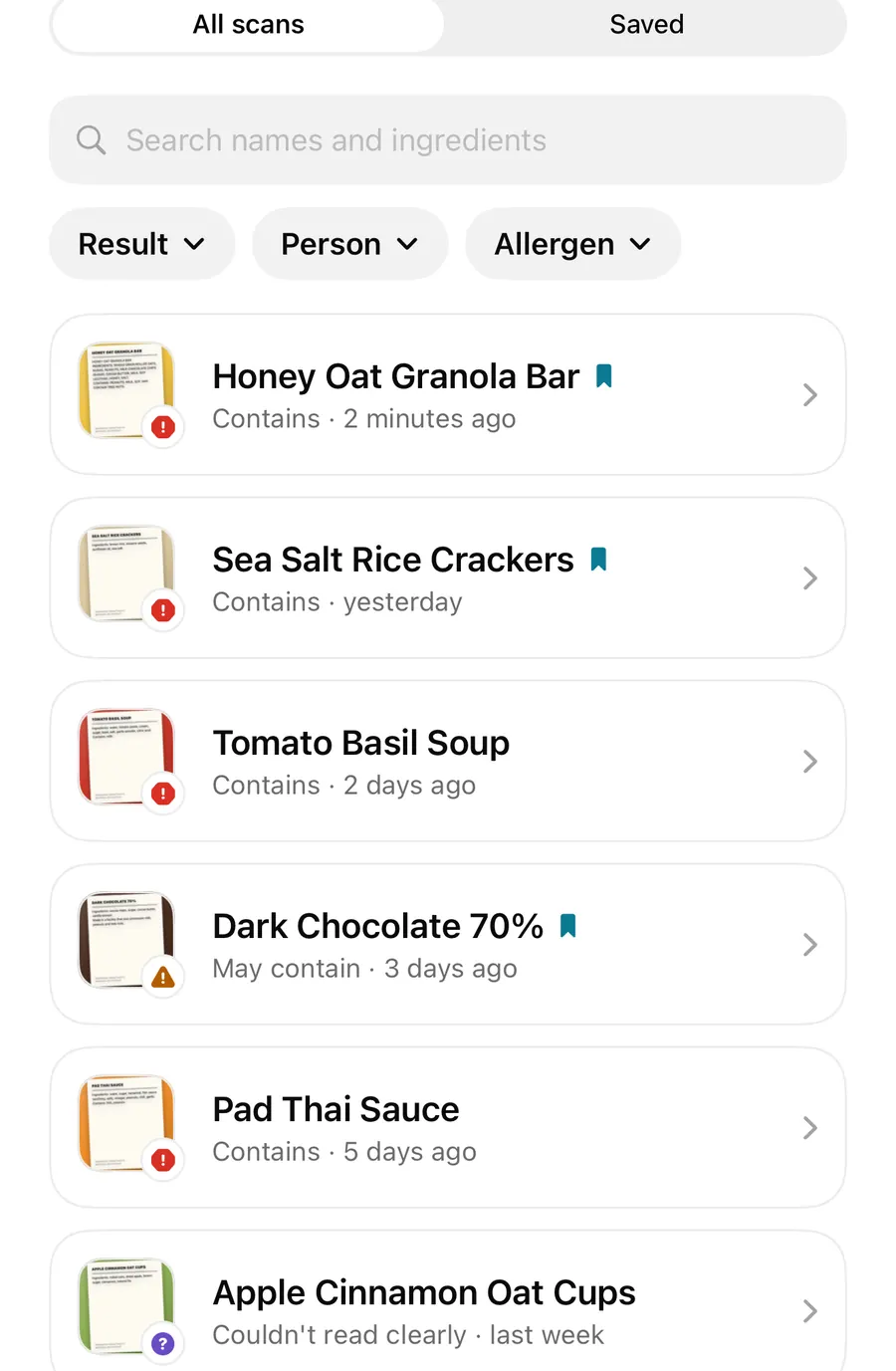
Once there is more than one scan, a search field and filters appear:
| Control | What it does |
|---|---|
| All scans / Saved | Switch between every scan and only the products you saved |
| Search names and ingredients | Finds words in the product name or in the text read from the label |
| Result | Shows scans by today's result: Contains, May contain, couldn't read clearly, or not found in the text we read |
| Person | With family profiles, shows scans checked for one person |
| Allergen | Shows scans whose label names a chosen allergen |
Clear filters puts everything back. Remember that Not found in the text we read only describes the text the app read; it isn't a promise that an allergen is absent.
Product names
AllergenLens guesses a name from a short line above the ingredients. If it guesses wrong, open the scan, tap the name and type a better one, or use Rename in the … menu.
Saved products
Tap the bookmark at the top of a result to save it. Saved products sit under Saved in History, so the things you buy often are one tap away. You can also swipe right on a row for Save product or Remove from saved, or touch and hold a row for the same options. Saving needs Plus.
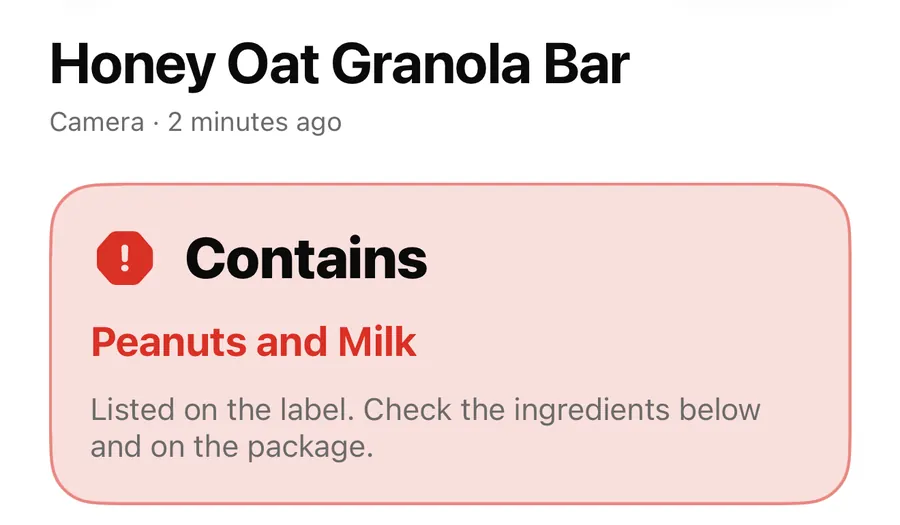
Saved products are listed in iPhone search by name and scan date only, so you can type a product's name on the Home Screen and jump to it. The result and the allergens are not added to search.
Save a product and find it again
- Scan the ingredient list and check the result.
- Tap the bookmark at the top of the result.
- Next time, open History and tap Saved, or search for the name.
- In the shop, point the camera at the product's barcode to bring the saved scan up.
- Read the pack again. If the ingredients look different, use Scan the list again.
Find a product by its barcode
When the live camera sees the barcode of a product you kept, a card appears with Saved product or Scanned before, the name and an Open button. A photo that shows only that barcode opens it too. Saved products come first; otherwise the newest scan is used.
The barcode is only a key to scans on this iPhone. AllergenLens doesn't look the product up online, and it doesn't use a product database. When a scan opens this way, it reminds you that recipes change and offers Scan the list again. More on that in recipe change alerts.
Re-checked every time you open it
A kept scan stores the text read from the label, not a frozen verdict. Each time you open it, AllergenLens checks that text against your profiles as they are today. If you added sesame last week, an old scan that named sesame now shows it.
When the answer differs from the day you scanned, the result says Result changed since this scan and explains what it said then and what it says now. With family profiles, the result covers whoever you check for today; see whole family mode. When an app update brings a new allergen word list, kept scans are checked again too, as described in word list updates.
Deleting scans
Swipe left on a row to delete a scan. Its label photo is deleted with it. From a result, use Delete scan in the … menu; the app asks Delete this scan? and reminds you that saved snapshots stay.
Separately, Settings › On this iPhone › Storage & history has a list of recent activity, your last 500 scans, snapshots, travel cards and profile changes, so you can find them again. You can turn Keep activity history off or Clear history; that only removes the list, not your scans or photos. Erase all data removes everything.
FAQ
Does a saved product stay checked if my profile changes?
Yes. The result is worked out again from the label text each time you open it, against your current profiles.
Can AllergenLens look up a product by barcode I haven't scanned?
No. The barcode only finds scans you kept on this iPhone. There's no online product lookup.
What happens to my history if Plus ends?
The free app keeps only the latest scan going forward. Products you saved while you had Plus stay visible.
Does deleting a scan delete its photo?
Yes. Deleting a scan removes its label photo too. Snapshots you saved separately stay until you delete them.
Download AllergenLens and keep the products you trust close at hand.
Keep reading
Recipe change alerts: re-scan a product and see what changed on the label
Scan a product you checked before and AllergenLens compares the new ingredient list with your last scan, showing allergens that appeared, moved or dropped off.
Read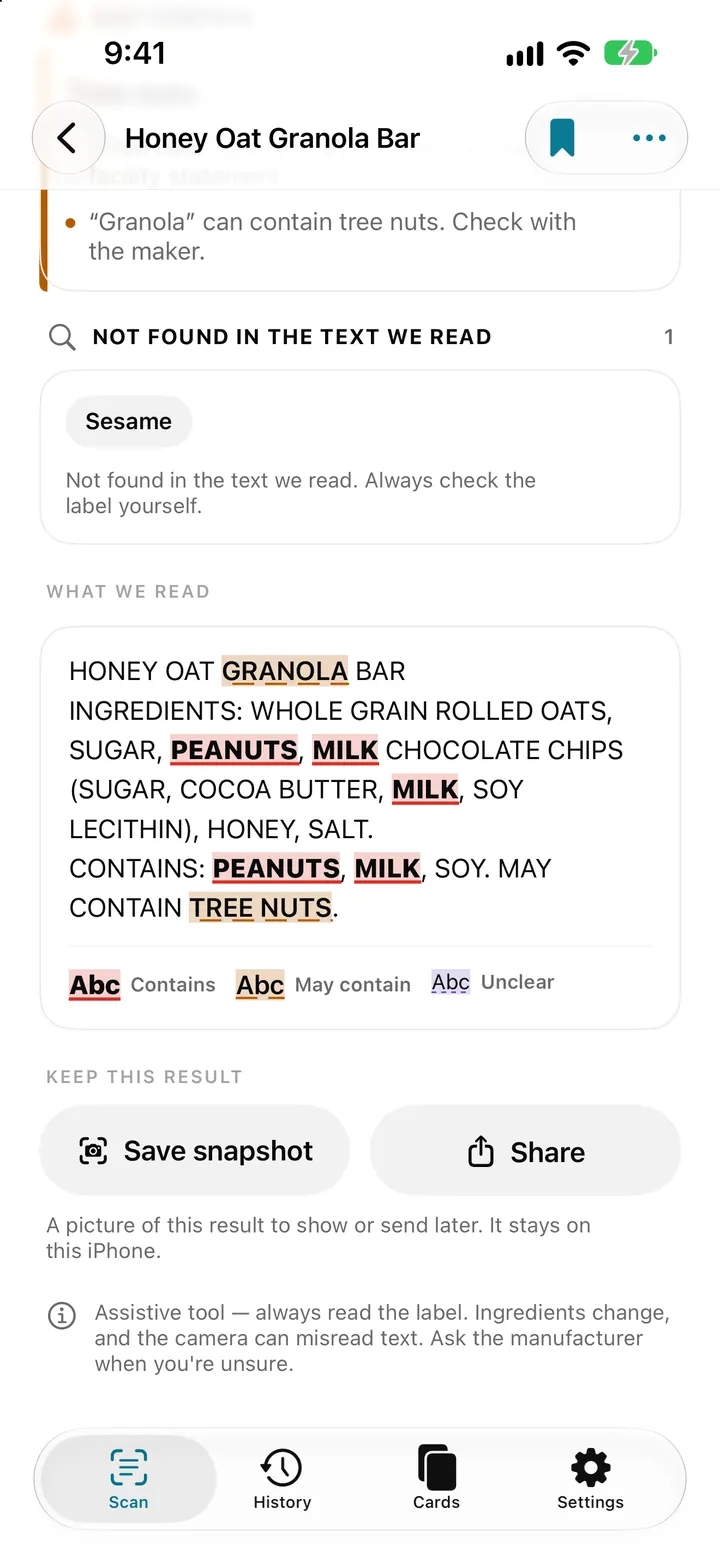
Allergen word list updates: how AllergenLens re-checks your saved scans
AllergenLens matches labels against a versioned allergen word list. When an update brings a new list, kept scans are re-checked and changed results are marked.
Read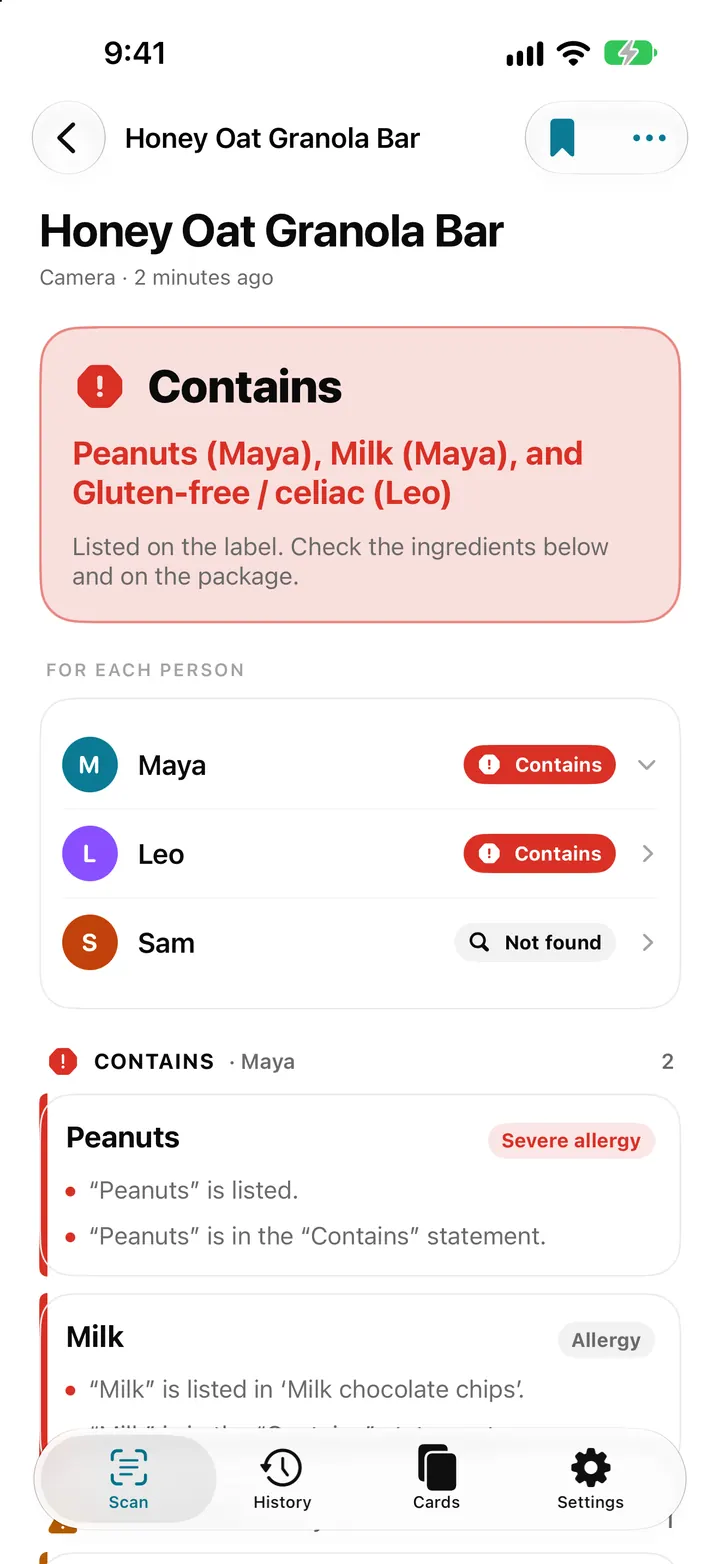
Whole family mode: check one label for everyone in AllergenLens
With AllergenLens Plus, keep up to 6 family profiles and check every scan for the whole family at once, with a separate result for each person you shop for.
ReadWhen Is Scan History Useful in AllergenLens?
Use AllergenLens scan history to review products and packaging changes without treating old results as a permanent safety guarantee.
Read guide