Recipe change alerts: re-scan a product and see what changed on the label
Scan a product you checked before and AllergenLens compares the new ingredient list with your last scan, showing allergens that appeared, moved or dropped off.
Short answer
Recipes change, and the pack on the shelf may not match the one you checked last month. When you scan a product you kept again, AllergenLens compares the new ingredient list with your last scan and says which allergens are newly named, which moved between Contains and May contain, and which it no longer found in the text. The alert appears when you re-scan; the app doesn't watch products or send notifications.
People who live with food allergies learn to read the label every time, even on a product they have bought for years. AllergenLens supports that habit: when a pack looks familiar, it puts your old scan and the new one side by side, so a change jumps out instead of hiding in a long list.
When the app asks you to scan again
There are two ways into a re-scan.
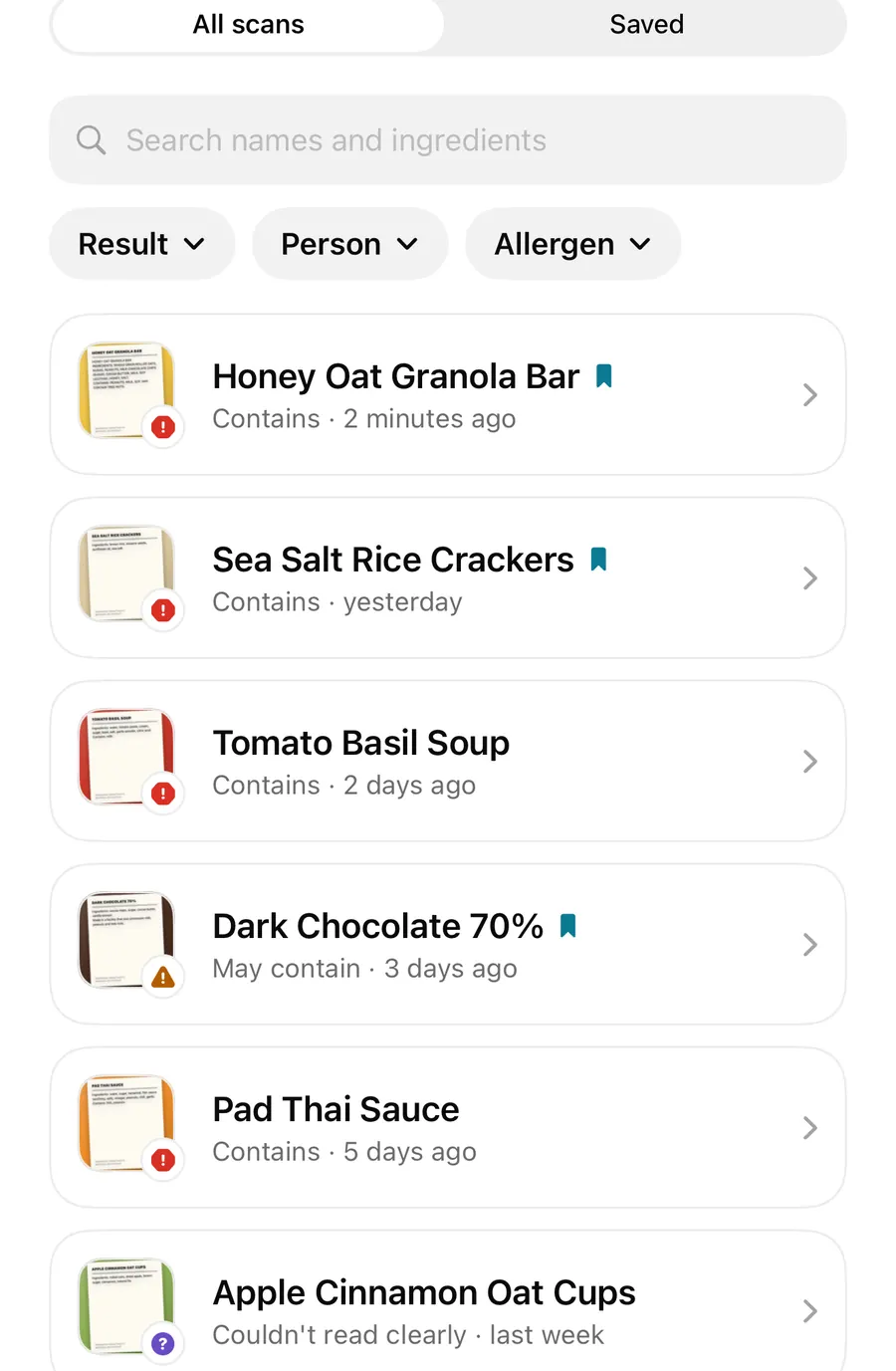
By barcode. When the live camera sees the barcode of a product you kept, a card offers to Open it. The scan opens with a note at the top, Found by its barcode, which says the list below is from your earlier scan and that recipes change, so scan the ingredient list on this pack again. A Scan the list again button sits right there. The barcode only finds scans on your iPhone; nothing is looked up online. More in scan history and saved products.
From any kept scan. Open a result, tap … and choose Scan the list again. This isn't offered for scans you typed in by hand, since there is no label photo to replace.
Either way you choose Take photo or Choose photo. The app explains that the new photo replaces the ingredient list kept for this product. The name, the barcode and whether it's saved stay the same; the scan date becomes today.
Check a product you've bought before
- Point the camera at the barcode, or open the product from History.
- Tap Open, then Scan the list again.
- Choose Take photo and photograph the ingredient list on the pack in your hand.
- Read the Compared with your last scan card at the top of the result.
- Read the full result and the label itself before you buy.
What the comparison shows
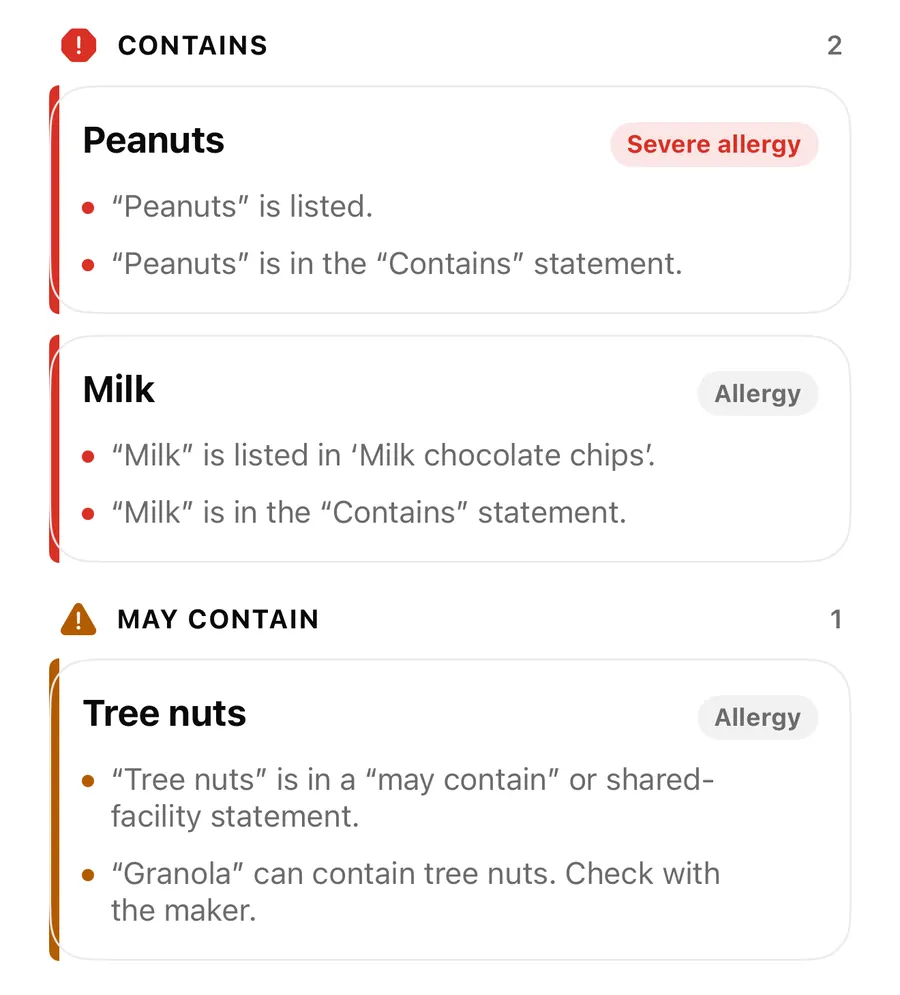
The result for the new photo includes a card headed Compared with your last scan. It can contain:
| Line on the card | What it means |
|---|---|
| Now named on this pack: … | An allergen appears that the last scan didn't find |
| Now Contains, was May contain: … | The label now lists it as an ingredient, not only a may-contain warning |
| Now May contain, was Contains: … | It moved from the ingredients to a may-contain warning |
| No longer found in the text we read: … | It was found last time but not in the text read this time. Check the pack |
| Ingredients added / Ingredients no longer listed | Ingredient words that appeared or disappeared, up to six of each |
The comparison covers every allergen the label names, not only those on your profile. A change for a family member, or for something you might add later, still shows.
The ingredient lines appear only when both photos were read in full. If either label was cut off or partly unreadable, comparing word by word would be guesswork, so the app leaves those lines out.
When nothing changed
If the allergens named match, the card says so, with the date of your last scan, and adds that recipes change, so keep checking the pack. That is a comparison of two photos, not a promise about the product.
Fair comparisons only
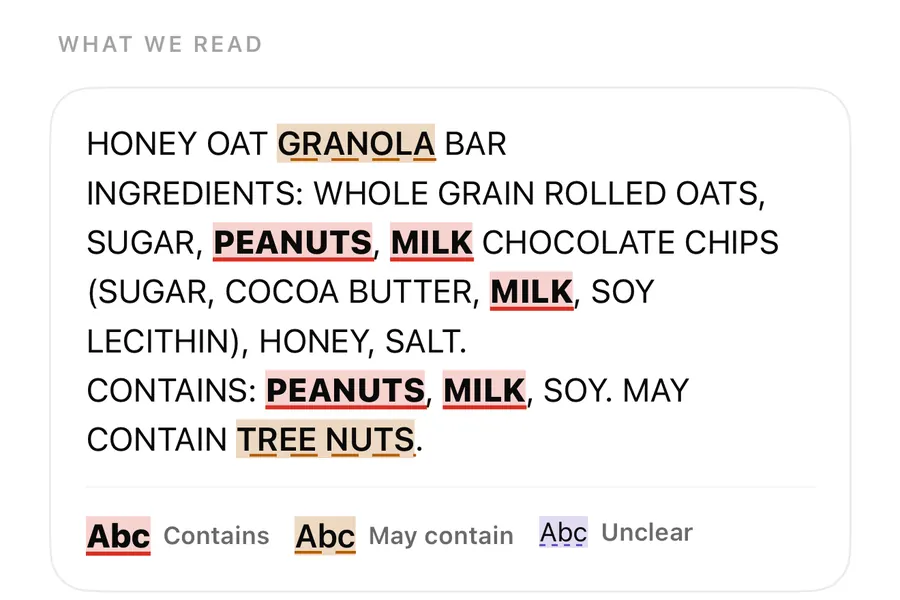
Before comparing, AllergenLens reads your old scan again with today's allergen word list. Without that step, an app update that learned a new word could look like a recipe change. Only differences in what is printed on the pack show up here. Word list changes have their own note, covered in word list updates.
Reading a change
A new allergen named on a pack you trusted is the change to act on. A move from May contain to Contains means it is now an ingredient. A move the other way, or No longer found in the text we read, needs care: the label may have changed, or the photo may have missed a line. Neither is a sign the product is now fine for you. If in doubt, ask the manufacturer. Our post on may contain, contains and free-from explains how those statements differ.
FAQ
Will AllergenLens tell me when a product's recipe changes?
Not on its own. It has no product database and sends no notifications. When you scan a product you kept again, it compares the new label with the old one.
Does the old ingredient list stay after I re-scan?
No. The new photo replaces the ingredient list kept for that product. The name, barcode and saved status stay.
Why are the added and removed ingredients missing?
They only show when both labels were read in full. If part of either label was cut off or unclear, the app leaves that comparison out.
Can I re-scan a product I typed in by hand?
Scan the list again isn't offered for typed text. Scan the pack as a new product instead.
Download AllergenLens and give familiar products a second look.
Keep reading
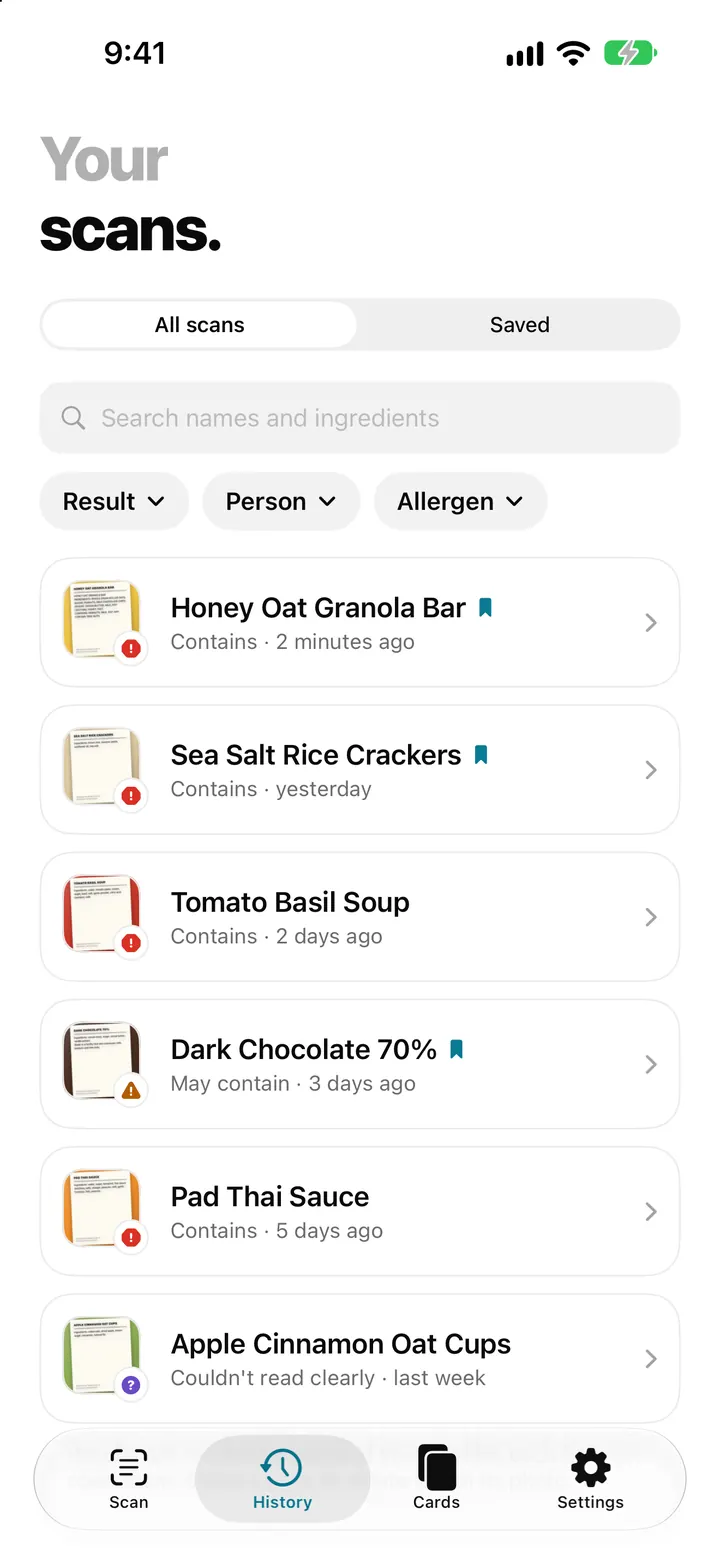
Scan history and saved products: find a label you checked before
AllergenLens keeps your scans on your iPhone, lets you save products you buy often, finds them by barcode and re-checks them whenever your profiles change.
Read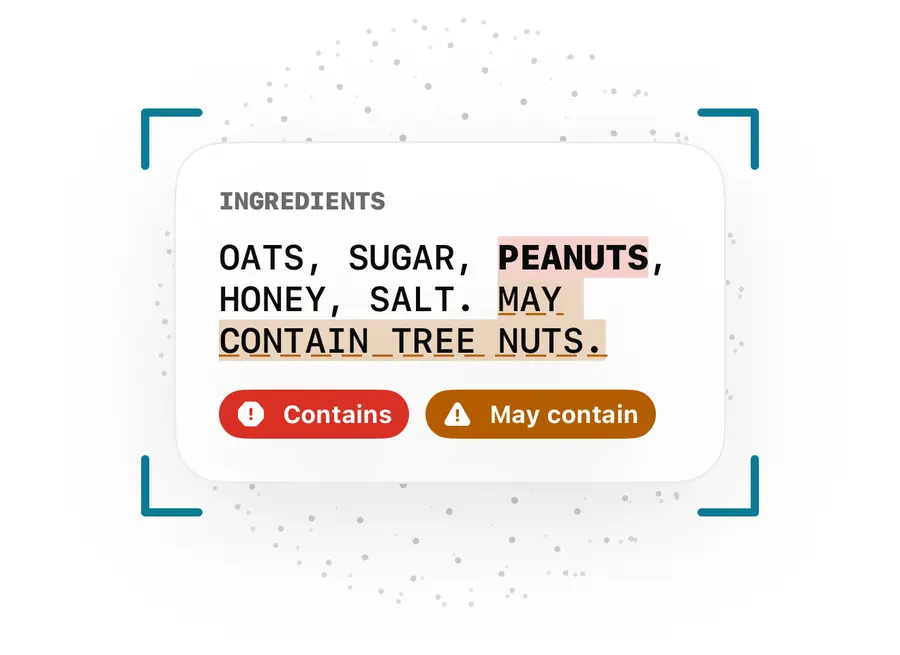
May contain, Contains lines and free-from claims: how AllergenLens reads them
How AllergenLens handles may contain and shared-facility warnings, the Contains line, ingredients that can come from an allergen, and free-from claims.
Read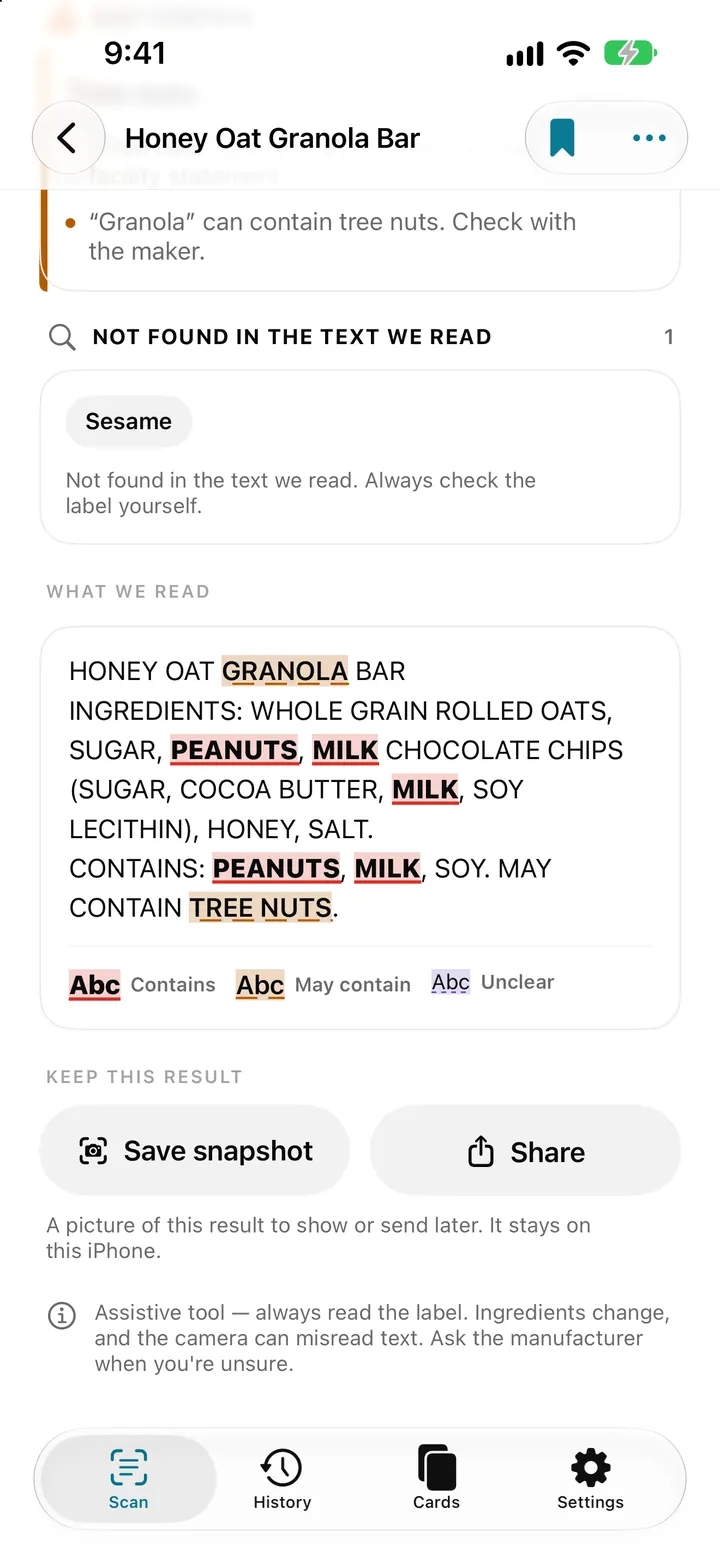
Allergen word list updates: how AllergenLens re-checks your saved scans
AllergenLens matches labels against a versioned allergen word list. When an update brings a new list, kept scans are re-checked and changed results are marked.
ReadCan You Trust Saved Products in AllergenLens Forever?
Learn when to rescan saved AllergenLens products and why current packaging matters more than an old saved result.
Read guide