See every match on the label: highlights, Show on photo and Read aloud
AllergenLens marks each match in the text it read and on your label photo, so you can check it against the pack, then save a snapshot or hear it read aloud.
Short answer
AllergenLens doesn't just give a verdict; it shows where each match came from. What we read lists the text with every match marked, and Show on photo draws boxes on your label photo so you can find the word on the pack. You can zoom in, save a snapshot of the result, share it, or have the result read aloud.
A verdict on its own asks you to trust it. A verdict with the evidence lets you check it in a few seconds. AllergenLens is built around that idea: every finding points back to a word on the label, and you can see that word both in the text the app read and on the photo you took. This post covers each of those views and how to keep a copy.
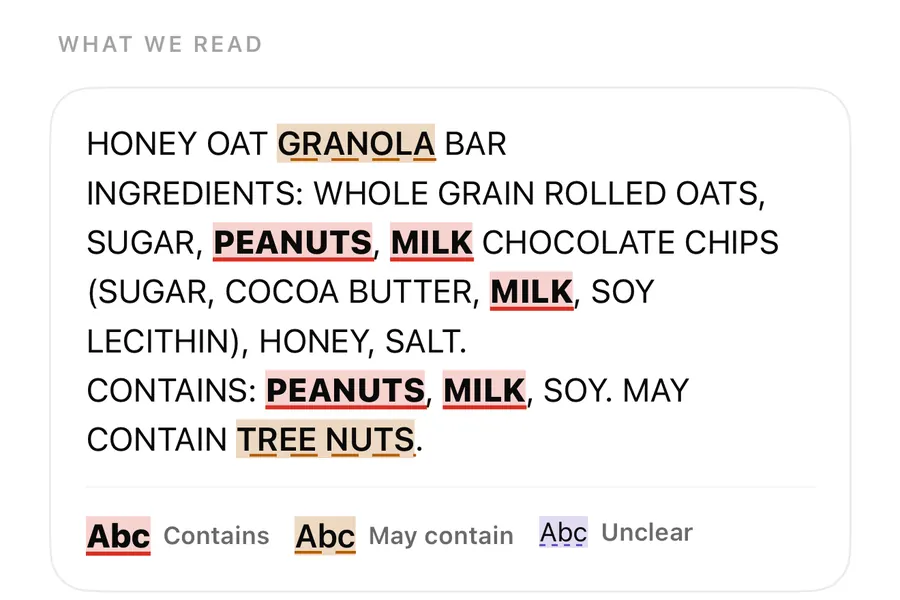
What we read
Further down the result, the What we read card shows the text AllergenLens recognised from your label, with each match marked:
| Mark | Meaning |
|---|---|
| Heavy text with a solid red underline | Contains |
| Darker text with a dashed orange underline | May contain |
| Dotted underline | Unclear (couldn't read clearly) |
A small legend under the text shows the three marks with the words Contains, May contain and Unclear, so you don't have to remember them. The text is selectable, so you can copy a line if you want to look it up or send it to someone. If the label was read from more than one photo, the card says how many.
This card is also the quickest way to spot a misread. If a word you can see on the pack is missing or garbled here, the app didn't check it, and you should read that part of the label yourself.
Show on photo
Each finding has a Show on photo button. Tap it and the label photo opens full screen on a black background, with outlines around the place where that word was read. A panel at the bottom shows the word, its state and the allergen, for example Contains · Peanuts, with the reason it was flagged.
When a match appears in more than one place, such as in the list and again in the Contains line, the viewer shows 1 of 2 and you move between them with Previous place and Next place. Pinch to zoom in on small print, then tap Close when you're done.
The result also has a Where it is on your photo card with your photos and colored boxes on them. Its note is honest about precision: Boxes show roughly where each word was read. Tap the photo to zoom in. The boxes help you find the spot; the printed label is still what counts.
Check a match against the pack
- Open a result and find the finding you want to check.
- Tap Show on photo. The label photo opens with the word outlined.
- Pinch to zoom in and read the word on the photo.
- If there is more than one place, use Next place to see each one.
- Compare it with the printed label in your hand, then tap Close.
The label photo itself
Under the findings, the Label photo section keeps the picture you scanned, or the photos if you added more than one. Its note reads Kept on this iPhone. Tap to zoom in and read it again. That's useful later, at home, when you want to re-read a line without the pack. In the full-screen gallery you can zoom, share the photo or delete it.
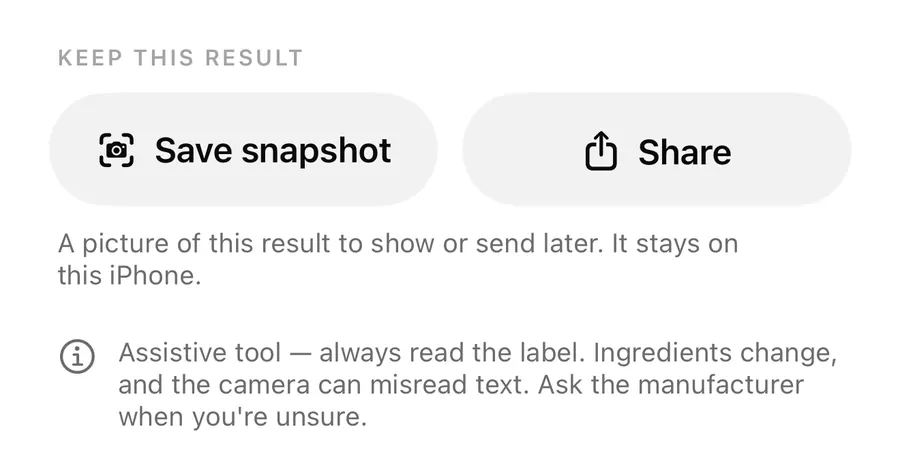
Save snapshot and Share
Under Keep this result there are two buttons: Save snapshot and Share. Both make a picture of the result: the product name, when it was scanned and checked, the label photo, the verdict card, each person's result, the marked text, and the reminder that ingredients change and the camera can misread text. The snapshot is always light, so it reads well on any screen.
Save snapshot keeps it on this iPhone; you'll see Saved on this iPhone. See snapshots with a link to them. Share opens the share sheet with the image, so you can send it to a partner, a carer or a school. More on sharing and reporting a missed word in share a result and report a miss.
Read aloud
Right under the result card there is a Read aloud button. It speaks the verdict and the line under it, and turns into Stop speaking while it plays. It uses a voice installed on your iPhone, so the button only appears when one is available for the app's language. If you use VoiceOver, the result is also announced when it opens.
FAQ
Why does a word have no box on the photo?
Only words AllergenLens matched get a box. If a word is missing from What we read too, the app didn't read it, so check that part of the label yourself.
Can I copy the text AllergenLens read?
Yes. The text in What we read is selectable, so you can copy it.
Why don't I see the Read aloud button?
It only appears when your iPhone has a voice installed for the app's language.
Is the snapshot uploaded anywhere?
No. It is saved on this iPhone. It only leaves the phone if you tap Share and send it.
Download AllergenLens and check every match against the label yourself.
Keep reading
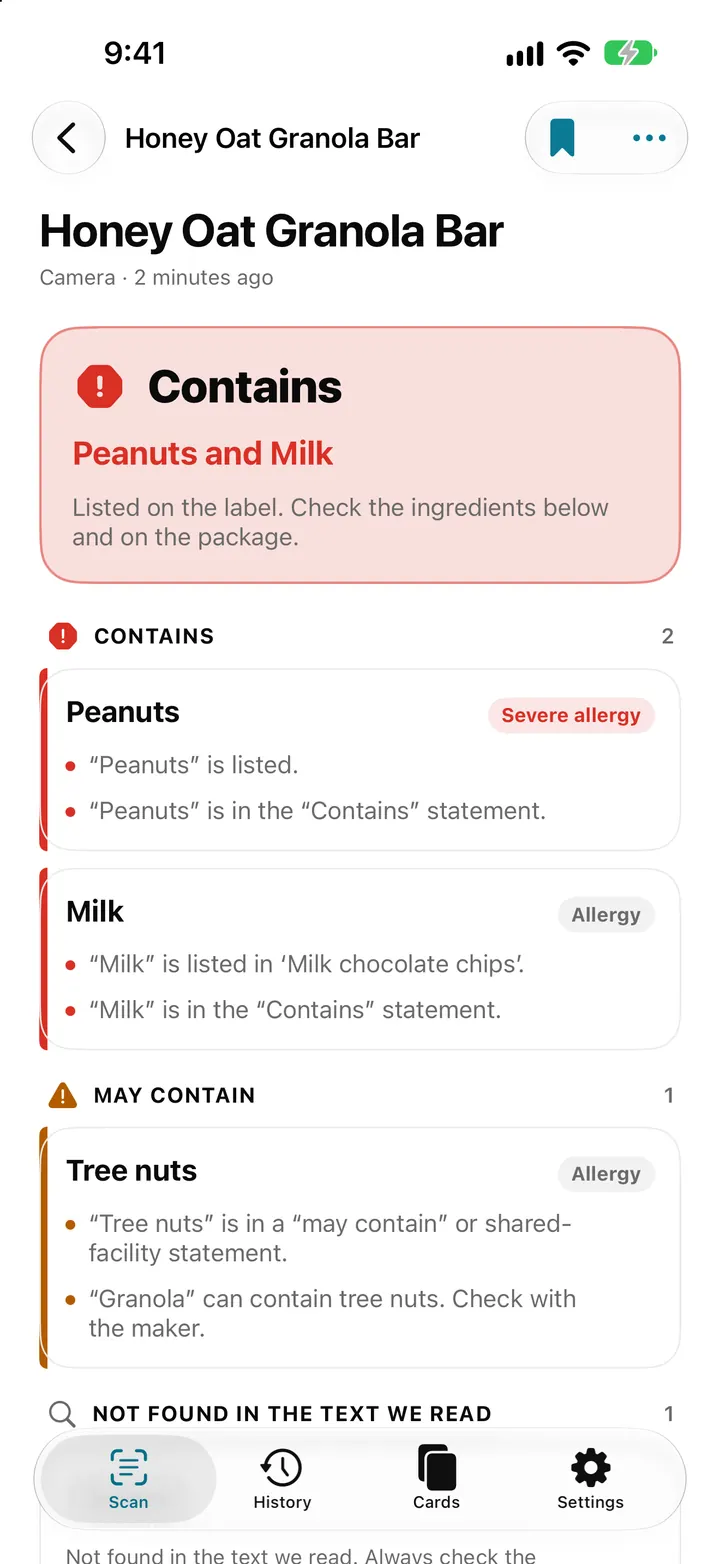
Scan an ingredient label with your iPhone: how AllergenLens checks it
Point your iPhone at an ingredient list and AllergenLens shows Contains, May contain or what it couldn't read for your allergies and diet, all on the device.
Read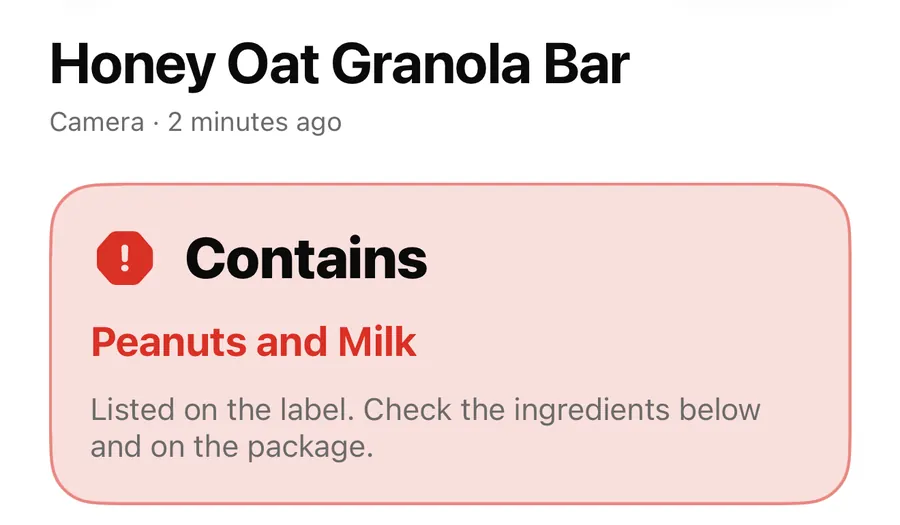
Contains, May contain, Couldn't read clearly: AllergenLens results explained
What each of the four AllergenLens result states means, how the card at the top is chosen, and what the app tells you when part of a label couldn't be read.
ReadShare an AllergenLens result, save a snapshot or report a missed allergen
Save a picture of an AllergenLens result, share it with family or a carer, and tell us about a missed or wrong allergen with an email you check before sending.
ReadDoes AllergenLens send label photos to a server?
Learn how to check AllergenLens image handling, read its privacy policy and reduce sensitive data when scanning food labels.
Read guide