Scan an ingredient label with your iPhone: how AllergenLens checks it
Point your iPhone at an ingredient list and AllergenLens shows Contains, May contain or what it couldn't read for your allergies and diet, all on the device.
Short answer
In AllergenLens you set up what you avoid once, then point the camera at the ingredient list or pick a photo of it. The app reads the text on your iPhone and shows whether anything on your profile is listed (Contains), in a warning (May contain), or couldn't be read clearly. It shows where each word was found so you can check it against the pack. It helps you read the label; it doesn't replace reading it.
Reading a long ingredient list in small print, in a busy shop, is where mistakes happen. AllergenLens does the first pass for you: it looks for the allergens and diet rules you chose, including other names they hide under, and tells you what it found and what it couldn't see. Scanning is free and unlimited, there is no account, and labels are read on your iPhone, not uploaded.
What you need first: a profile
Before the first scan, AllergenLens asks what you avoid. You pick from the major food allergens, add a diet such as vegan or gluten-free, mark an allergy as severe, and add your own ingredients if something isn't on the list. Every scan is checked against this profile, so a label with milk is a warning for one person and fine for another. The allergy profile post covers each option.
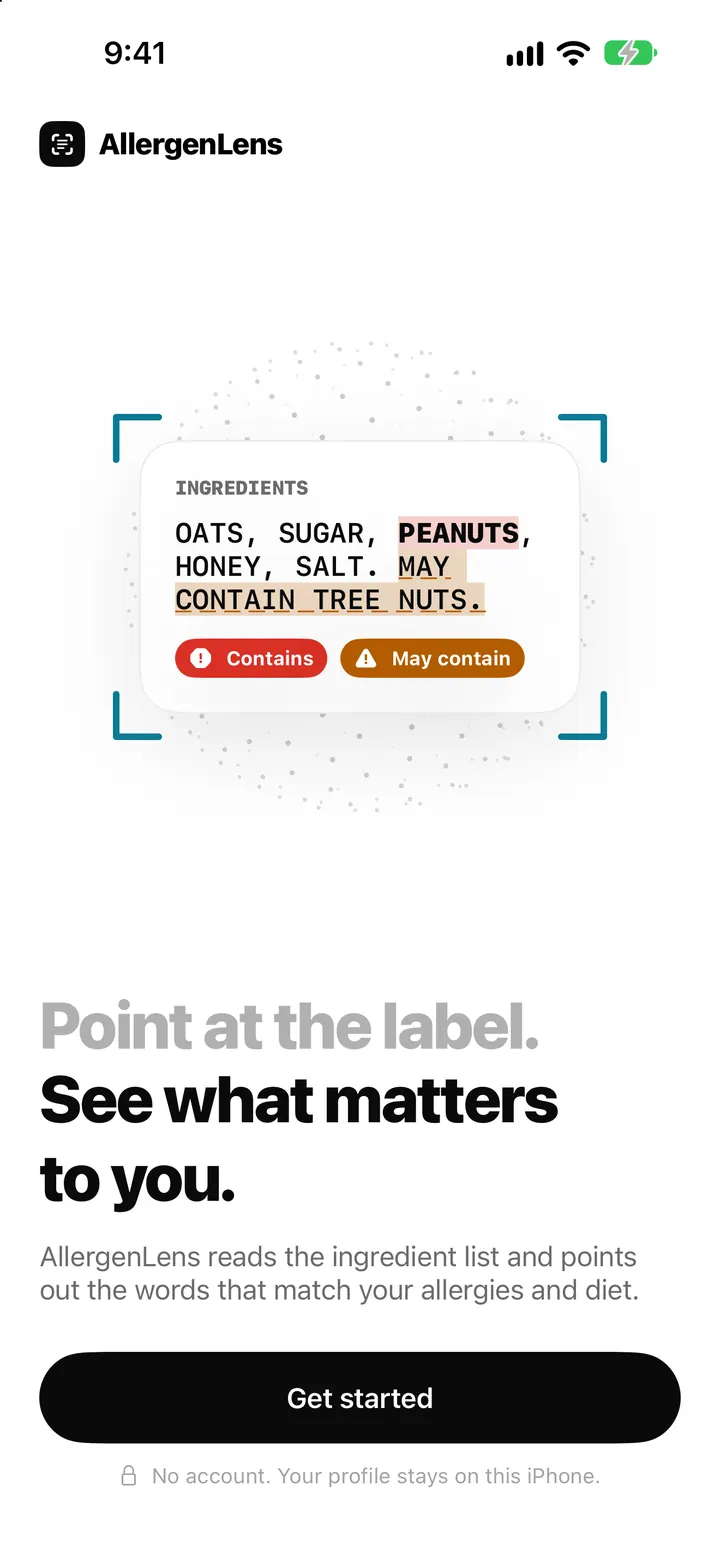
Three ways to scan
The Scan tab opens on a large Scan a label button with the hint Point the camera at the ingredients. Below it are two other ways in:
| Start with | When it helps |
|---|---|
| Scan a label | You are holding the pack. Live camera with a preview of what it finds. |
| Photo | You took a picture earlier, or a friend sent one. |
| Type text | The list is on a website or in a message, or the print is too damaged to photograph. |
In the camera, small Preview chips appear as the app recognises words from your profile, so you can see it is reading the right part of the pack before you take the photo. Tap to focus; touch and hold to Lock focus and exposure on a shiny or curved label. Flashlight helps in a dim aisle.
Scan an ingredient label
- Open Scan and tap Scan a label.
- Hold the pack flat and fill the frame with the ingredient list, including any Contains or May contain lines.
- If the label is shiny or curved, touch and hold to lock focus and exposure. Turn on the flashlight in poor light.
- Tap Take photo. AllergenLens reads the text and checks it against your profile.
- Read the result card at the top, then the findings under it.
- If the list continues on another side of the pack, tap Add photo and photograph the rest. Both photos are checked together.
Reading the result
The card at the top gives the overall answer for the person you are checking:
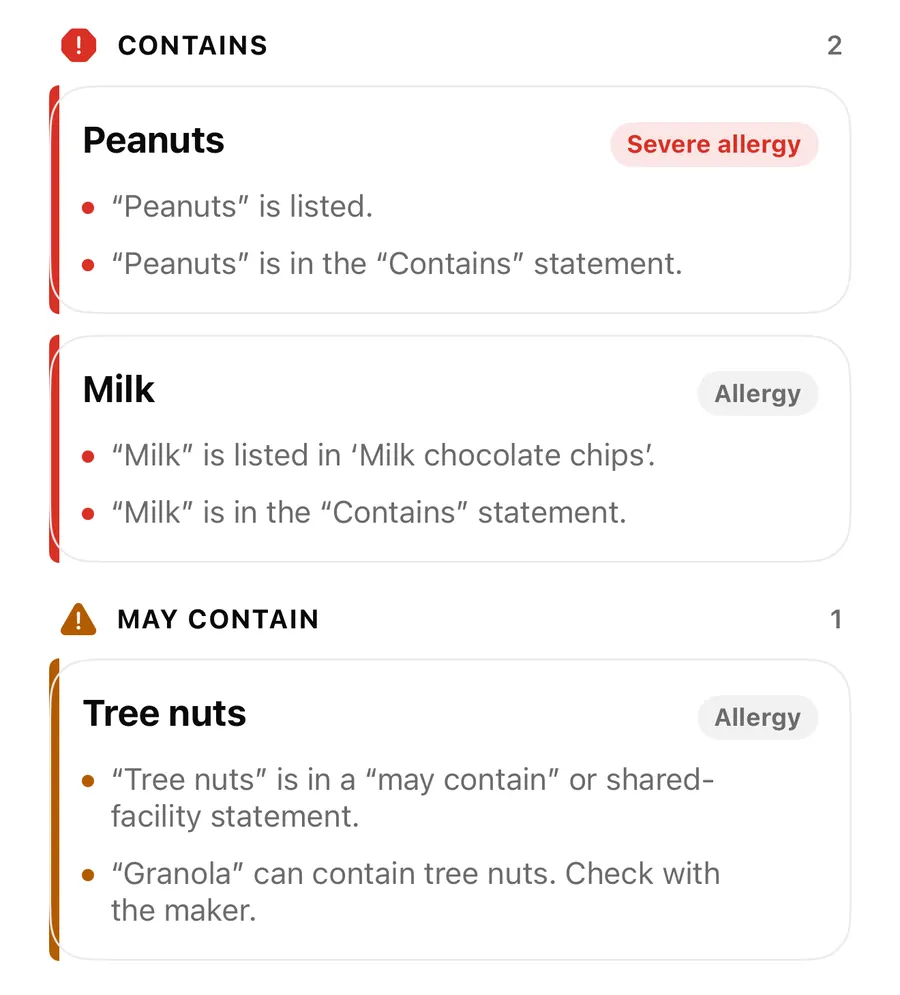
- Contains: an ingredient in the text matches your profile. AllergenLens names it, for example peanuts and milk.
- May contain: a may contain or shared-facility warning, or an ingredient that can come from something you avoid, such as granola and tree nuts. The app says Check with the maker.
- Couldn't read clearly: part of the label was hard to read, or a word could mean more than one thing. Scan again or read it yourself.
- Not found in the text we read: nothing from your profile turned up in the text that was read. The app is careful to add that this doesn't mean it isn't there.
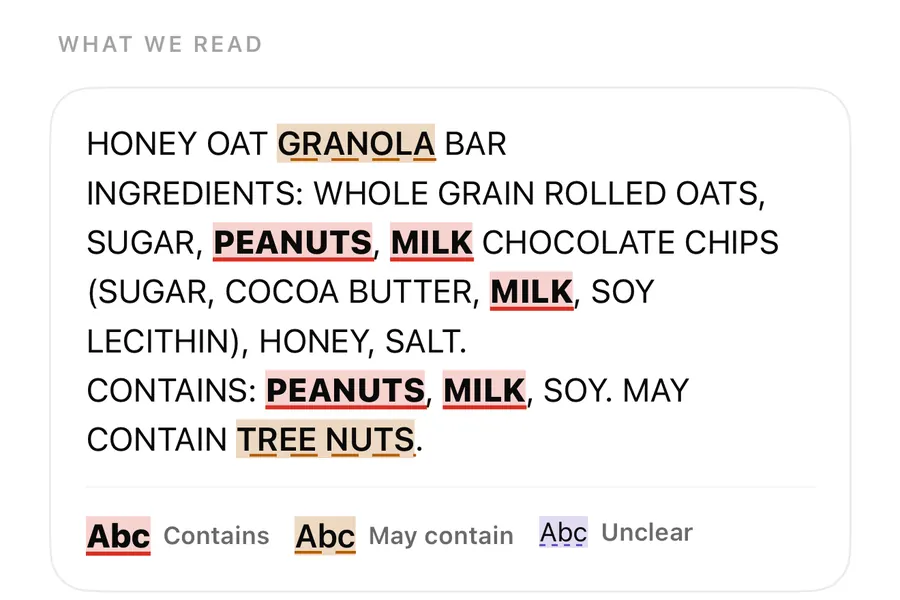
Below the findings, What we read shows the text with each match marked, and Show on photo puts the same marks on your picture. That's the quickest way to check the scan against the pack. More in highlights on the photo, and the four states are explained in results and coverage.
When the photo isn't good enough
AllergenLens tells you when the input is the problem rather than guessing. You may see The photo looks blurry, Photo looks too dark or Part of the list touches the edge of the picture, so some words may be cut off. The tip it gives is simple: Hold the label flat, fill the frame with the ingredient list, and add more light or turn on the flashlight. Then tap Retake. Our guide on photographing an ingredient list has more tips for curved bottles and glossy wrappers.
FAQ
Does AllergenLens work without internet?
Yes. Text recognition and the allergen check run on your iPhone, so you can scan in a basement supermarket with no signal.
Can it read a label from a photo I already took?
Yes. Tap Photo on the Scan tab and choose the picture. It is checked the same way as a live scan, and you can add more photos if the list continues elsewhere on the pack.
What does Not found in the text we read mean?
Nothing from your profile was found in the words the app could read. It doesn't mean the product is safe: part of the list may be missing, cut off or worded differently, so read the label yourself.
Does it check for my diet as well as allergies?
Yes. If your profile includes a diet such as vegan or gluten-free, AllergenLens also points out ingredients that don't fit it.
Download AllergenLens and check your next label in seconds.
Keep reading
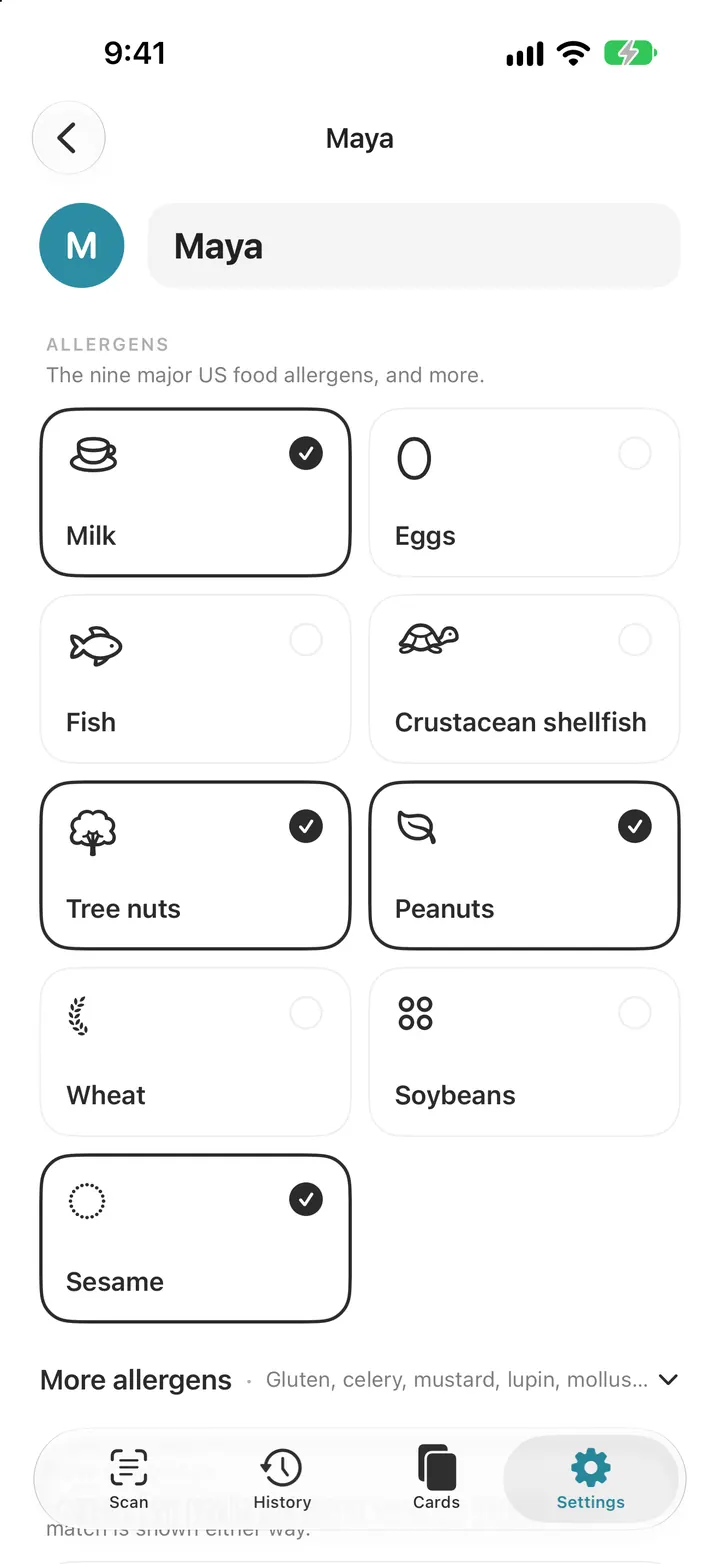
Set up your allergy profile: 14 allergens, diets and your own ingredients
Pick from the FDA nine and EU fourteen allergens, add a diet, set how strongly you react and add your own ingredients. Every AllergenLens scan checks this list.
Read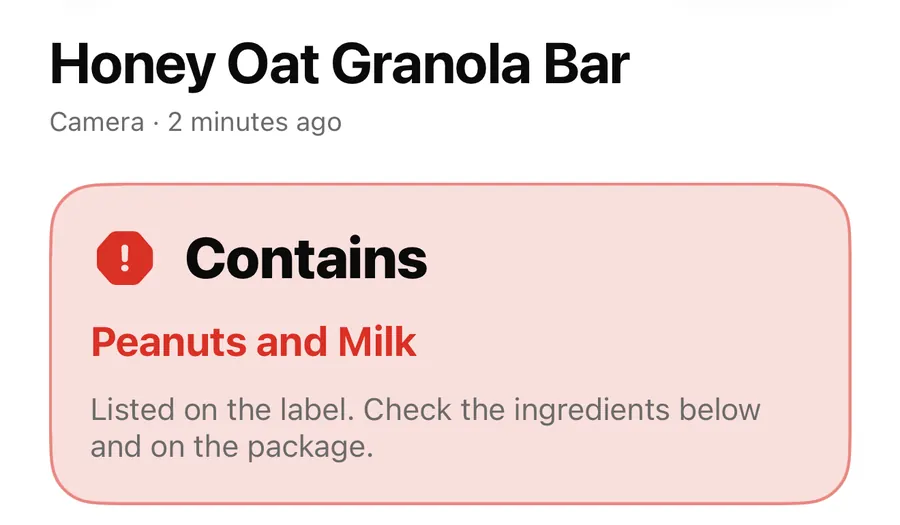
Contains, May contain, Couldn't read clearly: AllergenLens results explained
What each of the four AllergenLens result states means, how the card at the top is chosen, and what the app tells you when part of a label couldn't be read.
Read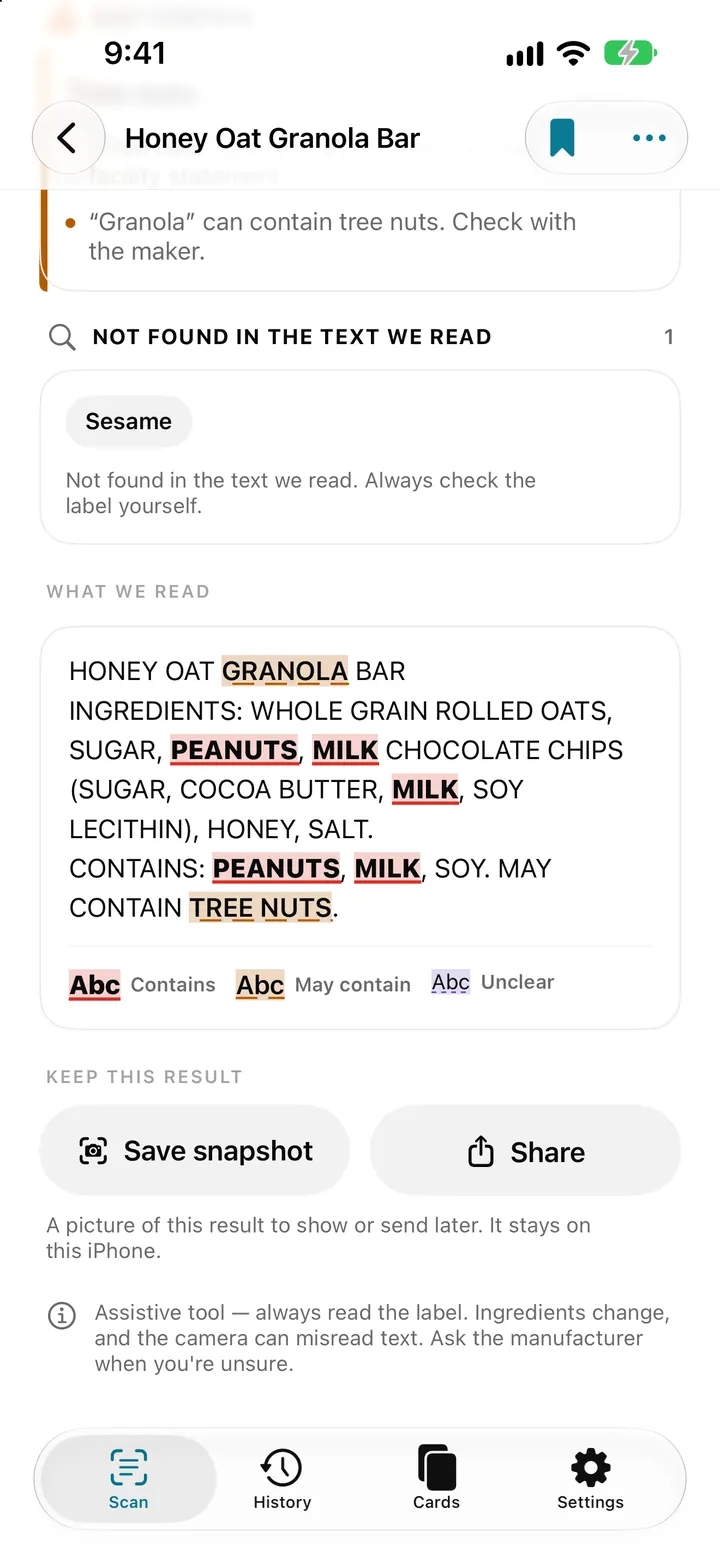
See every match on the label: highlights, Show on photo and Read aloud
AllergenLens marks each match in the text it read and on your label photo, so you can check it against the pack, then save a snapshot or hear it read aloud.
ReadHow to Photograph an Ingredient List Clearly
Improve AllergenLens ingredient and warning photos with better light, angle, overlapping sections, coverage and source review.
Read guide