Set up your allergy profile: 14 allergens, diets and your own ingredients
Pick from the FDA nine and EU fourteen allergens, add a diet, set how strongly you react and add your own ingredients. Every AllergenLens scan checks this list.
Short answer
Your profile is the list AllergenLens checks every label against. You tick allergens from the nine major US allergens, open More allergens for the rest of the EU fourteen, add a diet such as vegan or gluten-free, set how strongly you react, and type in anything else you avoid. You can change it at any time, and results are checked again against the current profile when you open them.
A scan is only as useful as the list it is checked against. AllergenLens asks for that list once, during setup, and keeps it on your iPhone. This post walks through each part of the profile, what it changes in a result, and how to edit it later.
Allergens: the nine, plus five more
The Allergens section opens with the nine major food allergens listed by the FDA in the US: milk, eggs, fish, crustacean shellfish, tree nuts, peanuts, wheat, soybeans and sesame. Tap More allergens to show the rest of the fourteen listed in EU Regulation No 1169/2011: cereals with gluten, celery, mustard, lupin, mollusks and sulfites. Under the grid the app names those two sources, with a Sources link.
These are the lists the profile offers, so you can pick what applies to you. They are not advice about labelling law in any country, and they don't decide what a manufacturer has to print.
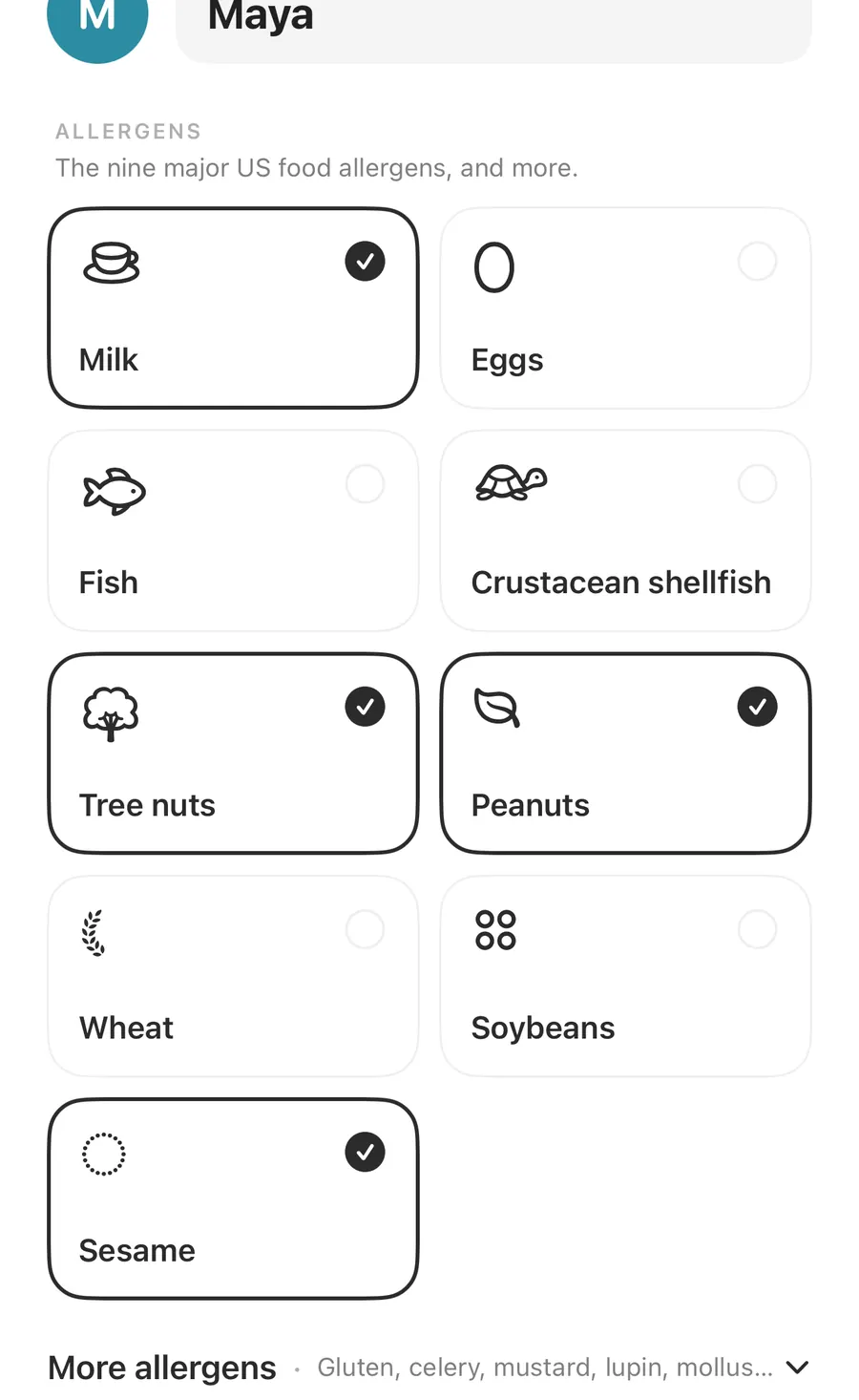
Each allergen is more than one word. Milk also covers names like whey, casein, butter and ghee; peanuts covers groundnut and arachis oil; sesame covers tahini and benne; sulfites covers sulfur dioxide and E220 to E228. You only tick the allergen, and the app looks for the other names it knows. How those names and E-numbers work is covered in E-numbers and unclear words.
How strongly you react
Once you pick an allergen or add your own ingredient, a How strongly section appears. Each item gets its own setting:
| Setting | What it means in the app |
|---|---|
| Intolerance | Makes me unwell |
| Allergy | Allergic reaction |
| Severe | Severe allergy: anaphylaxis risk, even traces |
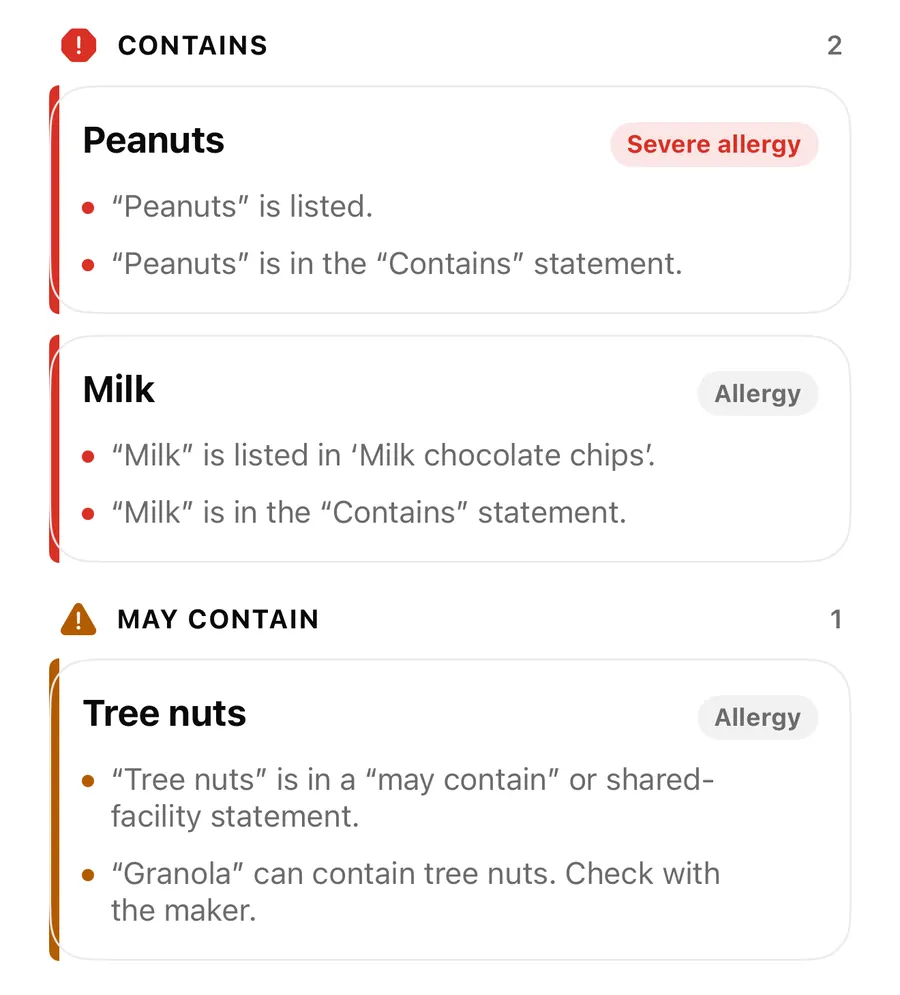
The app's own note sums it up: Changes how results and allergy cards are worded. Every match is shown either way. Marking peanuts as severe doesn't make the app look harder, and marking milk as an intolerance doesn't hide a milk match. What changes is emphasis: findings carry a Severe allergy tag, within each state they are sorted so the more serious ones come first, and your travel card wording reflects it.
Diets
The Diets section adds rules that go beyond single allergens:
- Vegan: no meat, fish, dairy, eggs, honey or other animal products.
- Vegetarian: no meat, fish, shellfish, gelatin or carmine.
- Gluten-free / celiac: no wheat, barley, rye, oats or malt.
- Lactose-free: no milk ingredients.
A diet works like a group of words. Vegetarian looks for things such as gelatin, lard, rennet and carmine; vegan adds milk, eggs, honey, beeswax, lanolin and shellac. Some ingredients can come from an animal or a plant, and in that case the app says the word can be animal-derived. Check with the maker. instead of calling it a match.
Your own ingredients
Not everything you avoid is on a list. In Your own ingredients, type a word such as kiwi, cilantro or mango and tap Add ingredient. Each one gets its own How strongly setting. Tap a chip to remove it.
A few rules keep this list tidy: each entry is 2 to 40 characters, you can add up to 30, and the same word can't be added twice. Your own ingredients are matched as you typed them. The app doesn't add other names or translations for them, so if the ingredient has another name you care about, add that too. A single word of four letters or more is also found at the start of a longer word, so kiwi also matches kiwifruit.
Set up or edit your profile
- On first launch, tap Get started, read the note and tap I understand.
- Tick every allergen that applies. Your answers are saved as you go.
- Pick a diet if you follow one, or skip.
- Add anything else to watch for, such as kiwi, or skip.
- Set How strongly you react to each item, then tap Start scanning.
- To change it later, open Settings, then Who you check for and Profiles, or tap Edit next to Checking for on the Scan tab.
Editing later
The profile editor has the same parts as setup: a Name, Allergens, How strongly, Diets and Your own ingredients. Changes apply straight away. Results are checked again against your current profile when you open them, so a scan you kept from last week reflects an allergen you added today.
If a profile is empty, the Scan tab shows Nothing to check yet and a result shows a Set up profile button, because there is nothing to look for.
FAQ
Does setting an allergen to Severe change what gets flagged?
No. Every match is shown whatever the setting. Severe changes how results and allergy cards are worded and puts those findings first.
Can I add an allergen that isn't on the list?
Yes. Add it under Your own ingredients. It is matched as you typed it, so add any other names it goes by as separate entries.
Is gluten-free the same as ticking wheat?
Not quite. The Gluten-free / celiac diet looks for wheat as well as barley, rye, oats and malt. Ticking wheat alone covers wheat and its other names. The guide on gluten-free vs wheat explains the difference.
Can I set up profiles for my family?
With AllergenLens Plus you can add up to six profiles and check every scan for everyone at once. More in whole family mode.
What happens to old scans when I change my profile?
They are checked again against your current profile when you open them, so the result always reflects what you avoid now.
Download AllergenLens and set up your profile in a minute.
Keep reading
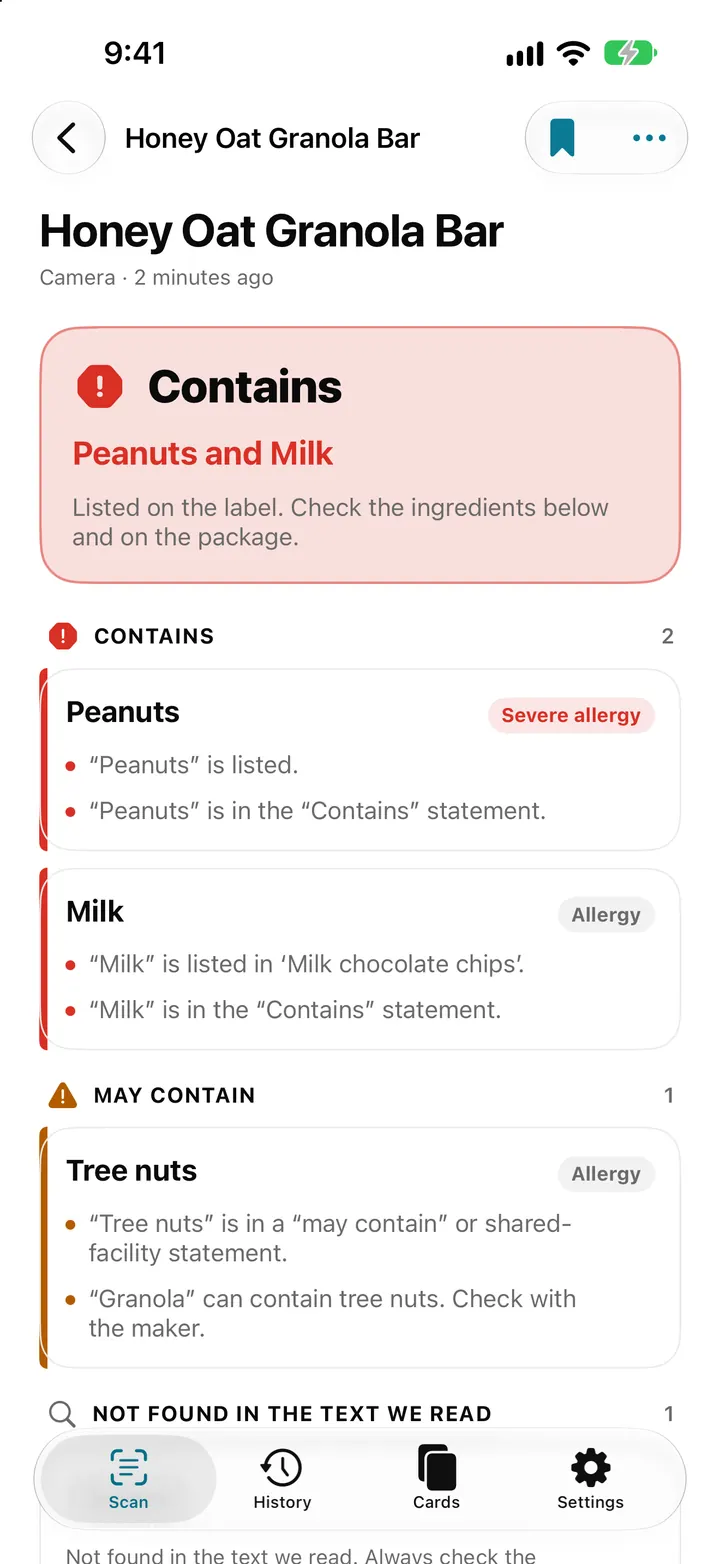
Scan an ingredient label with your iPhone: how AllergenLens checks it
Point your iPhone at an ingredient list and AllergenLens shows Contains, May contain or what it couldn't read for your allergies and diet, all on the device.
Read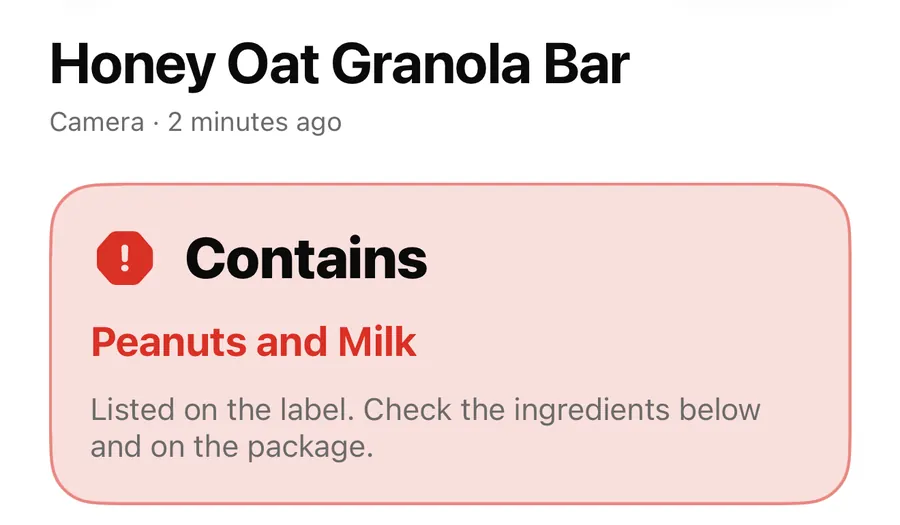
Contains, May contain, Couldn't read clearly: AllergenLens results explained
What each of the four AllergenLens result states means, how the card at the top is chosen, and what the app tells you when part of a label couldn't be read.
Read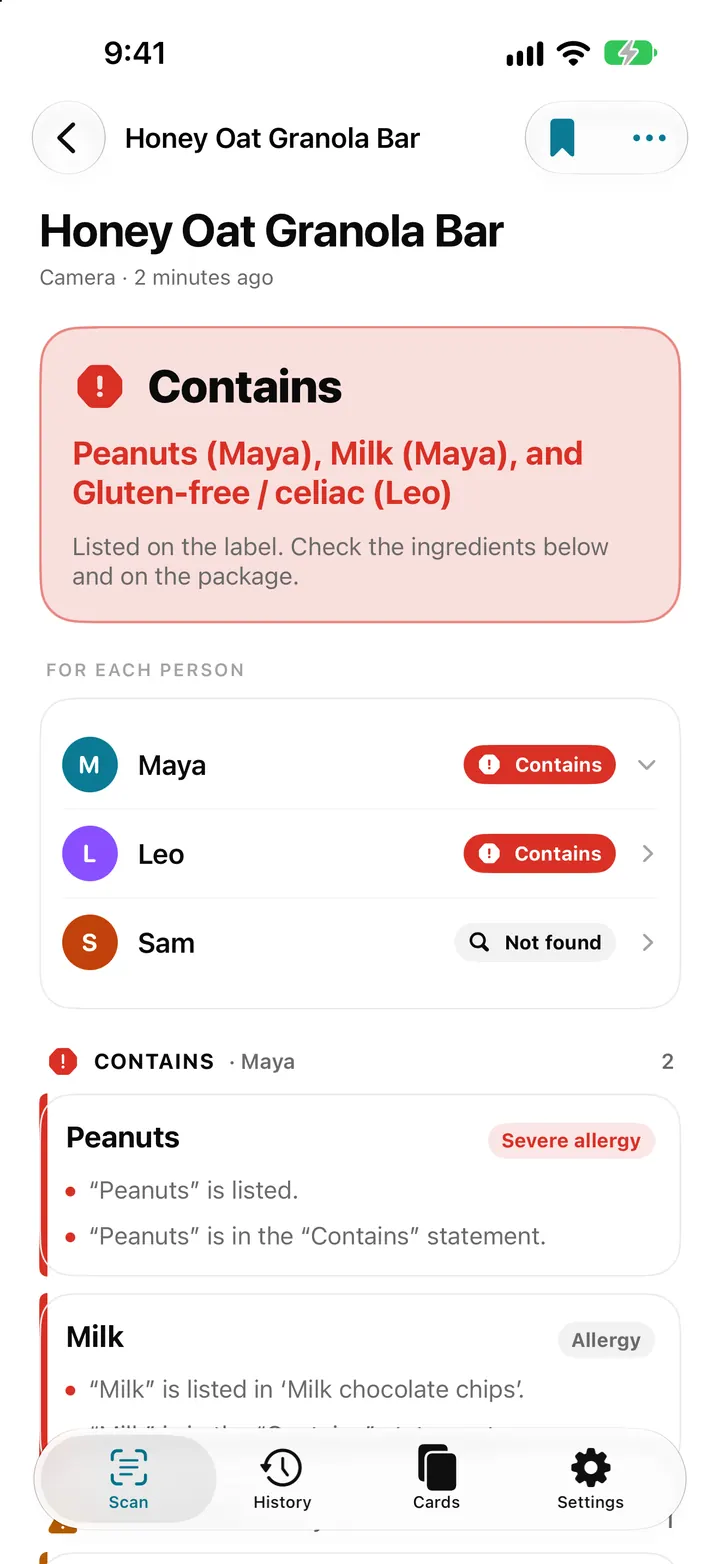
Whole family mode: check one label for everyone in AllergenLens
With AllergenLens Plus, keep up to 6 family profiles and check every scan for the whole family at once, with a separate result for each person you shop for.
ReadWhat Should an Allergy Profile Include? Add Allergens and Custom Ingredients
Set up an AllergenLens profile, distinguish allergies from diet choices, and review the profile before scanning labels.
Read guide