Long and curved labels: check one ingredient list from several photos
When an ingredient list wraps around a bottle or runs onto another side of the pack, add photos in AllergenLens and it checks all of them together as one list.
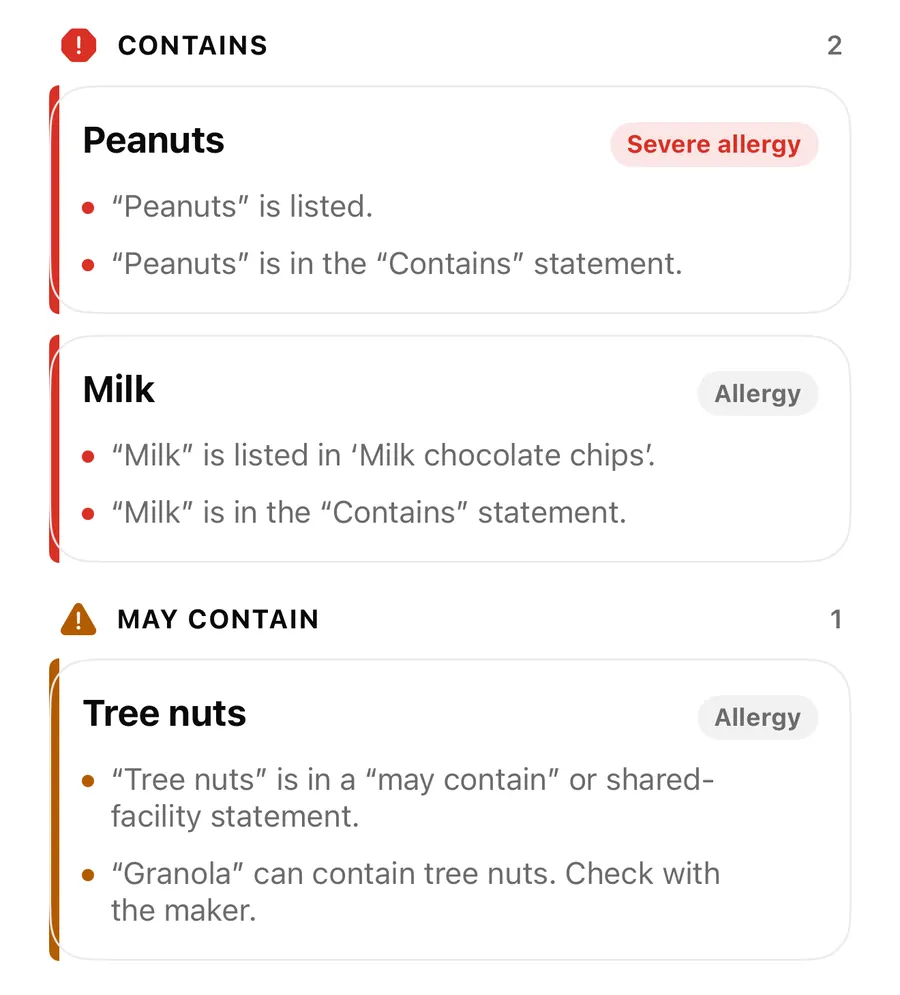
Short answer
When the ingredient list doesn't fit in one photo, open the result and tap Add photo. AllergenLens keeps everything it found so far and checks the new photo together with the first, as one list. You can keep adding photos for a bottle, a jar or a pack where the list runs onto another side, and the result says how many photos it was checked from.
Not every label is a flat rectangle. Ingredient lists wrap around bottles and tins, continue on the back flap of a box, or are printed so long that one sharp photo can't hold them. AllergenLens handles this by letting you add more photos to the same scan rather than starting over. This post covers how that works, how the photos are joined, and how to get a good set of pictures.
Add photo: one list, several pictures
Below What we read on every result there is a card titled List continues elsewhere? On a single-photo scan it says Add a photo of the rest of the label. Everything found so far stays, and both are checked together. Tap Add photo, then Take photo or Choose photo.
The new photo's words are read and checked together with the scan you already have. The findings, the highlights and the top card all update. Once there is more than one, the card changes to Checked from 2 photos together. Add another if more of the list is on the pack. The What we read card shows the number of photos too, and the Label photo section keeps every picture so you can zoom in on each later.
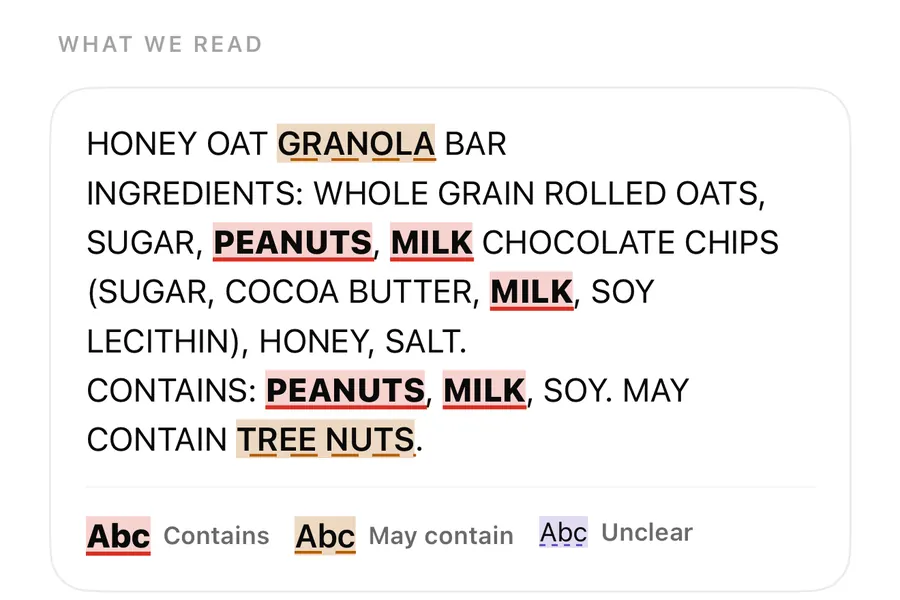
Check a list that wraps around the pack
- Scan the first part of the list, starting at the word Ingredients.
- On the result, scroll to List continues elsewhere? and tap Add photo.
- Turn the pack a little, so the new photo starts with a few words from the end of the last one.
- Tap Take photo, or Choose photo if you already took the pictures.
- Repeat until the end of the list and any Contains or May contain lines are in.
- Check the top card again. It now covers every photo.
How the photos are joined
AllergenLens tries to rebuild one list from your photos, so a word cut in half at the edge of one picture isn't lost.
- Down the list. If the end of one photo and the start of the next share at least five words in a row, the two are joined there, and the repeated words are kept once.
- Across lines. On a bottle you usually turn the pack between photos, so each picture has the same lines but a different slice of each. When at least two lines pair up between photos, they are joined side by side.
- No overlap. Photos that share nothing are checked on their own and the results are combined, so nothing on any photo is skipped.
A join is only used if it keeps every finding the separate photos had. If joining would lose a match, the app checks the photos separately instead.
When one photo has the start of the list and another has the end, but they can't be lined up, you'll see a note under What we couldn't read: The photos couldn't be lined up into one list, so words where they meet may be missing. That gap can turn an item that would have been Not found into Couldn't read clearly, because a word could be hiding where the photos meet. Our post on results and coverage explains why.
Tips for bottles, jars and cans
- Overlap generously. Turn the pack only about a third of the way between photos, so a few words or a strip of each line appear in both.
- Lock focus on shiny curves. In the camera, touch and hold to Lock focus and exposure, so the glare on a curved bottle doesn't throw off the next photo. More in still camera, flashlight and photo import.
- Don't forget the last lines. The Contains line and any may contain warning are often at the bottom or on a flap.
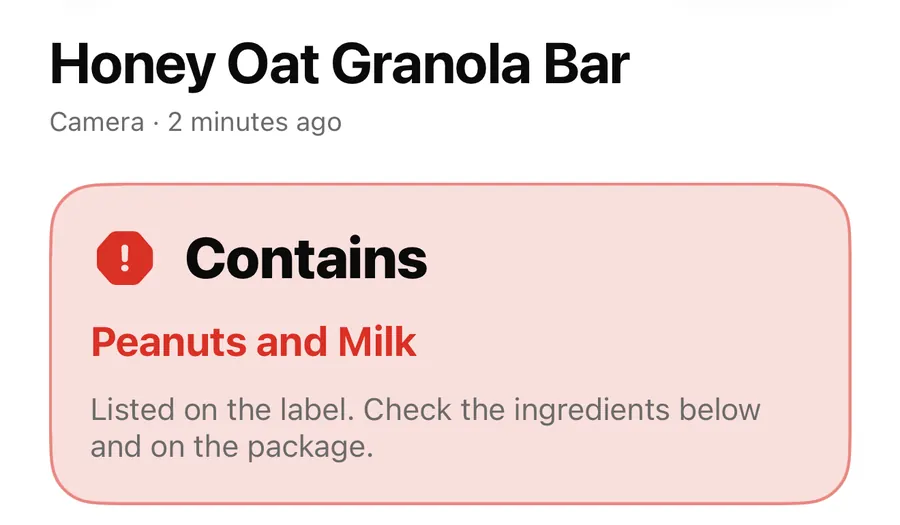
When to retake instead
If a photo is the problem rather than the length of the list, a fresh photo is better than an extra one. AllergenLens warns you before it checks a weak picture: Photo looks blurry, Photo looks too dark or Photo looks dark and blurry, with Retake and Use this photo buttons. It also says when part of the list touches the edge of the picture, so some words may be cut off.
To redo the list for a scan you already have, open the menu at the top of the result and choose Scan the list again. As the app puts it, The new photo replaces the ingredient list kept for this product. Use Add photo to extend the list, and Scan the list again to replace it.
FAQ
How many photos can I add to one scan?
You can keep adding photos until the whole list is in. Each one is checked together with the rest.
Do I need to take all the photos at once?
No. You can add a photo to the result later, from the camera or from photos you already took.
What does Checked from 2 photos together mean?
The result covers the words from both photos, checked as one list where they could be joined and separately where they couldn't.
Why did adding a photo change the result to Couldn't read clearly?
The photos couldn't be lined up, so words where they meet may be missing. Retake with more overlap, or read that part yourself. Our support page has more help.
Download AllergenLens and check the whole list, however far it wraps.
Keep reading
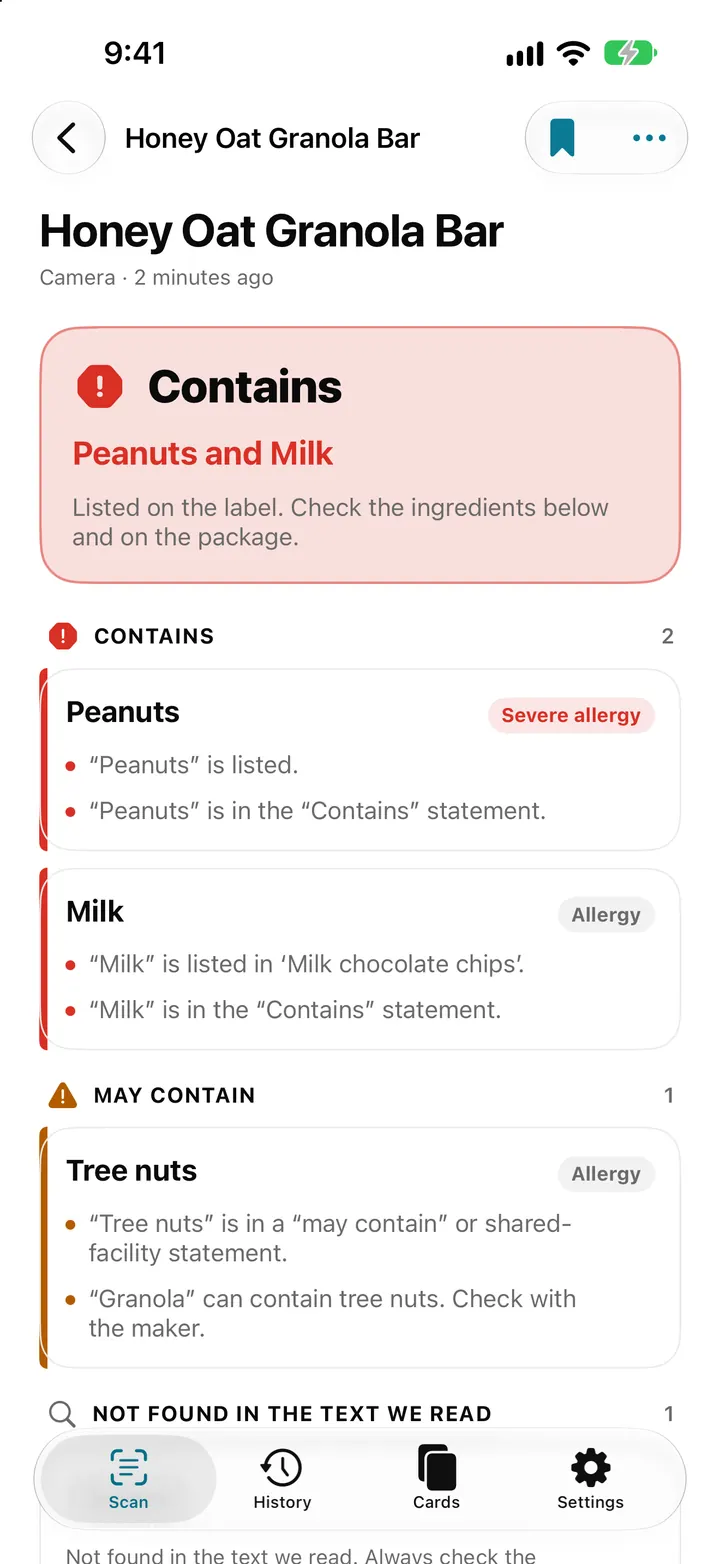
Scan an ingredient label with your iPhone: how AllergenLens checks it
Point your iPhone at an ingredient list and AllergenLens shows Contains, May contain or what it couldn't read for your allergies and diet, all on the device.
ReadContains, May contain, Couldn't read clearly: AllergenLens results explained
What each of the four AllergenLens result states means, how the card at the top is chosen, and what the app tells you when part of a label couldn't be read.
Read
Camera, flashlight, photo import and typed text in AllergenLens
Live preview chips, tap to focus, focus lock, the flashlight, blurry photo warnings, photo import and typed text: every way to get a label into AllergenLens.
ReadHow to Photograph an Ingredient List Clearly
Improve AllergenLens ingredient and warning photos with better light, angle, overlapping sections, coverage and source review.
Read guide