Camera, flashlight, photo import and typed text in AllergenLens
Live preview chips, tap to focus, focus lock, the flashlight, blurry photo warnings, photo import and typed text: every way to get a label into AllergenLens.
Short answer
AllergenLens can read a label three ways: the live camera, a photo you already have, or text you type or paste. The live camera shows preview chips as it spots words from your profile, and the still camera lets you tap to focus, lock focus and exposure, and turn on the flashlight. If a photo looks blurry or too dark, the app says so before checking it, so you can retake it.
A result is only as good as the text the app could read. AllergenLens gives you several ways to get a clean read of an ingredient list, and it tells you when the input is the problem instead of guessing.
Three ways in from the Scan tab
The Scan tab opens with Scan the ingredient list. and a large Scan a label button (Point the camera at the ingredients). Under it are Photo and Type text. The Checking for row shows whose profile the scan is checked against.
| Start with | Best for |
|---|---|
| Scan a label | Holding the pack in a shop. Live camera with preview chips. |
| Photo | A picture you took earlier, a screenshot, or one someone sent you. |
| Type text | A list on a website or in a message, or print too damaged to photograph. |
All three are free, unlimited and checked the same way.
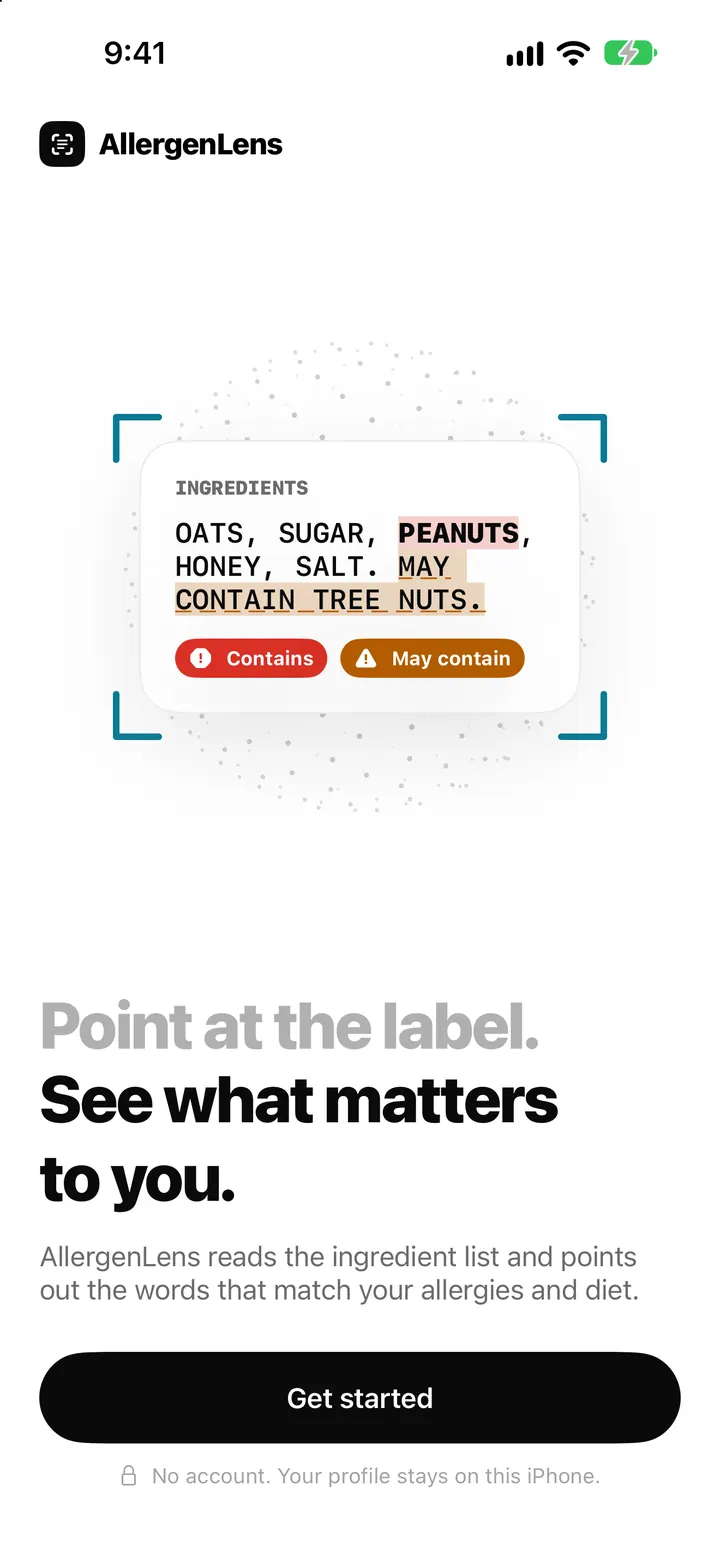
The live camera and its preview chips
Scan a label opens a live text scanner. Pinch to zoom on small print. The hint at the bottom follows what you are doing: Point at the ingredient list., then Find the word “Ingredients” and fit the whole list in the frame., and finally Ingredient list in view. Include the whole list, then tap. The scanner recognises the ingredient heading in several languages, such as Zutaten or Ingrédients.
While you aim, a small panel tagged Preview says Seen so far. Tap to check the whole list. Chips appear as the camera spots words from your profile, for example peanuts · Contains or tree nuts · May contain. The preview never says Not found or Unclear. It only shows the camera is on the right part of the pack. The real check happens when you tap Read label and the whole list is read at once.
If the camera reads no text at all, you get Couldn't read any text with Try again or Choose photo, plus the tip to hold the label flat, fill the frame and add more light. Along the top of the scanner are Close, Flashlight (on iPhones with a torch), a camera button that opens the still camera, and Choose photo.
The still camera: focus, lock and flashlight
On a shiny wrapper or a curved jar, the still camera gives you more control. It opens from the camera button in the live scanner, and on iPhones that can't run the live scanner it is what Scan a label opens. It prefers close focus, which suits small print.
- Tap to focus on the ingredient list.
- Touch and hold to lock focus and exposure. A yellow Focus and exposure locked pill appears, and the lock button turns on.
- Flashlight lights a dim aisle or the back of a cupboard. It turns off when the scanner closes.
- Take photo with the shutter, or press a volume button. VoiceOver users hear Photo taken.
Get a sharp photo of a hard label
- Open Scan and tap Scan a label, then tap the camera button at the top to open the still camera.
- Hold the pack flat and fill the frame with the ingredient list, including any Contains or May contain lines.
- Tap the list to focus, then touch and hold to lock focus and exposure.
- Turn on Flashlight if the light is poor. Tilt the pack if the flash causes glare.
- Tap Take photo or press a volume button.
- If a quality warning appears, tap Retake. Only tap Use this photo if you plan to check the words yourself.
Blurry and dark photo warnings
Before a photo is checked, AllergenLens looks at its sharpness and brightness. If it falls short you see Photo looks blurry, Photo looks too dark or Photo looks dark and blurry. The message starts with Words in this photo may be misread or missed. and adds a fix: Move to better light or turn on the flashlight., or wipe the lens, hold steady and fill the frame. You choose Retake or Use this photo. Photos you import get the same check.
If no text turns up at all, the app shows No text found and suggests a sharp, well-lit photo where the ingredient list fills most of the picture. A list that runs onto another side of the pack is a job for Add photo, covered in long and curved labels.
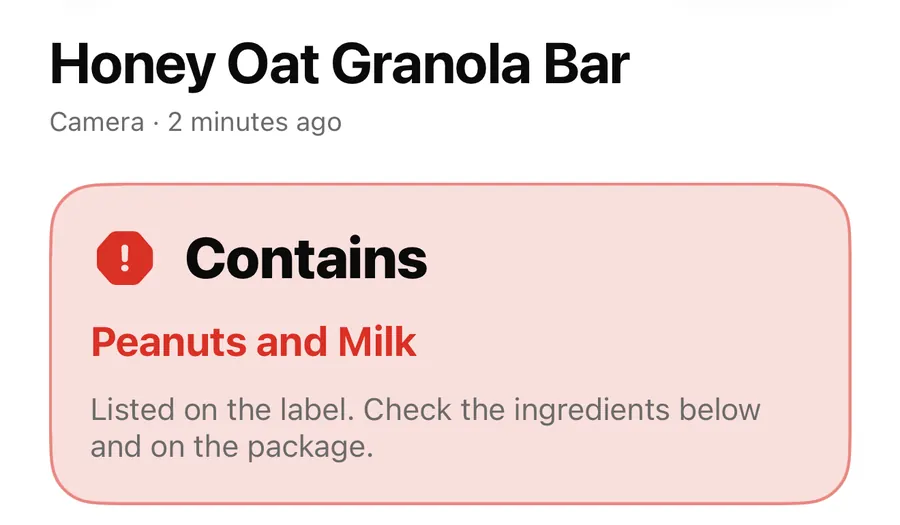
Importing a photo
Tap Photo on the Scan tab, or Choose photo inside the camera, and pick a picture from your library. It is checked like a live scan, with the same blurry and dark warnings.
If the photo shows only the barcode of a product you kept earlier, AllergenLens opens that product instead of asking for the ingredients. In the live scanner, a kept product's barcode brings up a Saved product or Scanned before card with Open. See scan history and saved products.
Typing or pasting the list
Type text opens a sheet where you paste or type the ingredient list exactly as it's written on the label, including any “Contains” or “May contain” lines. Then tap Check ingredients. Typed text skips the camera, so there is nothing to misread, but any typo you make is checked as typed.
When the camera isn't available
AllergenLens always leaves you a way forward:
- The camera couldn't start. The still camera says The camera couldn't start. Choose a photo of the label instead. and offers Choose photo.
- Camera access is off. You can open Settings to allow the camera, or choose a photo instead.
FAQ
Why does my iPhone open a still camera instead of the live scanner?
Some iPhones can't run the live text scanner. On those, Scan a label opens the still camera, which has tap to focus, focus lock and the flashlight.
What should I do when the photo looks blurry?
Tap Retake, wipe the lens, hold steady and fill the frame. Touch and hold to lock focus on a shiny label. More tips are in the label photo guide.
Do I need an internet connection to scan?
No. Text recognition and the allergen check run on your iPhone. If something else doesn't work, see support.
Download AllergenLens and try it on the next label in your cupboard.
Keep reading
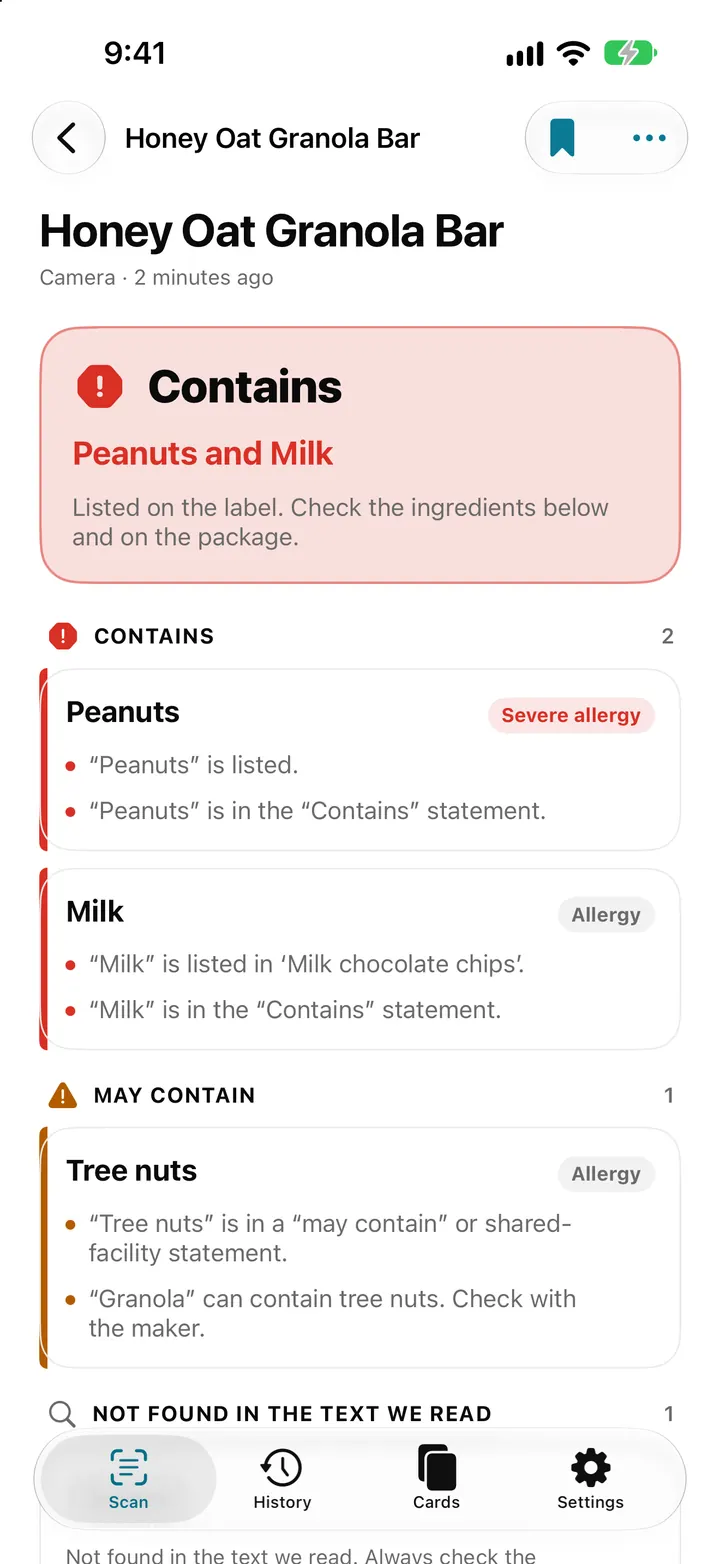
Scan an ingredient label with your iPhone: how AllergenLens checks it
Point your iPhone at an ingredient list and AllergenLens shows Contains, May contain or what it couldn't read for your allergies and diet, all on the device.
Read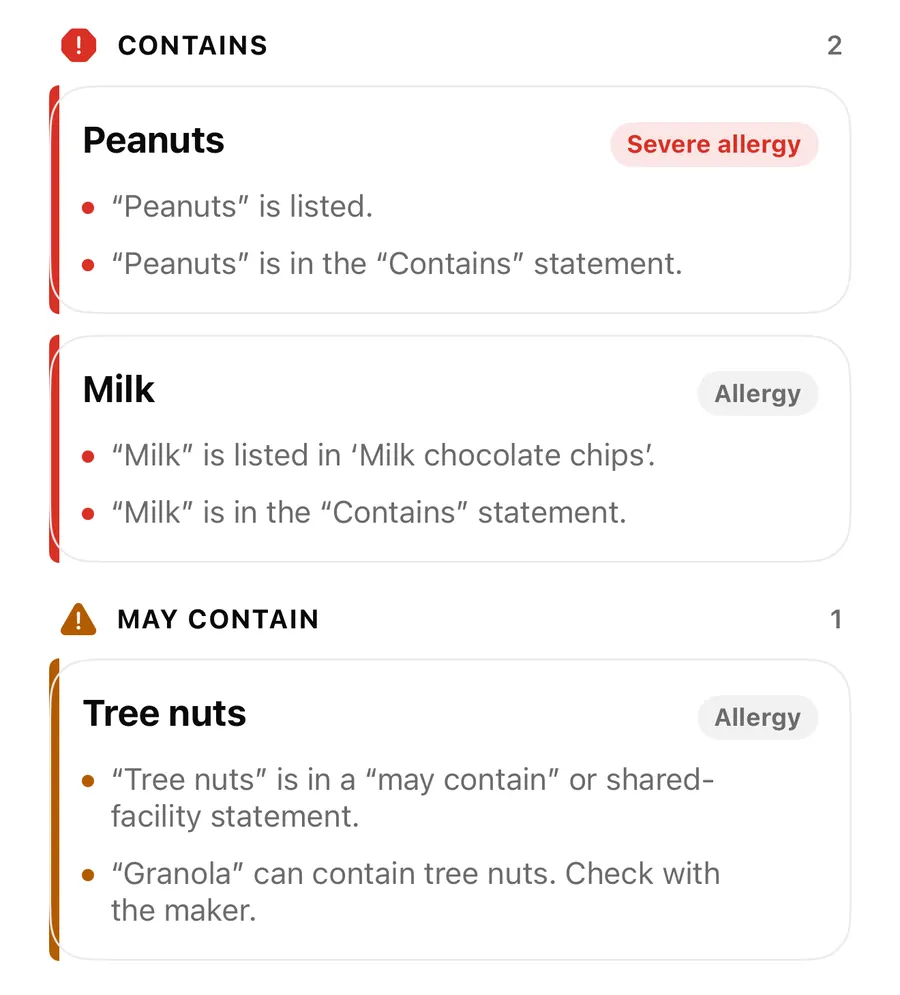
Long and curved labels: check one ingredient list from several photos
When an ingredient list wraps around a bottle or runs onto another side of the pack, add photos in AllergenLens and it checks all of them together as one list.
Read
See every match on the label: highlights, Show on photo and Read aloud
AllergenLens marks each match in the text it read and on your label photo, so you can check it against the pack, then save a snapshot or hear it read aloud.
ReadHow to Photograph an Ingredient List Clearly
Improve AllergenLens ingredient and warning photos with better light, angle, overlapping sections, coverage and source review.
Read guide