Allergy card extras: a note for staff, image and PDF export, and a widget
Add a note for staff in your own words, export your AllergenLens allergy card as an image or PDF, keep it on your iPhone and open it from a Home Screen widget.
Short answer
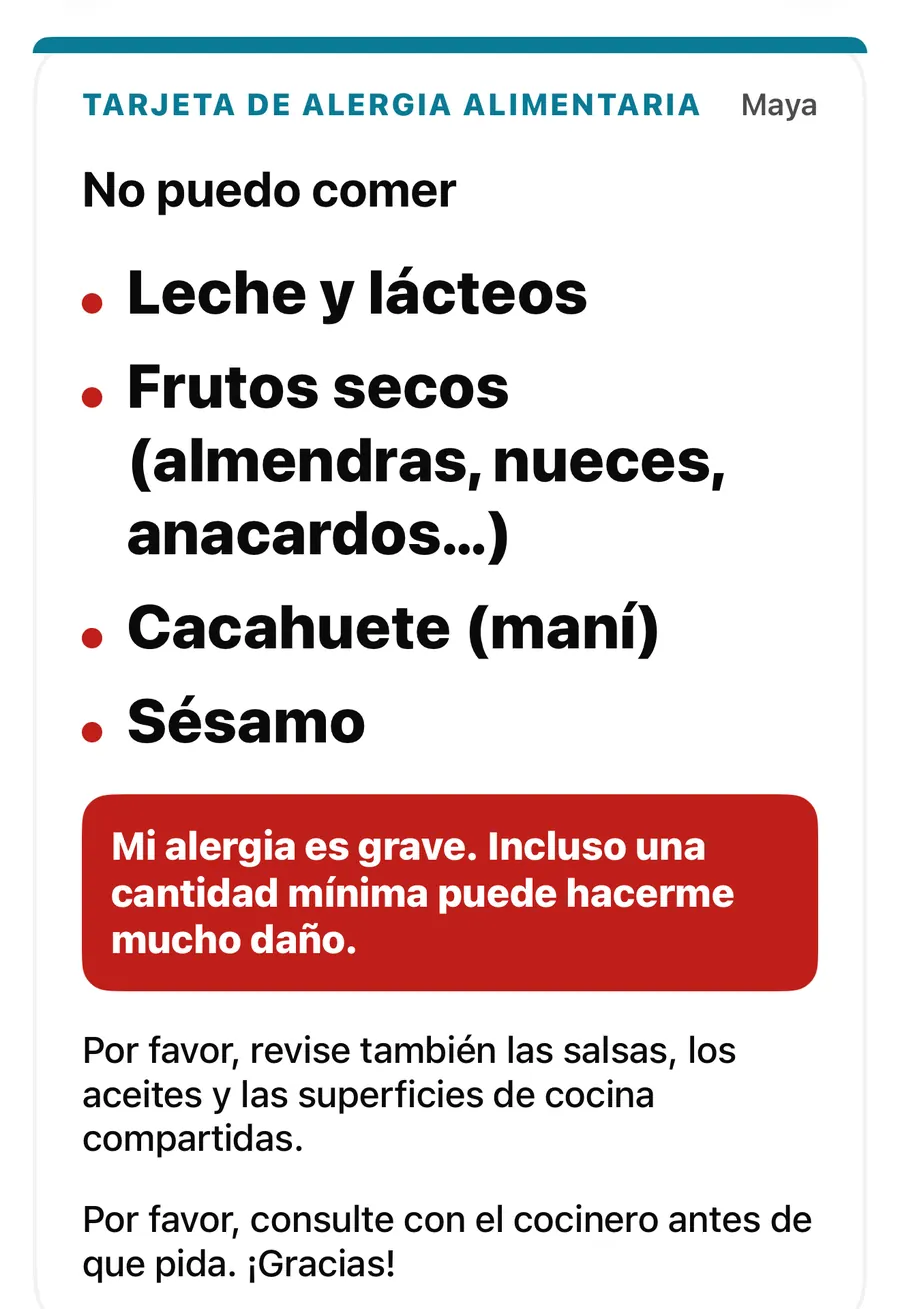
On the full-screen allergy card you can add a Note for staff in your own words and, if you like, translate it on your iPhone; translations are marked as machine-translated and not reviewed. The card itself can be shared as an image or a PDF, or saved on your iPhone. A Home Screen widget shows your card's main lines and opens it full screen with one tap. All of this is part of AllergenLens Plus.
The travel allergy card uses fixed, checked phrases in 9 languages. That covers the allergens and diets on your profile, but sometimes you need to say one more thing, or you want the card somewhere other than the app. These extras in AllergenLens handle both, without an account and without uploading anything.
A note for staff in your own words
Open a card full screen and scroll below it to Note for staff. Type into Add a note in your own words, for example that you carry an adrenaline pen, or that a dish was a problem last time. The note is kept with that person's profile, so it is there the next time you open their card, in any language. It can be up to 300 characters, enough for a sentence or two.
The note sits under the card on your screen. It isn't part of the card itself, so it doesn't appear in an exported image or PDF, on the widget, or when you tap Speak.
Translating the note
If your note is in a different language from the card, a Translate note button appears. The translation uses Apple's Translation on your iPhone, not a server. The first time you translate into a language, iOS may ask to download it (The first translation downloads the language to this iPhone).
The result appears in a white panel marked Machine-translated, not reviewed, with your original underneath (Original: …) and the reminder Machine translations can be wrong. Confirm your order with staff. Nothing is kept until you choose:
- Keep translation saves it for that card language.
- Discard throws it away.
- Once kept, Speak translation reads it aloud (when your iPhone has a voice for the language), and Remove translation deletes it.
If you change the note later, translations of the old wording are dropped, so a kept translation always matches what you wrote.
Add a note and translate it
- Open the Cards tab and tap the card to show it full screen.
- Scroll to Note for staff and type your note.
- Tap Translate note. Allow the language download if iOS asks.
- Read the panel, then tap Keep translation or Discard.
- Show the card and the note to staff, and confirm your order with them.
Export the card as an image or PDF
On the Cards tab, three buttons sit under the card: Image, PDF and Save. On the full-screen card, the share button in the top corner offers Share as image, Share as PDF and Save to this iPhone.
| Option | What you get | Good for |
|---|---|---|
| Image | A sharp picture of the card | Sending in a message, or keeping in Photos |
| The card on a US Letter page | Printing, or emailing to a hotel or tour group ahead of a trip | |
| Save | A picture kept inside AllergenLens | Showing it later even when you'd rather not use the live card |
Image and PDF open the iOS share sheet, so you choose where the file goes. The exported card is always drawn at the standard size and in the same light colours, whatever your phone's settings.
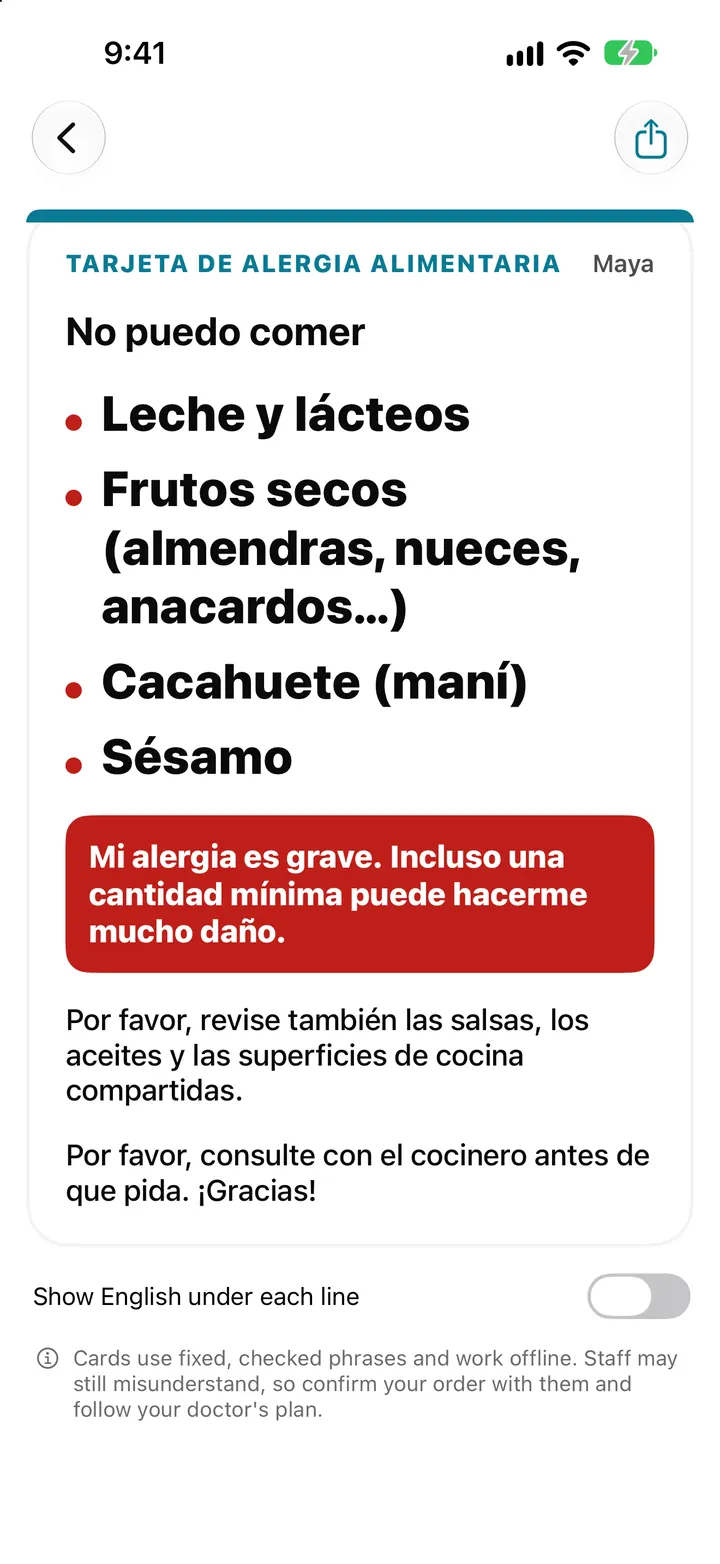
Saved cards appear under Saved on this iPhone on the Cards tab. Tap one to open it full screen, or delete it from there. They are kept on this iPhone only and are removed by Erase all data. A card file you have already sent elsewhere is a copy; it doesn't update if your profile changes later, so export a fresh one before each trip.
The allergy card widget
Add the Allergy card widget to your Home Screen in small or medium size. It shows the card language, the I can't eat line and the first lines of the card: three on the small widget, six on the medium, with + N more when there are others. A warning sign appears when something on the profile is marked severe, and the medium size adds the person's name. Tap it and the card opens full screen.
The widget uses the active profile and the language picked on the Cards tab, and it updates when you change the profile or the card language. Because a profile is health information, the widget's words are marked as private, so iOS hides them while your iPhone is locked. Without Plus, the widget says Allergy cards are part of AllergenLens Plus.
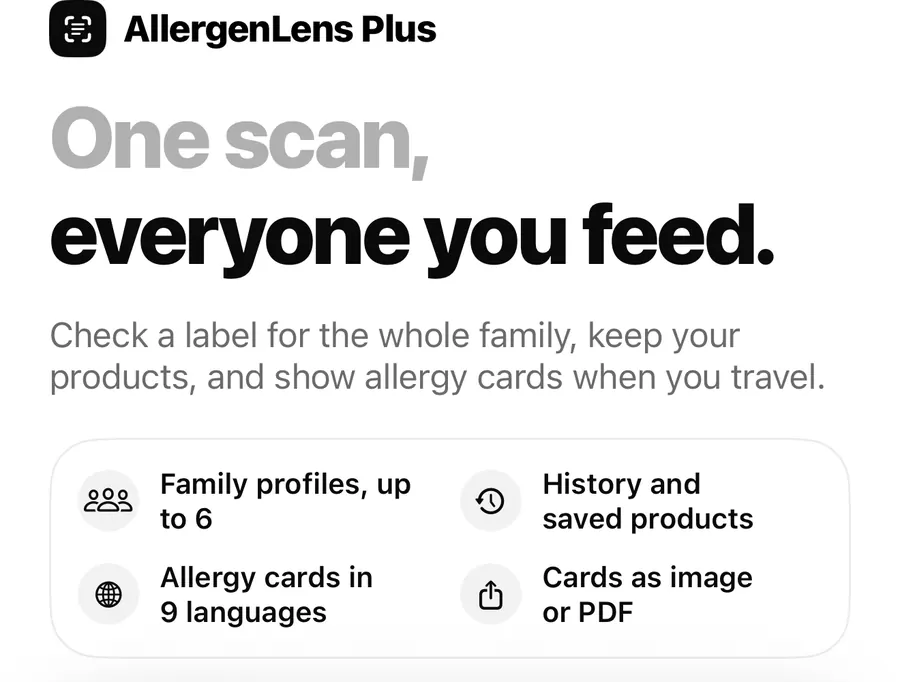
With family profiles you can switch who the card is for under Card for, then export or save a card for each person. More in Whole family mode, and ways to open the card from Siri or Shortcuts are in Shortcuts, Visual Intelligence and widgets.
FAQ
Is my note sent anywhere to be translated?
No. Translate note uses Apple's Translation on your iPhone. iOS may download the language once the first time.
Does the PDF include my note for staff?
No. The image and PDF contain the card itself: the allergens, your own ingredients, diets, the severe line and the closing requests.
Can I print the card?
Yes. Share it as a PDF and print from the share sheet, or send it to a computer and print from there.
Why does the widget look blank on my lock screen?
The card's words are marked private, so iOS hides them while the iPhone is locked. Unlock to see them.
Download AllergenLens and keep your allergy card a tap away.
Keep reading
Travel allergy card on your iPhone: show staff what you can't eat
AllergenLens turns your allergy profile into a full-screen card in 9 languages that works offline, so you can show restaurant staff what you can't eat abroad.
Read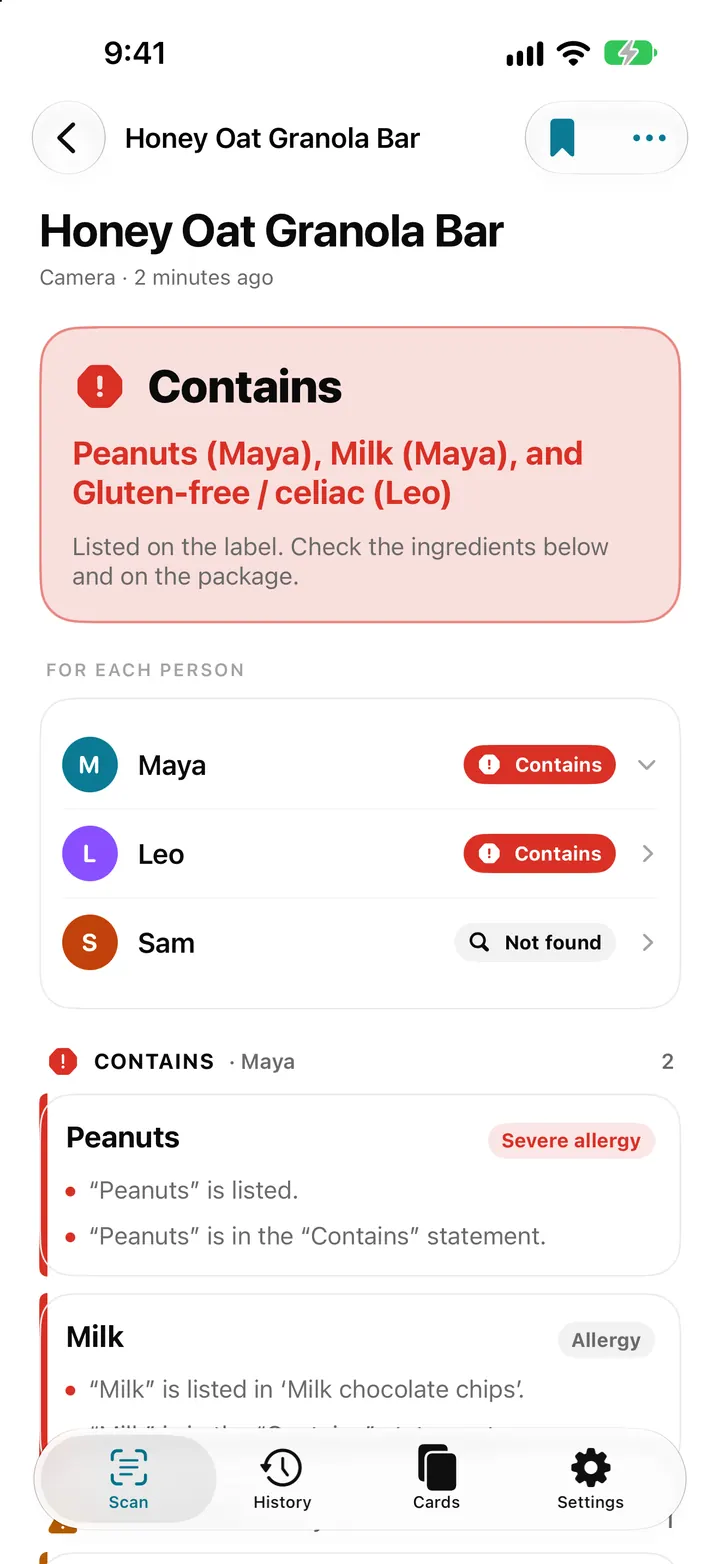
Whole family mode: check one label for everyone in AllergenLens
With AllergenLens Plus, keep up to 6 family profiles and check every scan for the whole family at once, with a separate result for each person you shop for.
ReadAllergenLens with Siri, Shortcuts, Visual Intelligence and a widget
Start a label scan with Siri, check copied ingredient text in Shortcuts, send a picture from Visual Intelligence and keep your allergy card on the Home Screen.
ReadExporting an AllergenLens travel card as an image or PDF
Review, export and save an AllergenLens travel card as an image or PDF for quick use while traveling.
Read guide