Travel allergy card on your iPhone: show staff what you can't eat
AllergenLens turns your allergy profile into a full-screen card in 9 languages that works offline, so you can show restaurant staff what you can't eat abroad.
Short answer
AllergenLens builds an allergy card from your profile: what you can't eat, any diet you follow and, if you marked an allergy as severe, a line saying even a tiny amount can make you very ill. You pick one of 9 languages, open the card full screen and hand the phone across the table. The phrases are fixed and checked, and the card works offline. Staff can still misunderstand, so confirm your order with them.
Explaining an allergy in a language you don't speak is stressful, and a translation app can turn "no peanuts" into something odd. AllergenLens takes a different approach: the card is built from short phrases that ship inside the app, filled in with the allergens and diets already on your profile. Nothing is translated on the fly, and nothing needs a signal. Travel cards are part of AllergenLens Plus; free users see a preview.
What the card says
Every card follows the same order, in the language you picked:
| Part of the card | What it shows |
|---|---|
| Title and name | Food allergy card in the card language, with the person's name |
| I can't eat | Each allergen on the profile, in large bold type |
| Also | Your own ingredients, such as kiwi or cilantro, exactly as you typed them |
| Diets | A sentence for each diet, for example vegan or gluten-free |
| Severe line | A red box that appears when anything on the profile is marked severe |
| Closing lines | A request to check sauces, oils and shared cooking surfaces, and to check with the chef before you order |
Your own ingredients are not translated. They appear as you wrote them, because no one has checked a translation of them. If staff may not read your language, add a short word they will know, or show a picture.
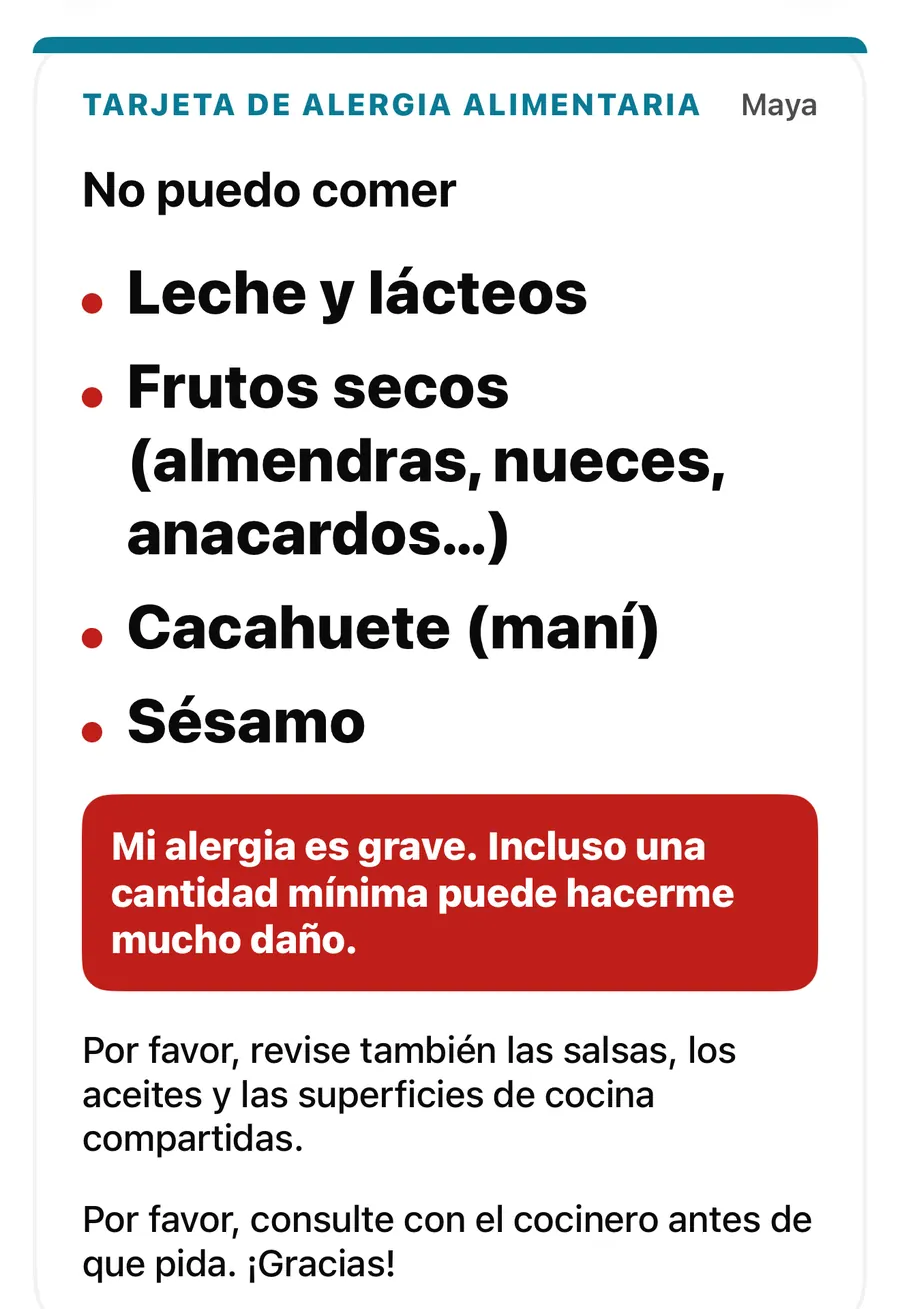
The card is always white with dark text, so it reads well across a table in a dim restaurant, and it grows with your iPhone's text size, up to about a third larger.
Languages
The Language list on the Cards tab offers 9 languages: English, Spanish, French, Italian, German, Portuguese, Japanese, Chinese (Simplified) and Korean. Each one shows its own name (Español, Français, 日本語) with the name in your language under it. The language you pick is remembered for next time.
When a card is open in another language, turn on Show English under each line. The English appears in small print under each phrase, so you can check what the card says before you show it.
Show your allergy card at a restaurant
- Open the Cards tab. If you check for more than one person, pick who the card is for under Card for.
- Under Language, pick the language the staff speak.
- Tap the card to open it full screen. The screen stays on while the card is open.
- Optionally turn on Show English under each line and read it through.
- Hand the phone to the server, or tap Speak to have the card read aloud.
- Confirm your order with the staff before you eat.
Read aloud
The full-screen card has a Speak button when your iPhone has a voice installed for the card's language. It reads the card's fixed phrases in order, and plays even with the Ring/Silent switch on silent. It never reads your own ingredients, since they aren't in the card's language. If there is no voice for that language on your iPhone, the button doesn't appear; the app doesn't fall back to another language's voice.
Offline, by design
The phrases ship inside the app, so the card opens in airplane mode, in a basement food court or on a ferry. That also means there is nothing to download before a trip. Set up your profile at home, open the card once in the language you need, and it will be there when you arrive. Cards you open, share or save show up under Recent cards for one tap next time.
You can also open a card without going into the app. Ask Siri to Show my allergy card in AllergenLens, or use the Show allergy card shortcut, which can name the person and the language. A Home Screen widget is covered in card notes, PDF and the widget.
Cards and shopping abroad
A card helps you talk to people. It doesn't read anything. In a foreign supermarket you still scan the pack, and AllergenLens tells you when part of a label is in a language it can't read yet. See foreign-language labels for how that works, and our guide on why a travel card doesn't replace talking with a restaurant.
FAQ
Does the travel card need an internet connection?
No. The phrases are stored in the app, so the card opens and can be read aloud without a signal, as long as your iPhone has a voice for that language.
Which languages can the card show?
English, Spanish, French, Italian, German, Portuguese, Japanese, Chinese (Simplified) and Korean.
Can I make a card for my child or partner?
Yes, with family profiles in AllergenLens Plus. Pick the person under Card for and the card uses their profile and name.
Is the card machine-translated?
No. The card uses fixed phrases that ship with the app. Only an optional note you write yourself can be machine-translated, and it is labelled that way.
Download AllergenLens and set up your card before your next trip.
Keep reading
Allergy card extras: a note for staff, image and PDF export, and a widget
Add a note for staff in your own words, export your AllergenLens allergy card as an image or PDF, keep it on your iPhone and open it from a Home Screen widget.
Read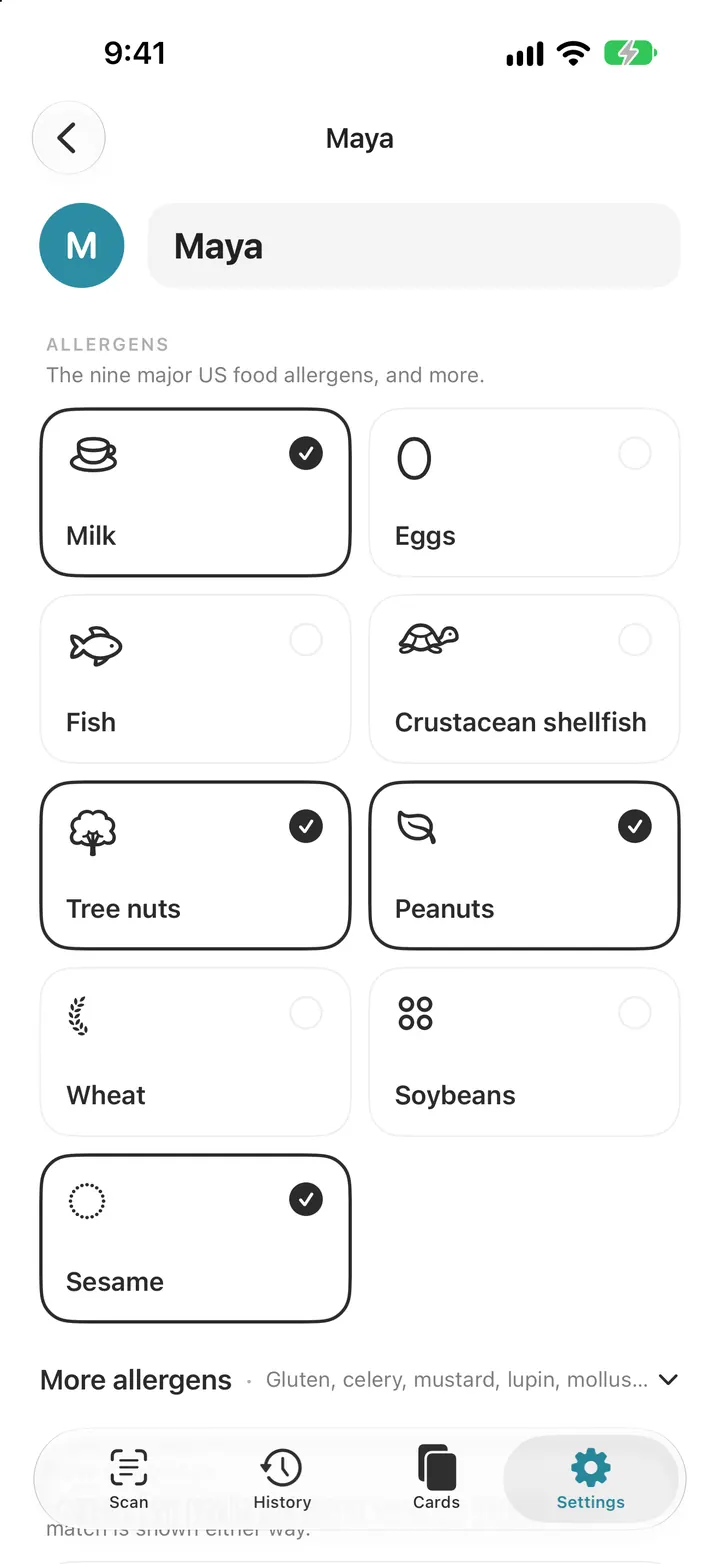
Set up your allergy profile: 14 allergens, diets and your own ingredients
Pick from the FDA nine and EU fourteen allergens, add a diet, set how strongly you react and add your own ingredients. Every AllergenLens scan checks this list.
Read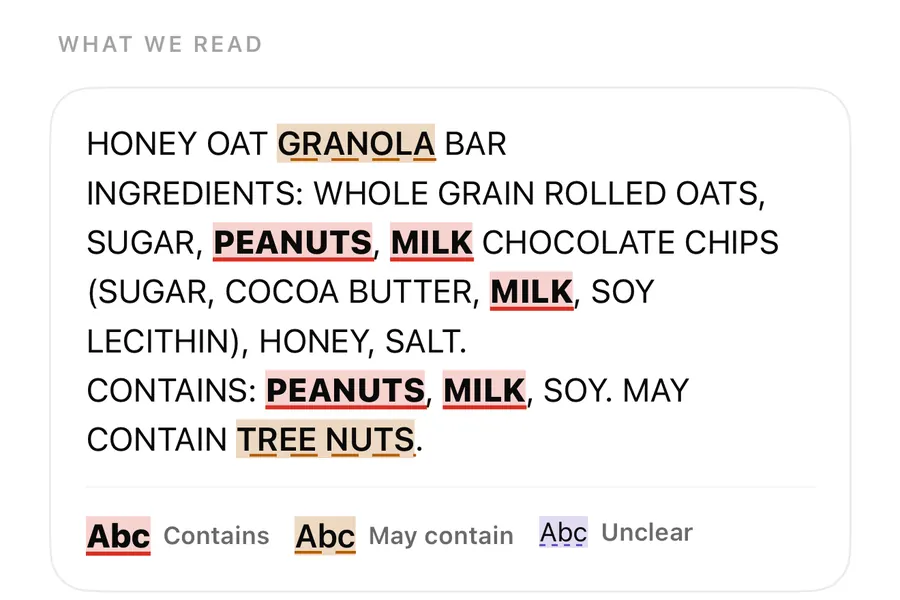
Foreign-language ingredient labels: which languages AllergenLens reads
AllergenLens reads ingredient lists in nine European languages, matches allergen names from all of them, and tells you when part of a label was skipped.
ReadWhy a travel card does not replace talking with a restaurant
Use an AllergenLens travel card to support communication, then confirm ingredients, preparation and cross-contact with the restaurant.
Read guide