AllergenLens with Siri, Shortcuts, Visual Intelligence and a widget
Start a label scan with Siri, check copied ingredient text in Shortcuts, send a picture from Visual Intelligence and keep your allergy card on the Home Screen.
Short answer
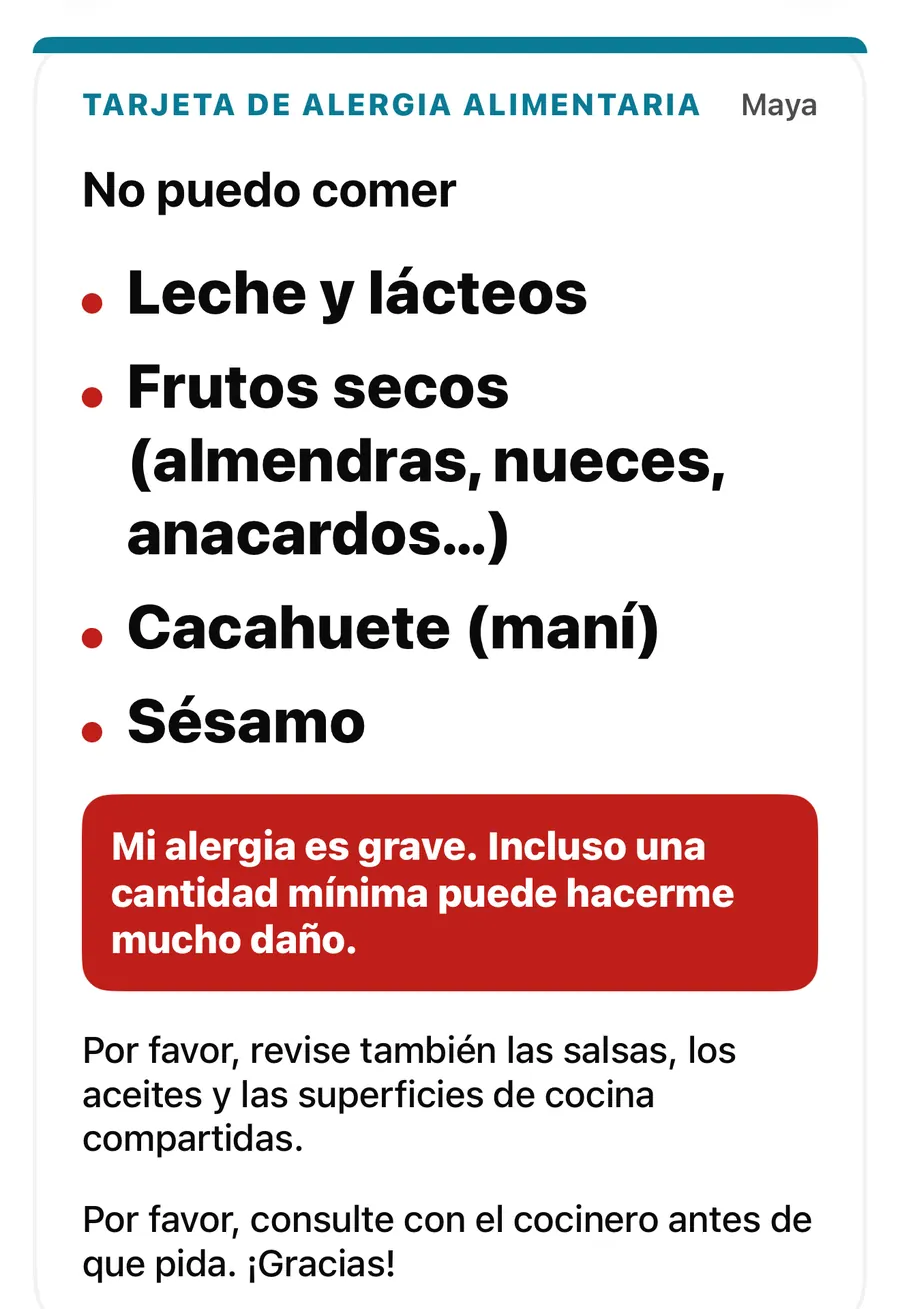
AllergenLens adds two Siri phrases (Scan label and Show allergy card), a Check ingredients action for the Shortcuts app that checks copied text against your profile, a Check ingredients option in Visual Intelligence on iOS 26, and an Allergy card widget for the Home Screen. Saved products also show up in Spotlight. The card and widget need AllergenLens Plus; the rest is free.
The fastest scan is the one you don't have to dig for. AllergenLens hooks into the parts of iOS you already use, so you can open the camera with your voice, check ingredients from a shop's website without switching apps, or have your allergy card ready the moment you sit down in a restaurant. Each one opens the same screens and the same checks as the app itself.
Siri and App Shortcuts
AllergenLens comes with two shortcuts that work as soon as the app is set up, with nothing to configure:
| Shortcut | Say | What it does |
|---|---|---|
| Scan label | Scan label with AllergenLens or Check ingredients with AllergenLens | Opens the camera on the Scan tab, ready to read the ingredient list. |
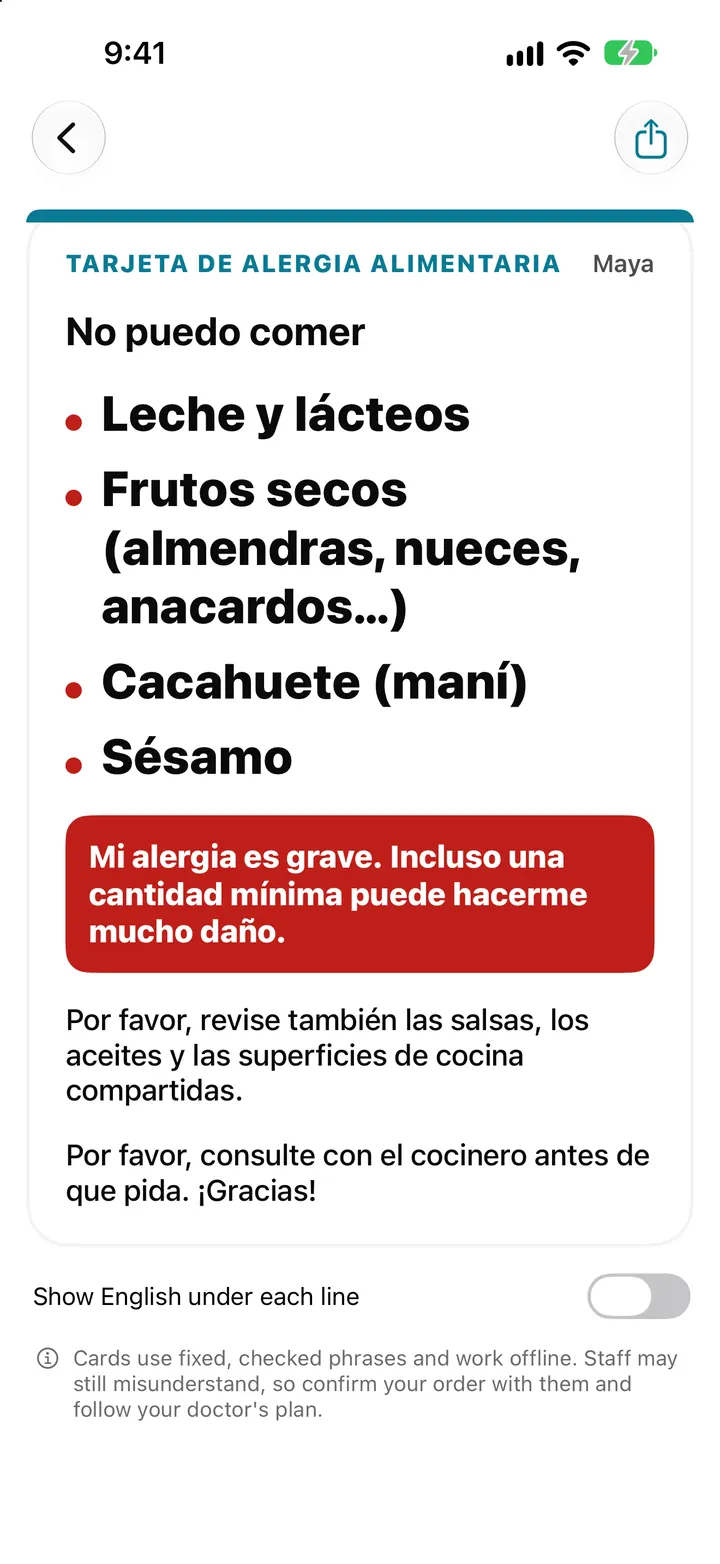
| Show allergy card | Show my allergy card in AllergenLens or Show Maya's allergy card in AllergenLens | Opens a travel allergy card full screen. You can pick the person and the card language. |
Siri follows the profile names on your iPhone, so if you check for a child called Leo, Show Leo's allergy card in AllergenLens works. Both shortcuts also appear in Spotlight and the Shortcuts app, and on iPhones with an Action button you can assign one to it in the iPhone's Settings. Nothing opens before onboarding is finished.
Check ingredients from another app
The Check ingredients action in the Shortcuts app takes ingredient text (from a shop's website, a recipe page or a message) and checks it against your profile without opening AllergenLens. The answer comes back in the result screen's words: for example Contains with the allergens it named, or the reminder that nothing was found in the text. It always ends with From text you shared. The pack may differ, so check the label when it arrives.
Build a share-sheet ingredient check
- Open the Shortcuts app and create a new shortcut.
- Add the Check ingredients action from AllergenLens.
- Set the shortcut to receive text from the share sheet, and pass that text to Check ingredients.
- On a product page, select the ingredient list, tap Share and pick your shortcut.
- Read the answer, then check the real label when the product arrives.
This action is free, like Type text in the app. It checks the person you are currently checking for; checking the whole family at once needs Plus and happens in the app. If no profile has been set up yet, it says Open AllergenLens to set up your profile first. Our guide on checking labels when buying food online covers why the website list and the pack can differ.
Visual Intelligence
On iPhones with Visual Intelligence and iOS 26, you can point the camera at a label, or take a screenshot of one, and choose AllergenLens. It offers Check ingredients, with the line Read this label in AllergenLens. Tap it and the app opens and reads the picture like a photo from your library, then shows the normal result with its reasons and reminder.
Visual Intelligence never shows a result on its own. The search result says nothing about the product or who it concerns; you always see the answer inside the app, next to the reasons behind it. The picture is kept briefly in the app's temporary folder until it is read, then deleted, and it never leaves your iPhone.
The Allergy card widget
The Allergy card widget puts your card on the Home Screen: Your allergy card, one tap from full screen. It comes in small and medium sizes and shows the card's language, the I can't eat line in that language, the items on the card, a warning sign for a severe allergy, and + N more when the list is long. The medium size also shows the person's name. Tap it and the card opens full screen.
The widget follows the person and card language you picked on the Cards tab, and updates whenever you change your profile, the language or your plan. Allergy cards are part of AllergenLens Plus, so without Plus the widget says Allergy cards are part of AllergenLens Plus. More about the card itself in the travel allergy card post, and about notes, PDFs and the widget in card notes, export and widget.
Saved products in Spotlight
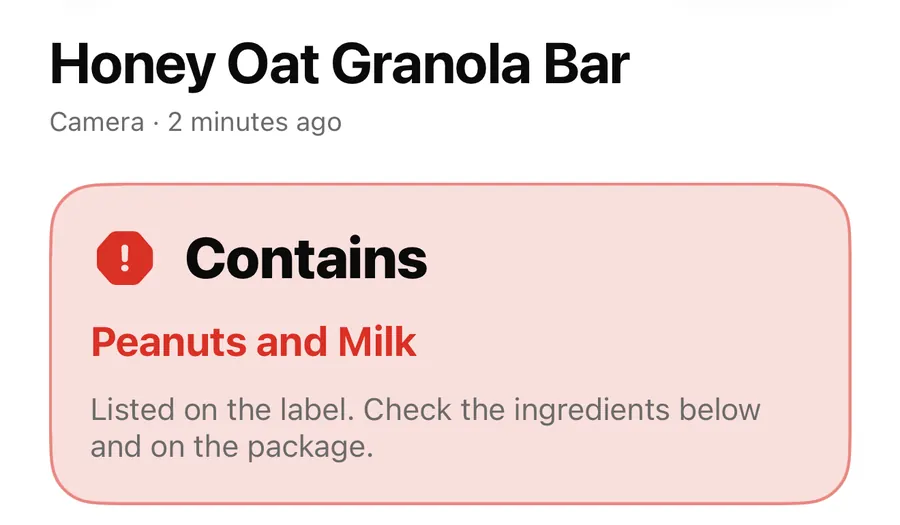
If you save products with Plus, their names appear in iPhone Search. Type granola on the Home Screen and the saved Honey Oat Granola Bar shows up with the day it was scanned; tap it to open its result in History. Only the product name and scan date are indexed. No result, allergen or person goes into Spotlight, and the index stays on your iPhone.
FAQ
Can Siri tell me whether a product contains my allergen?
Siri can open the scanner for you with Scan label with AllergenLens. The Check ingredients action in Shortcuts can check copied text and read back the answer, but for a pack in your hand, scan the label in the app so you can see the reasons.
Does Check ingredients check the whole family?
No. It checks the person you are currently checking for. Whole family checks happen in the app and need AllergenLens Plus.
Why does my widget say Allergy cards are part of AllergenLens Plus?
Travel allergy cards, and the widget that shows them, are Plus features. The free version shows a preview of the card on the Cards tab.
Does Visual Intelligence send my label to AllergenLens servers?
No. There is no AllergenLens server. The picture is handed to the app on your iPhone, read there and then deleted.
Download AllergenLens and put your next scan one phrase away.
Keep reading
Scan an ingredient label with your iPhone: how AllergenLens checks it
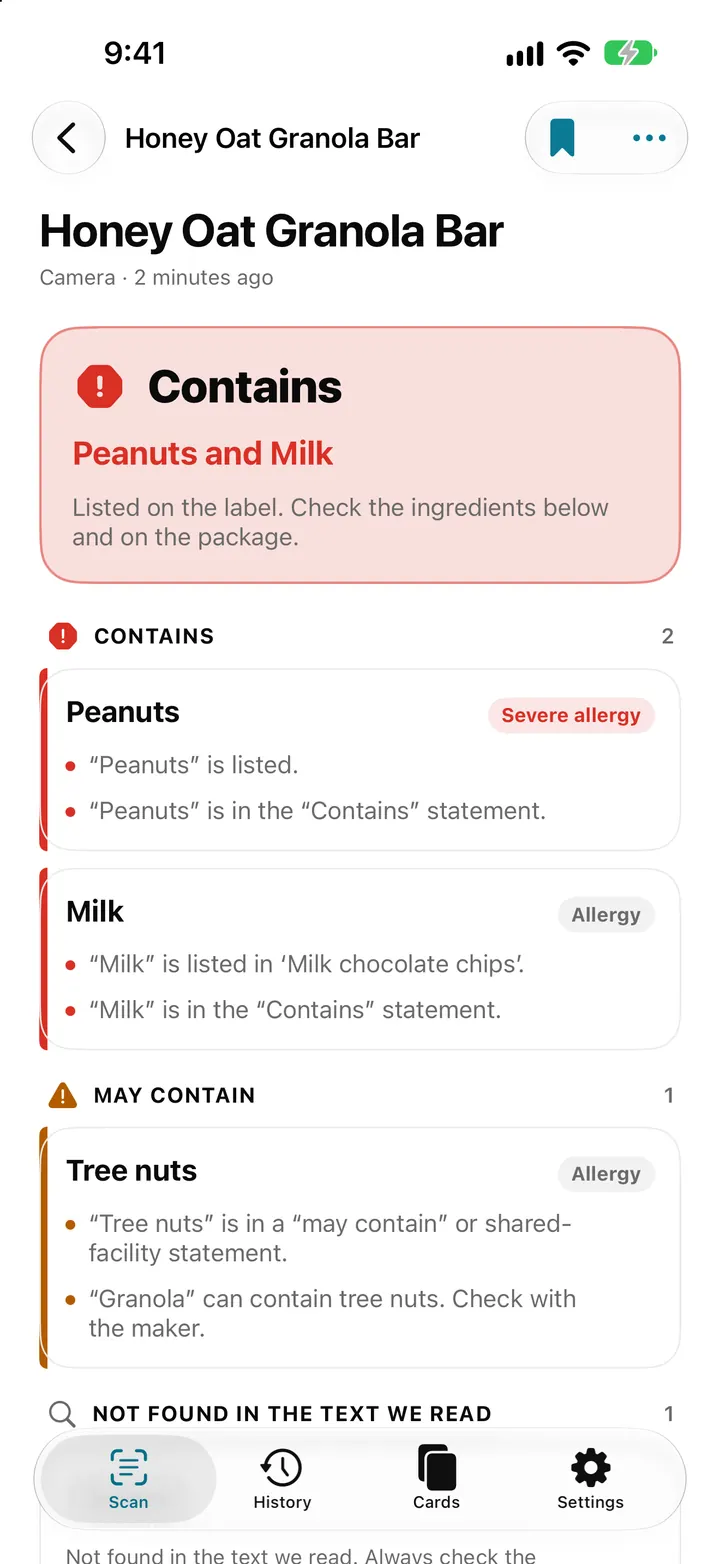
Point your iPhone at an ingredient list and AllergenLens shows Contains, May contain or what it couldn't read for your allergies and diet, all on the device.
ReadTravel allergy card on your iPhone: show staff what you can't eat
AllergenLens turns your allergy profile into a full-screen card in 9 languages that works offline, so you can show restaurant staff what you can't eat abroad.
ReadAllergy card extras: a note for staff, image and PDF export, and a widget
Add a note for staff in your own words, export your AllergenLens allergy card as an image or PDF, keep it on your iPhone and open it from a Home Screen widget.
ReadHow to Check Labels When Buying Food Online
A checklist for online food labels: product version, market, ingredients, coverage and manufacturer confirmation.
Read guide